Update Audit Results
The outcomes of audits must be recorded and discussed with the auditee(s). During this discussion, the achievable dates for rectifying any discrepancies must be agreed upon. It is the responsibility of the auditee to take timely action on the audit findings. Follow-up audits may be required, and they must follow the same process as described in this procedure.
Element Classification
Audit findings shall be classified into six following categories.
Conformance – this classification indicates the item meets or complies with requirements.
Major Non-Conformance – this classification indicates the system or requirement has not been effectively implemented and that there is a high probability of adverse effects on product quality or the quality management system.
Minor Non-Conformance – this classification indicates a minor lapse in the quality management system where it is evident that the system or requirement has been established, and, for the most part, implemented correctly, and there is a low probability of adverse effect on product quality or the quality management system.
Observation – refers to a situation or area where there is a deviation or gap from established standards, processes or procedures but which does not have a significant impact on the overall effectiveness or compliance of the system being audited. An observation may require corrective action or improvement but is not considered a critical finding that requires immediate attention or reporting to higher authorities. Instead, it is typically used as a means of identifying areas for improvement and to help prevent more serious deficiencies from arising in the future.
Opportunity for Improvement – a situation where the evidence presented indicates a requirement has been effectively implemented, but based on auditor experience and knowledge, additional effectiveness or robustness might be possible with a modified approach.
N/A – Not Applicable: The audit question or item on the checklist does not apply to the audit or auditee.
Based on answers and verifications received from the auditee, you need to select classifications associated with each question. To do that, simply click on the element you want to update and click on the Select one classification field.
Based on the selected classification, you will be required to fill in the information as applicable for each element. Below are steps to fill in the information for the finding classified as an Observation. Sections marked with * are mandatory to fill.
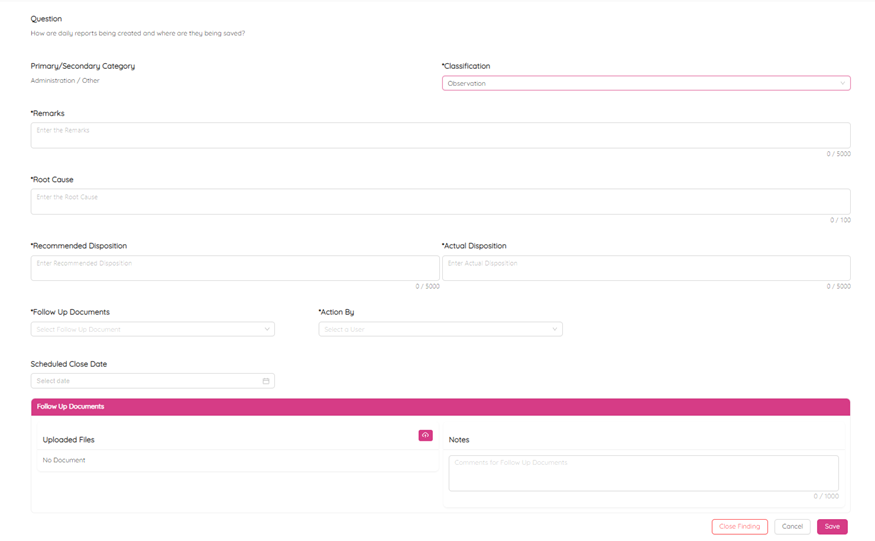
Remarks: This section described what is the finding.
Example: As per contract special provision XXXX NDT inspections for pile cap welding is required prior to Placing Modular Building on pile cap. Modular is placed on pile cap but NDT for pile cap weld yet to be performed.
Root Cause: This section is to describe identified root cause.
Example: Site personnel not aware of contract special provision. ITP was not communicated to site personnel.
Recommended Disposition: This section is to describe for what corrective actions or improvements are recommended to correct this finding.
Example: NDT to be performed for completed pile cap welds. ITP is prepared and available in Job folder. ITP to be communicated to site personnel for guideline and implement for technical requirements.
Actual Disposition: This section to be filled to describe what actions are agreed to correct findings.
Follow up Documents: Select appropriate follow up documents to verify corrective actions are completed to close finding from below available options.
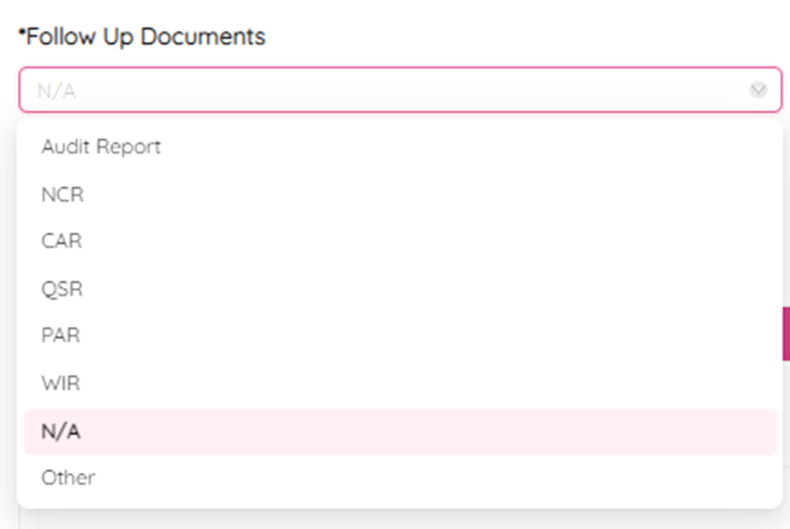
Action By: Select person who is assigned to take corrective action and provided follow up documents as required.
Scheduled Close Date: Select scheduled close date from calendar. Typically, within two weeks of finding date but could be longer as the case.
Click on Save to save the information.
Follow Up Documents
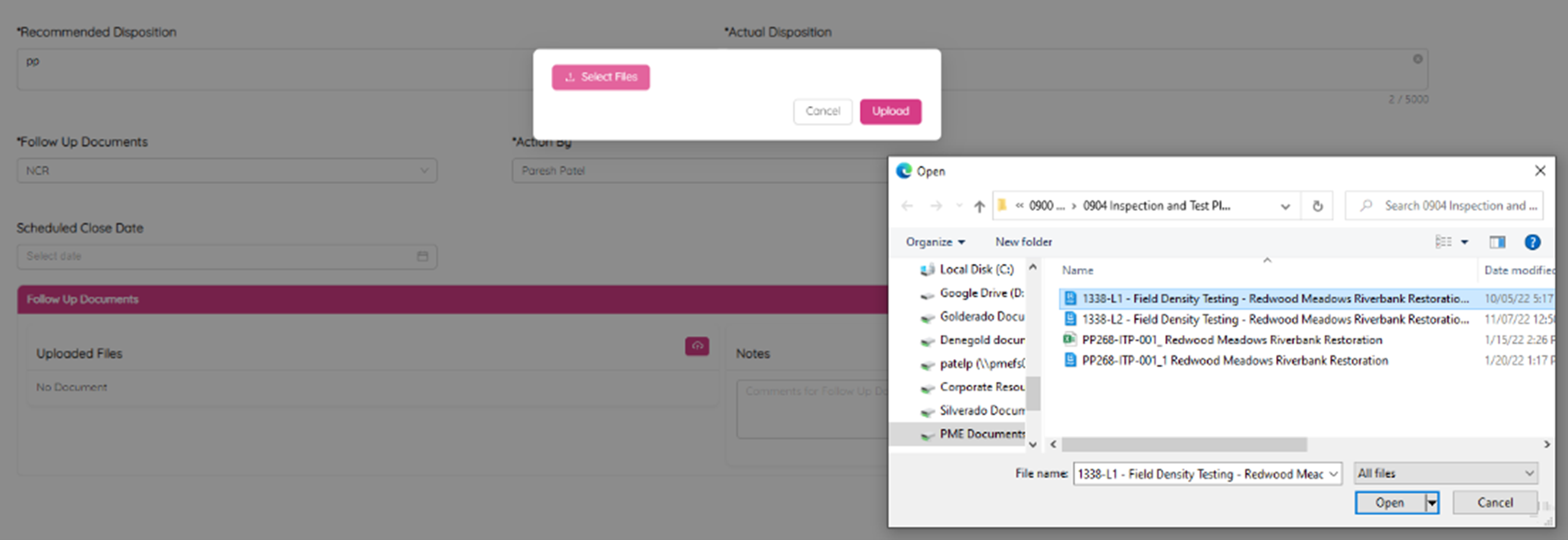
This section is to upload follow-up documents (Documents that were identified and agreed upon to verify the completion of actual disposition for this finding). You could upload verification documents for conformity and use the notes section to identify what documents are uploaded.
- Click on
 to upload documents. This could be verification documents for conformity or follow-up documents to verify actual disposition.
 - Click on the Select Files button to select files to be uploaded and click on Open to attach file.
- Click on Upload button to upload the file.
You can remove any document by clicking on 