Asset List
The Asset List page is where you will be able to view an overview of all assets in a selected workspace.
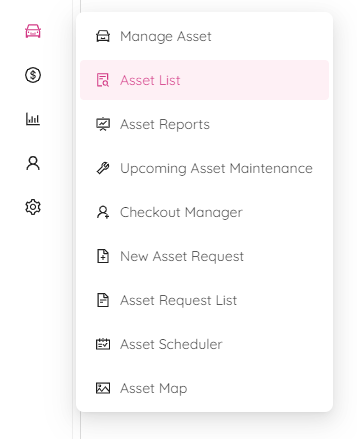
Click on the Assets -> Asset List from the popup window to see the Asset List page.
This page will be blank until you choose a workspace.
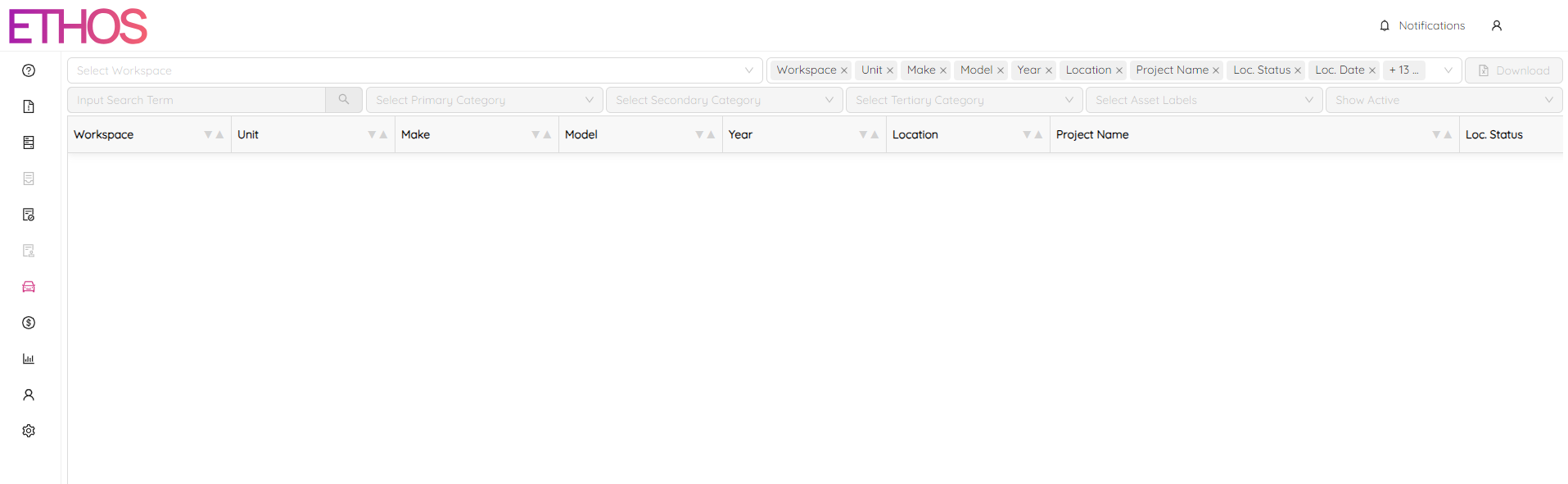
In the Select Workspace dropdown menu choose the workspace your account is a part of.
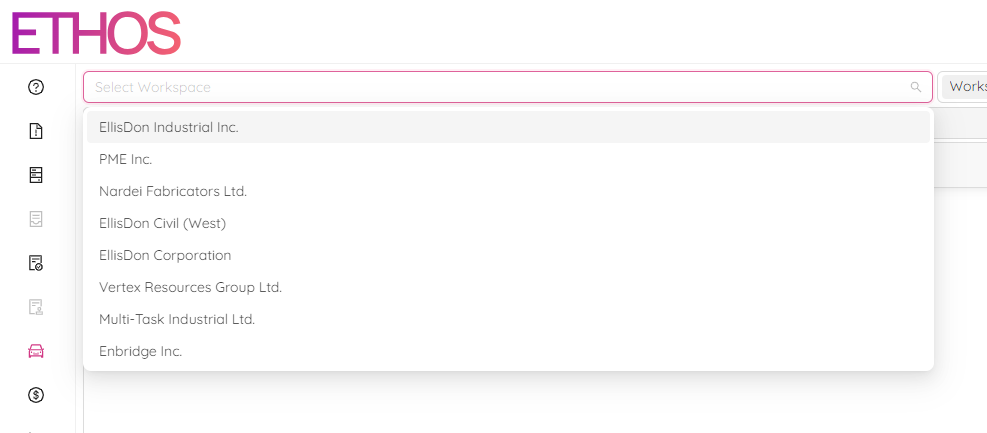
Once you choose your workspace the following page will populate. This page will provide you with a high-level view of all assets in the selected workspace.
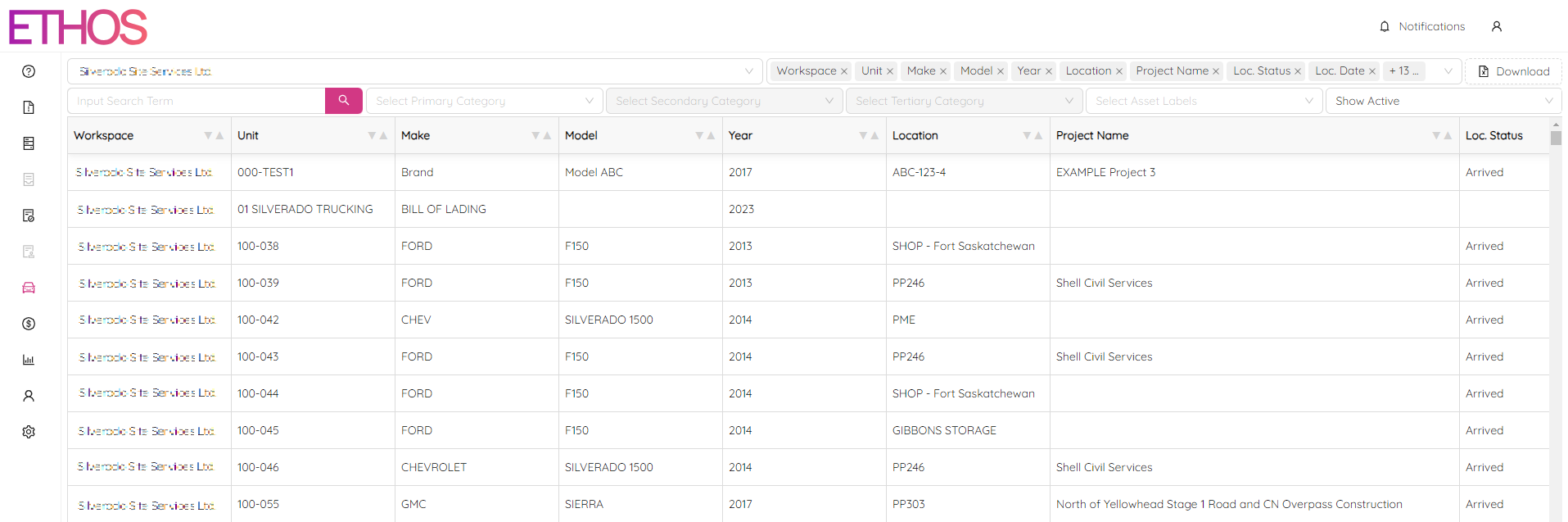
Assets Search
Specific assets can be searched for by using the Input Search Term bar at the top left of the table.
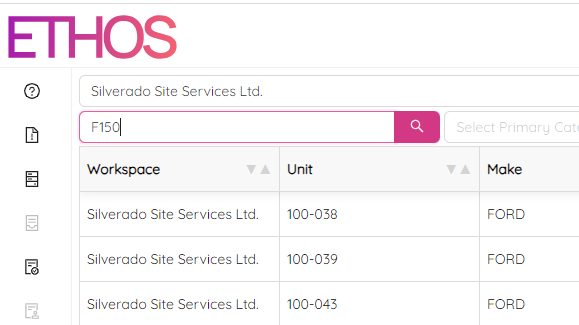
Filter by Category
You can filter assets using Primary, Secondary and Tertiary Categories.
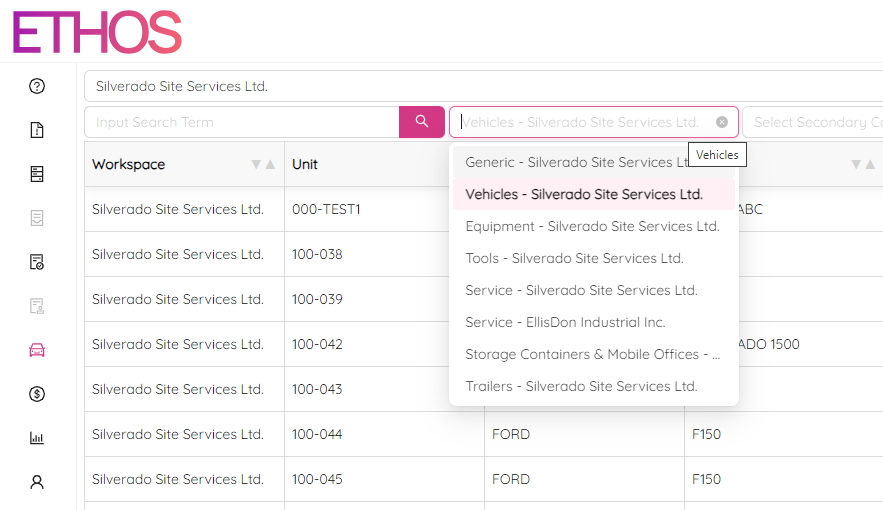
Primary Category
Click on the Primary Category cell and a drop-down window will appear for you to make your selection from.
To search among categories, simply type in your query.
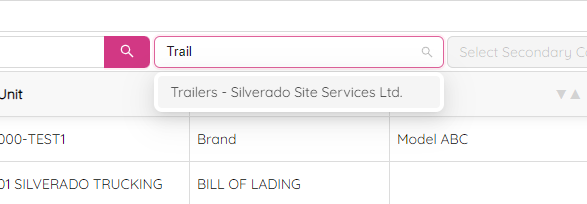
Secondary Category
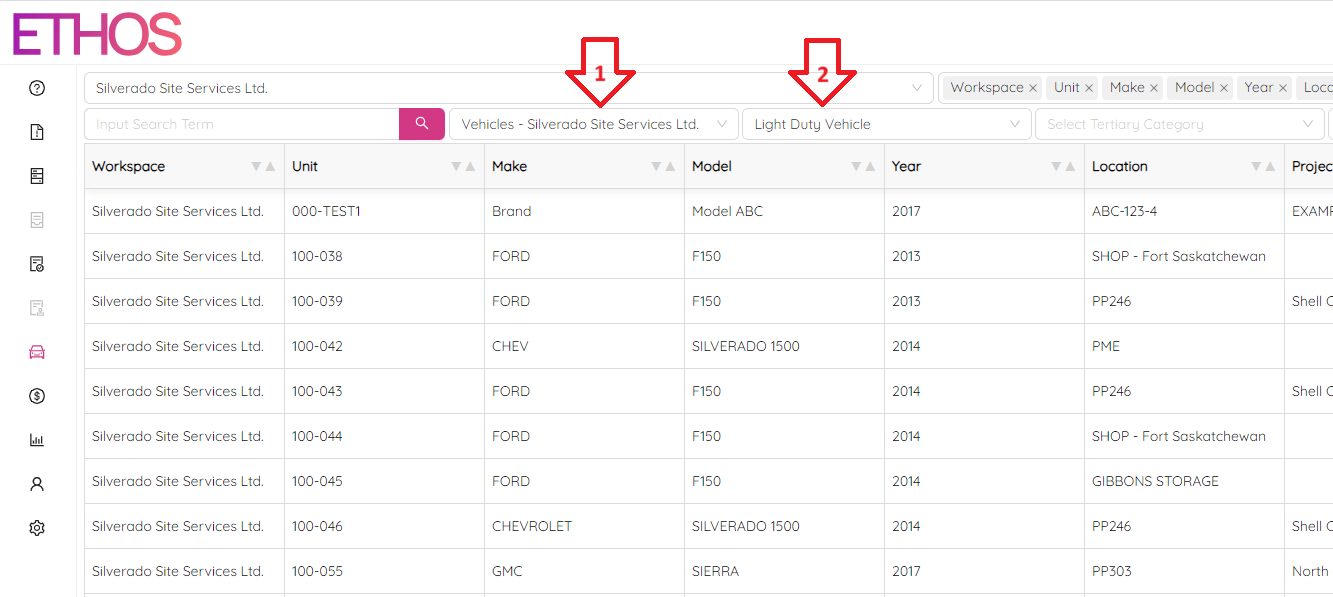
Now, let's further narrow down our search by selecting a Secondary Category. Since we are in the "Vehicles" category, we'll click on the Secondary Category cell and choose "Light Duty Vehicle" to populate the next screen.
Tertiary Category
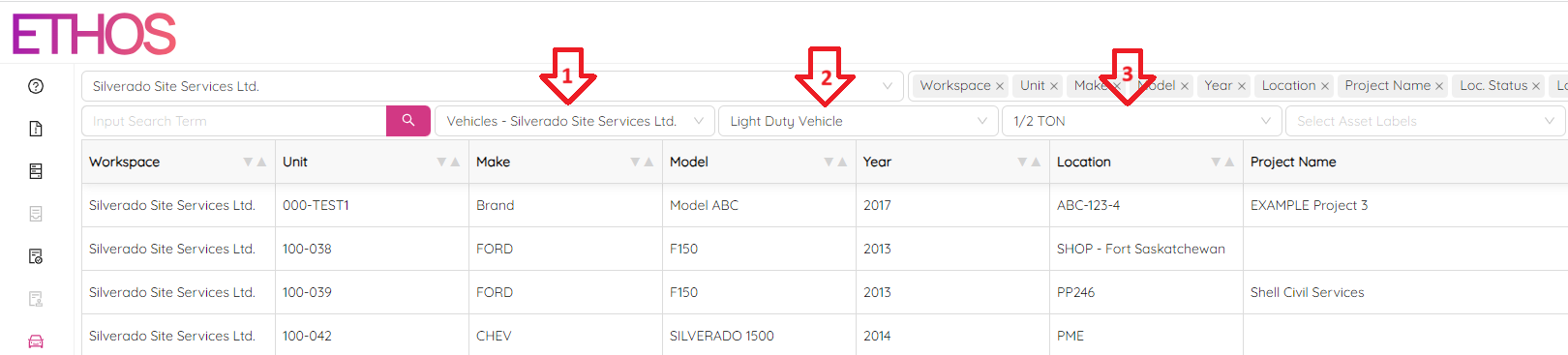
To further narrow down our search, we can choose from the Tertiary Category. Building on the "Vehicles" and "Light Duty Vehicle" categories, we will click on the Tertiary Category cell and choose "Pickup – ½ TON." This will populate the following screen.
Filter by Asset Labels
You can also filter by Asset Labels. Click in the Select Asset Lables field and a drop-down menu will show up. You can search among labels by typing in a query as well.
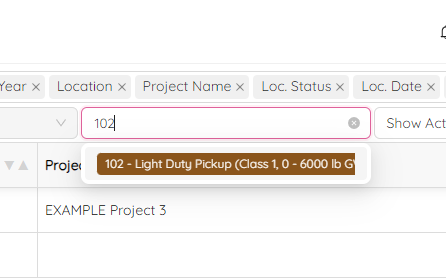
As an example, let's filter light duty pickups by selecting "102 - Light Duty Pickup". As a result, you will see the following screen.
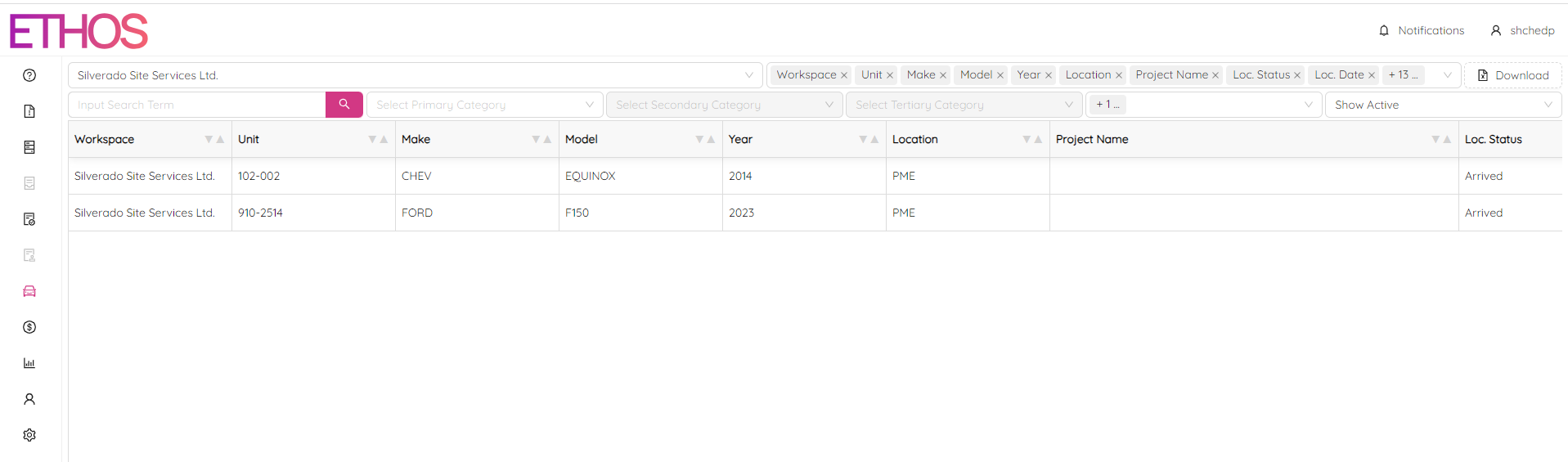
You can choose more than one label to filter by.
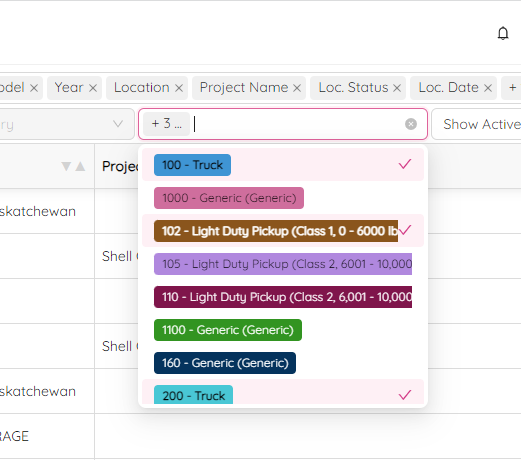
In addition, you can sort and filter the Asset List by any column in the result grid. The filters that you apply are shown under the table, and you can remove any filter by clicking on it. Additionally, you can see the total number of records displayed in the table.
Select Columns
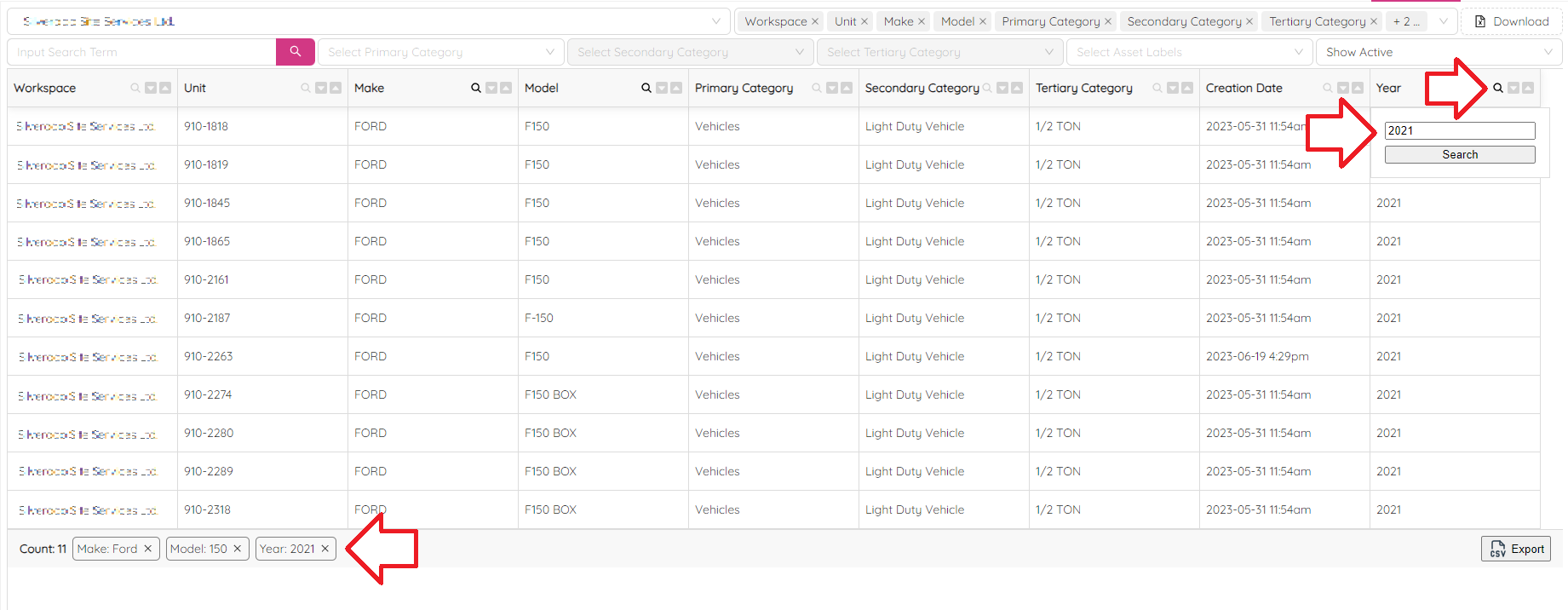
With the aid of the Select Columns field, you can pick which asset's attributes you want to see in the table.
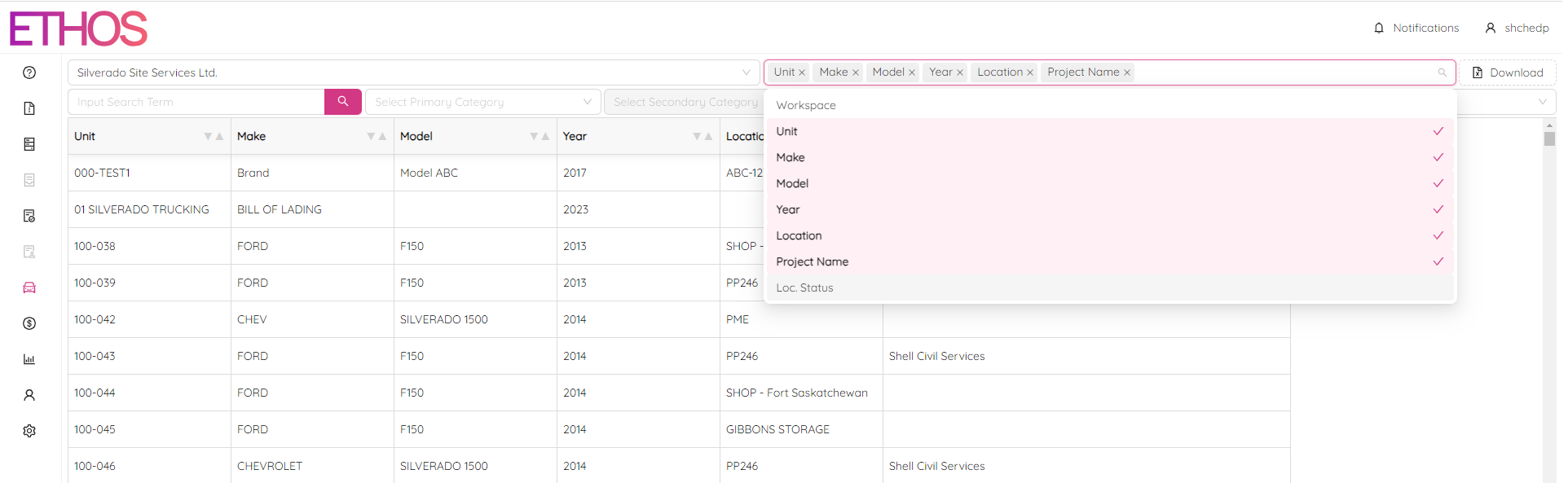
The selected colums will turn pink. You can select as many columns as you want. Columns will be displayed in the order you select them.
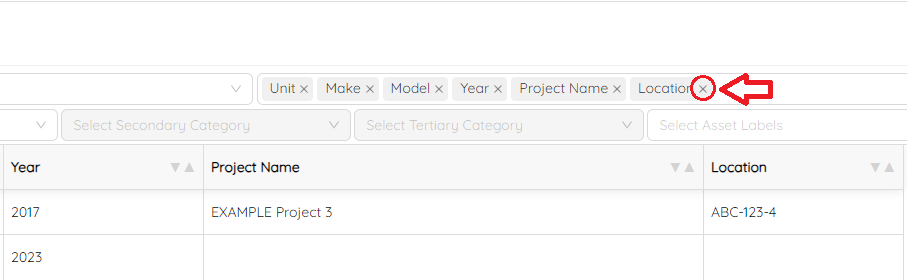
Click on the  in the selection you no longer want to see in the table.
Export Asset List
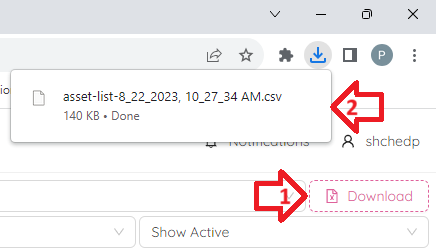
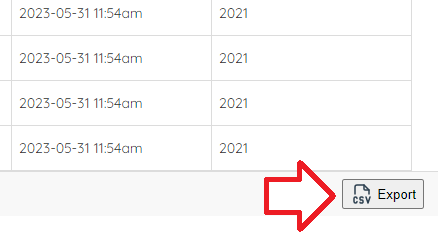
You can export Asset List to an Excel file simply by clicking on the Download button at the top right of the page or the Export button at the grid footer.