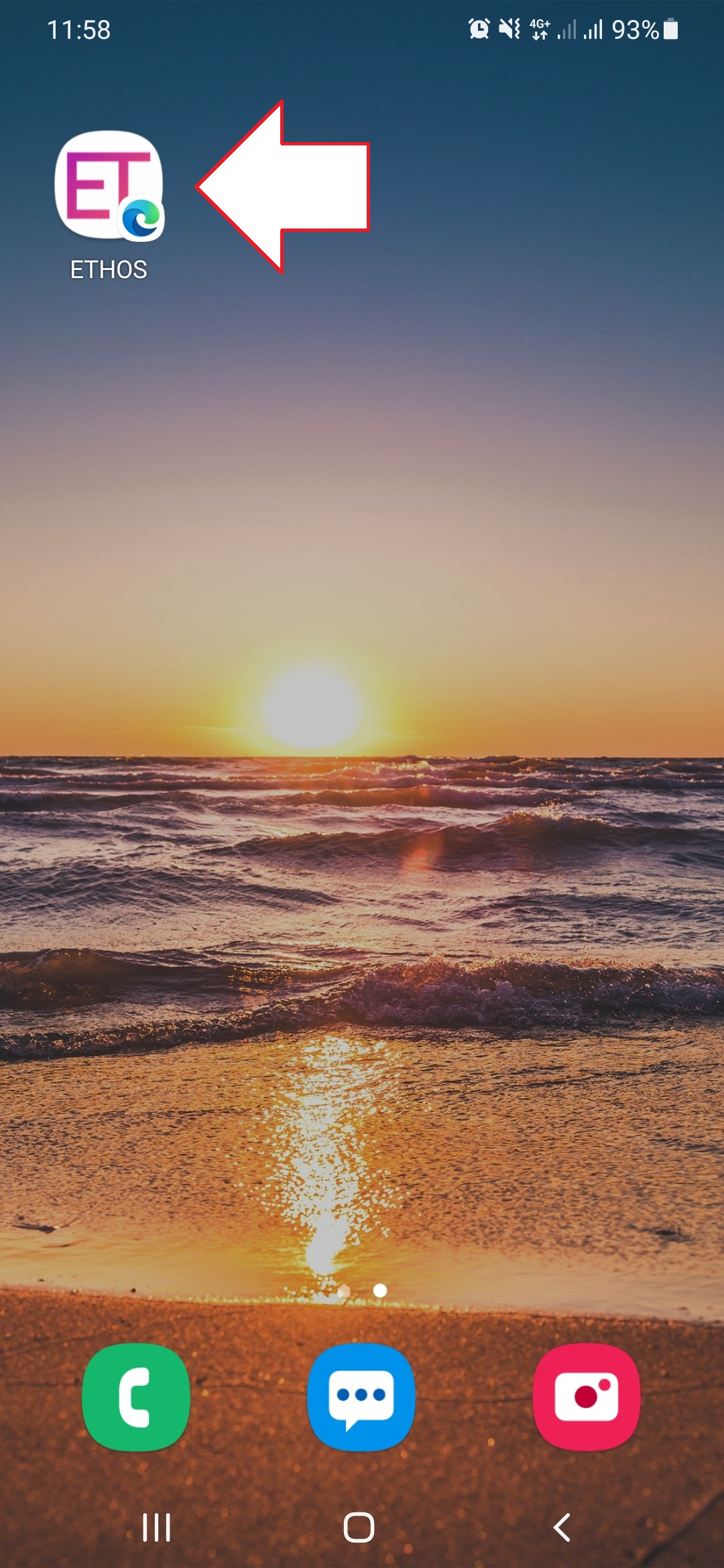
Add ETHOS to Android-phone Home Screen
This manual describes adding the ETHOS application to your Android-phone home screen from different browsers such as Google Chrome and Microsoft Edge.
Google Chrome Browser
-
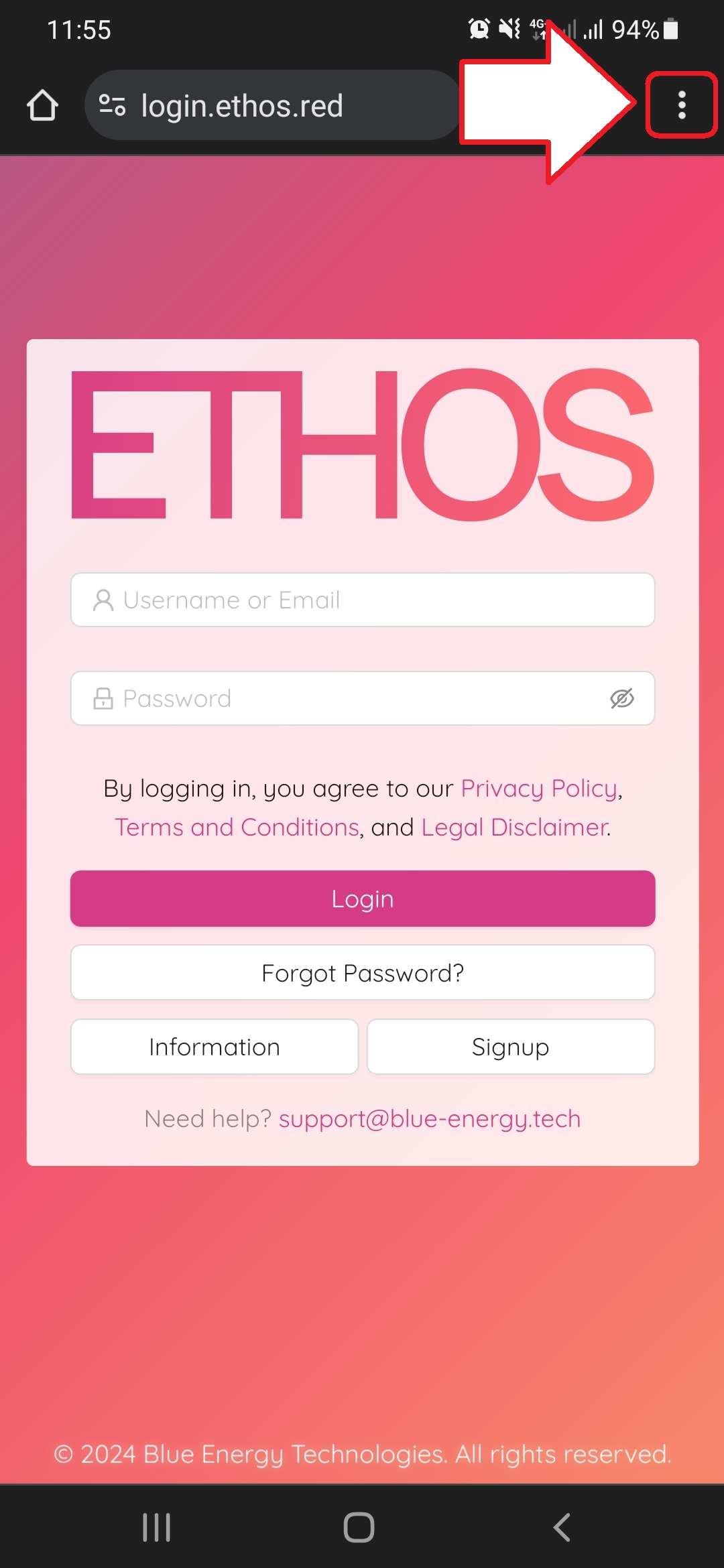
The first step of getting ETHOS added to your Android-phone home screen is to navigate to login.ethos.red
-
Once you see the ETHOS application in Chrome you will see at the top of your screen an ellipsis icon. Tap it to open a browser menu.
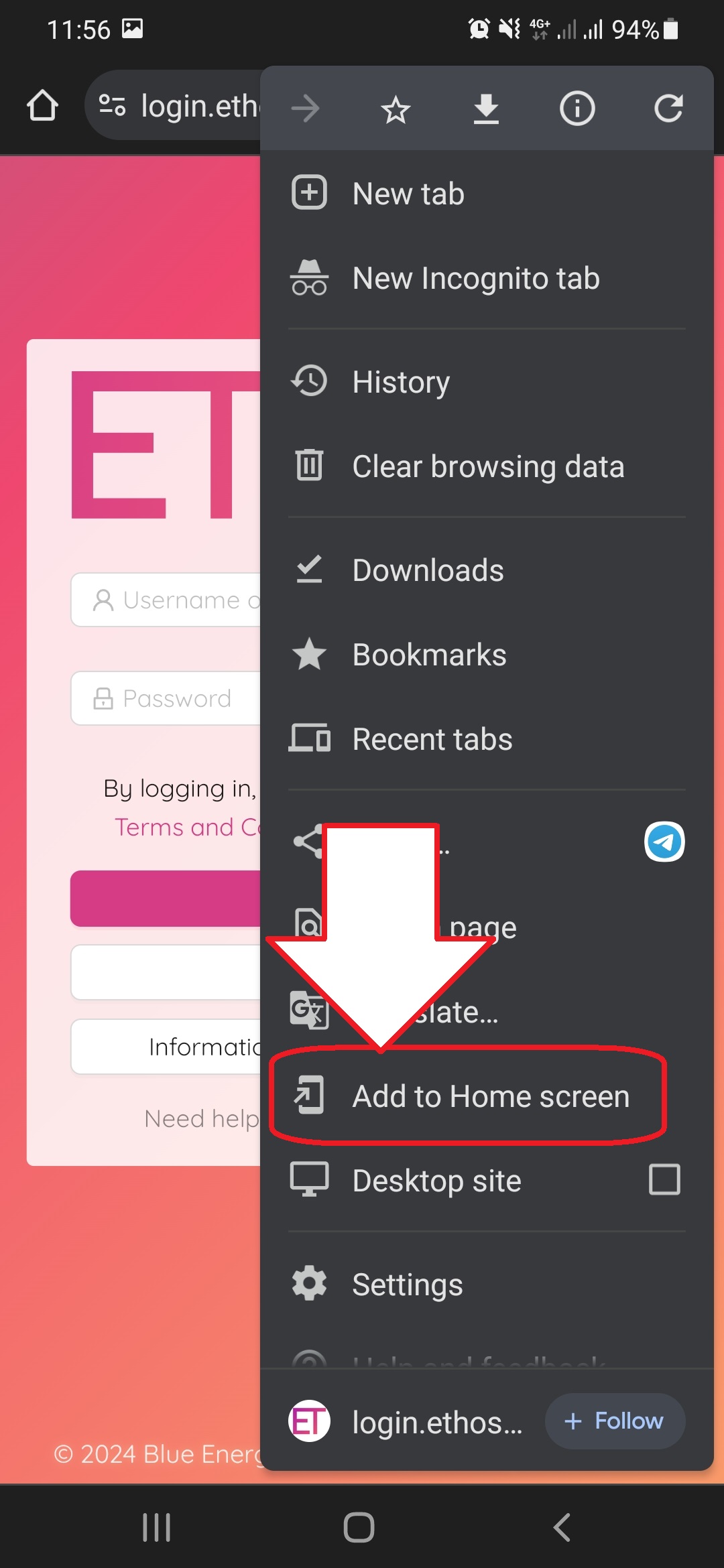
- Once at this screen, scroll down until you see the option to Add to Home screen. Tap on the menu item.
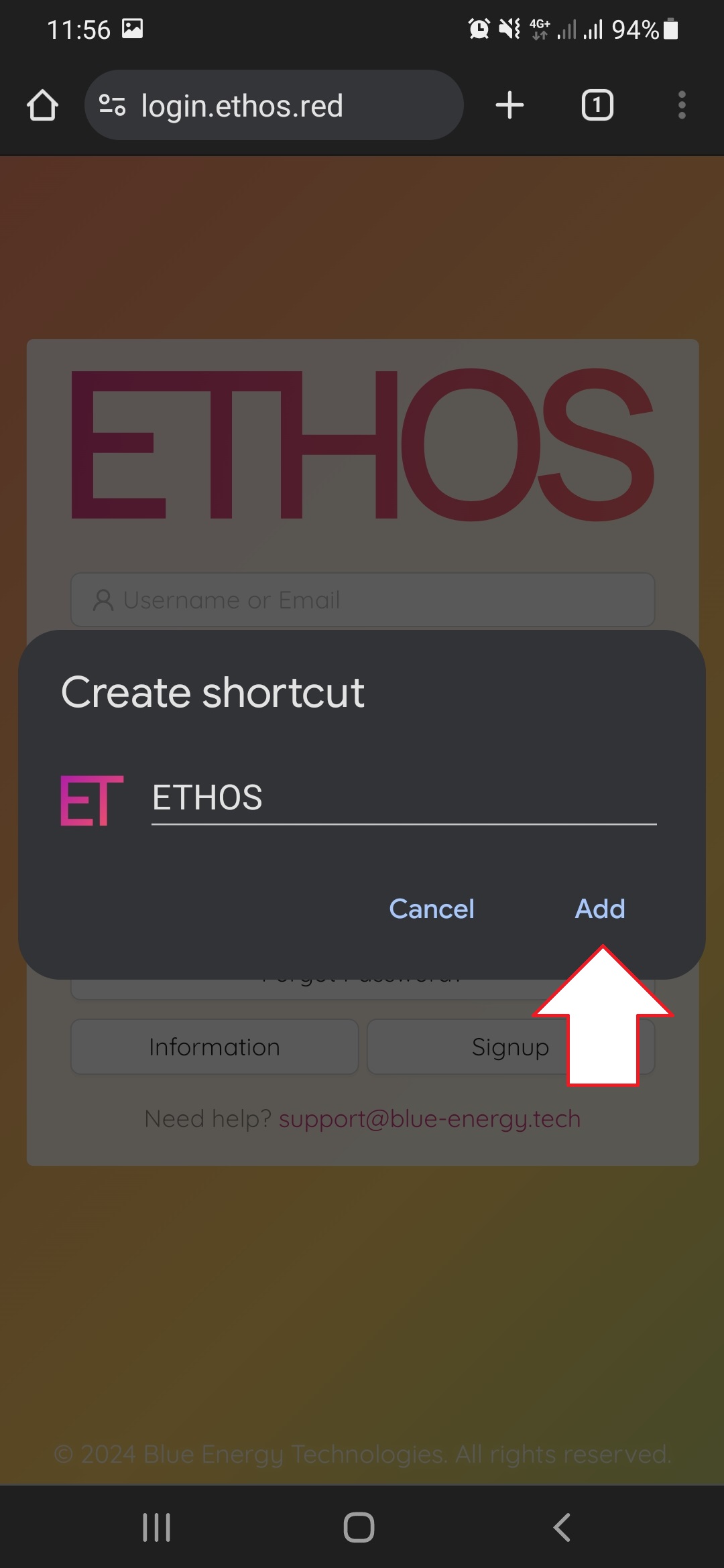
- Tap the Add button to confirm.
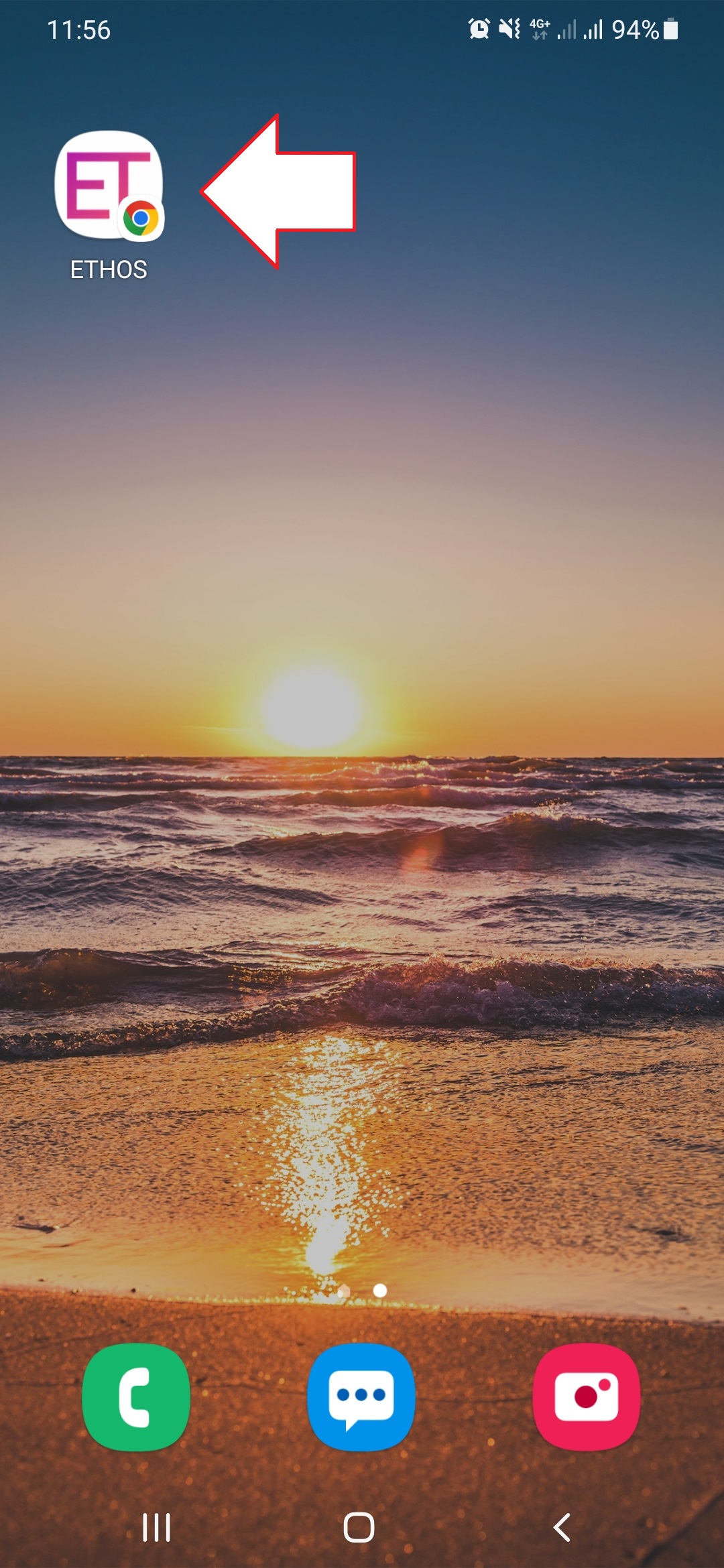
- The ETHOS shortcut will now be on your home screen and easily accessible.
Microsoft Edge Browser
-
The first step of getting ETHOS added to your Android-phone home screen is to navigate to login.ethos.red
-
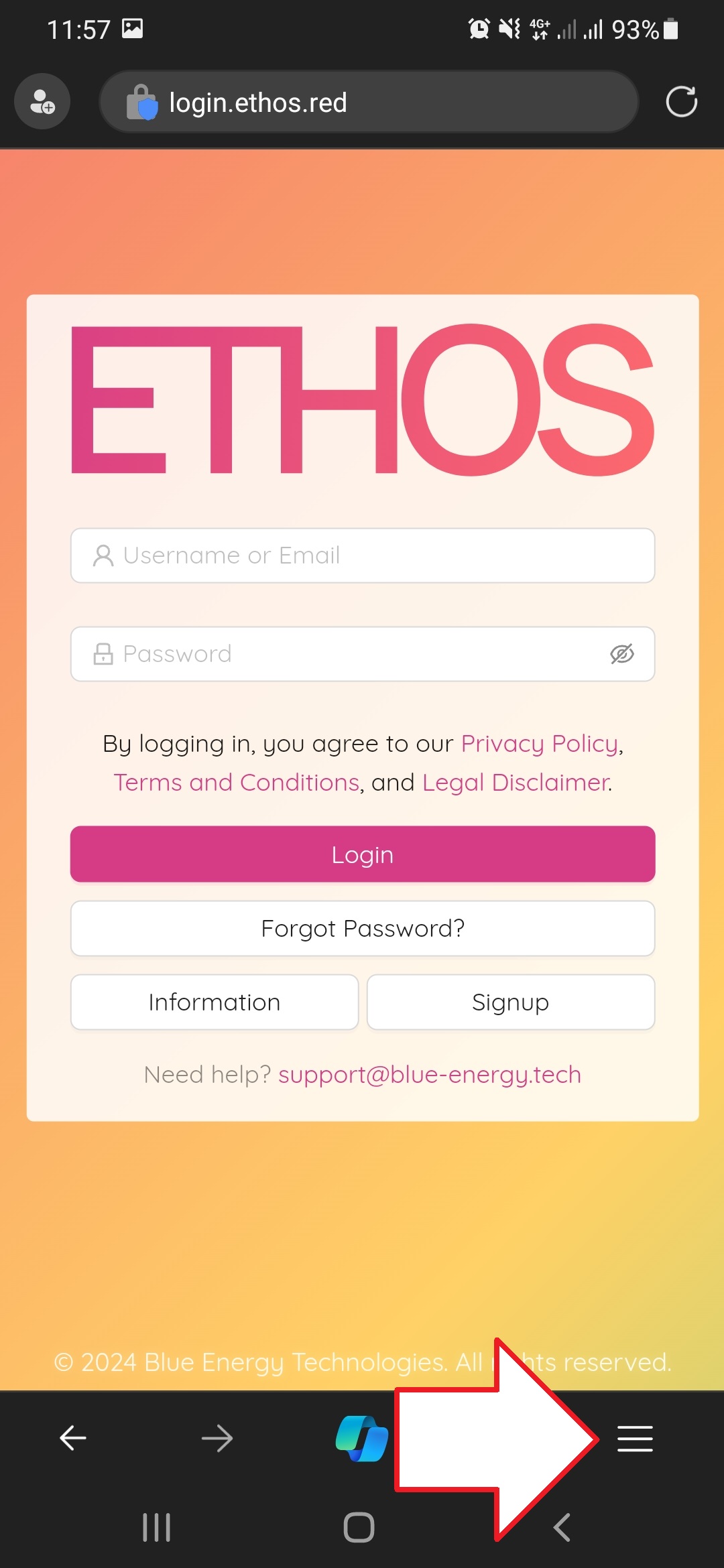
Once you see the ETHOS application in Edge, you will see at the bottom of your screen a "burger"-icon with three horizontal lines. Tap this icon and you will get to the next screen.
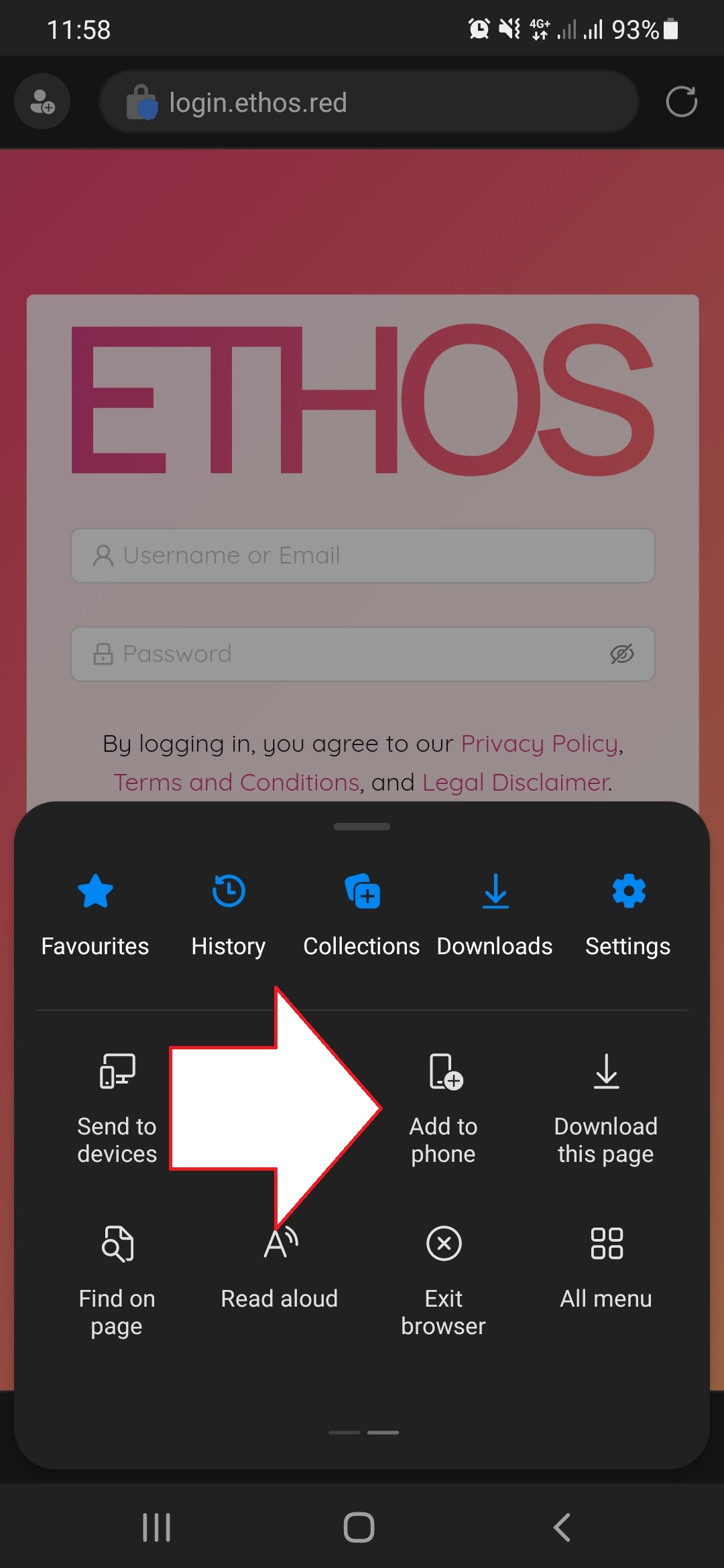
- Once at this screen you will see the option to “Add to phone”. Tap on that field.
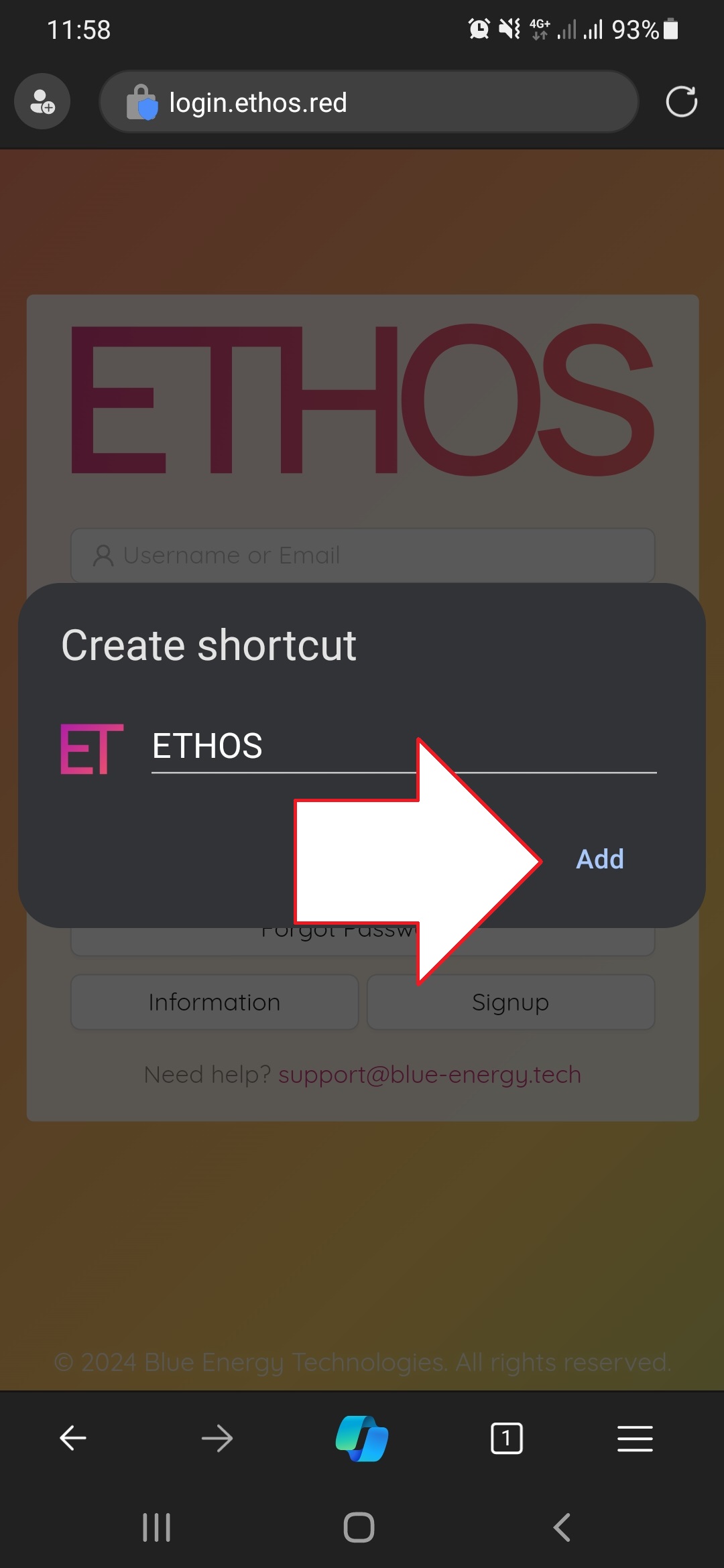
- Tap the “Add” button to add to home screen and you are done!
- It will now be on your home screen and easily accessible.