EDM In-Flight Drones
Overview
In-Flight Drones module allows to view and manage a list of the drones that are currently in flight, providing up-to-date information on their location, status, and takeoff time.
- To access the module, simply click on the In-Flight Drones option located on the navigation panel on the left-hand side of the page.
- Select a workspace in the drop-down panel at the top of the page to see in-flight drones registered in it.
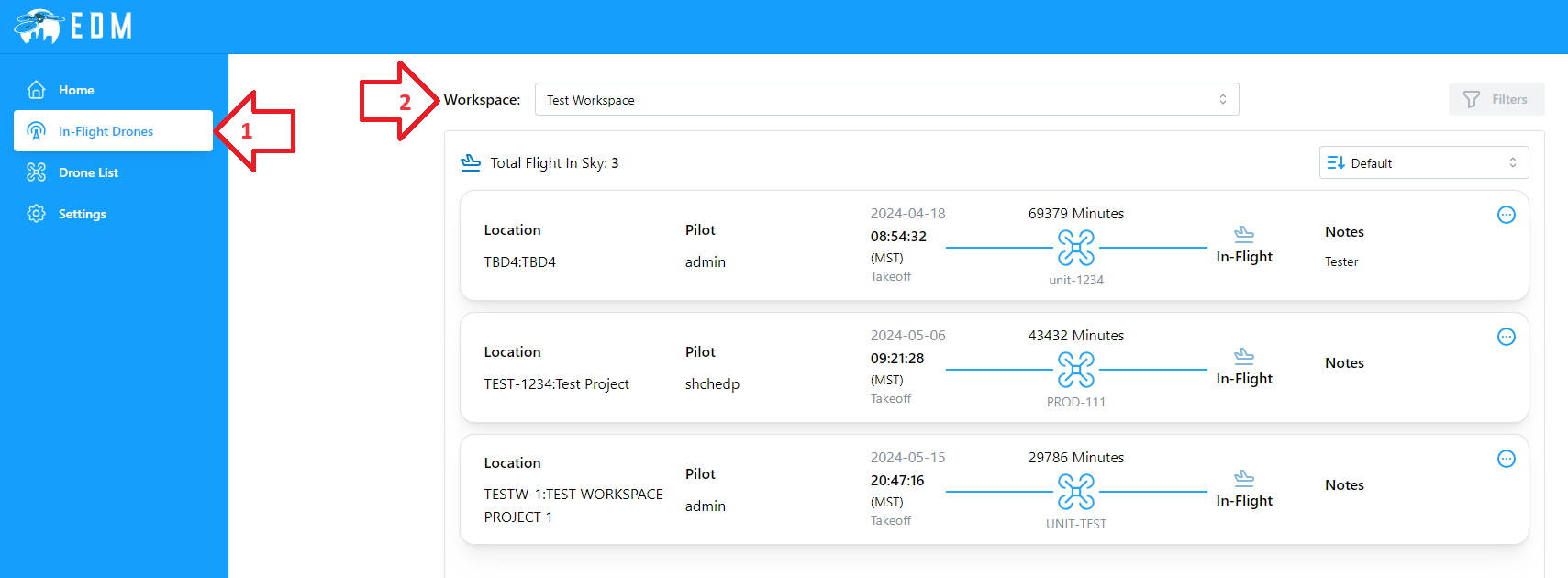
Right under the workspace selector you can find the total amount of drones that are currently in flight.

Below the total amount of drones you will see the list of drones that are currently in operation. You can change the sort order by choosing between Unit Number: A->Z, Unit Number: Z->A, Takeoff Time: New->Old, and Takeoff Time: Old->New (which is the default).
The list displays key information for each item, including the flight location, pilot name, takeoff date and time, unit number, flight duration, and any optional notes.

Clicking on the  icon will show a menu where you can bounce to a flight single view page, add battery or end the flight.

View Details
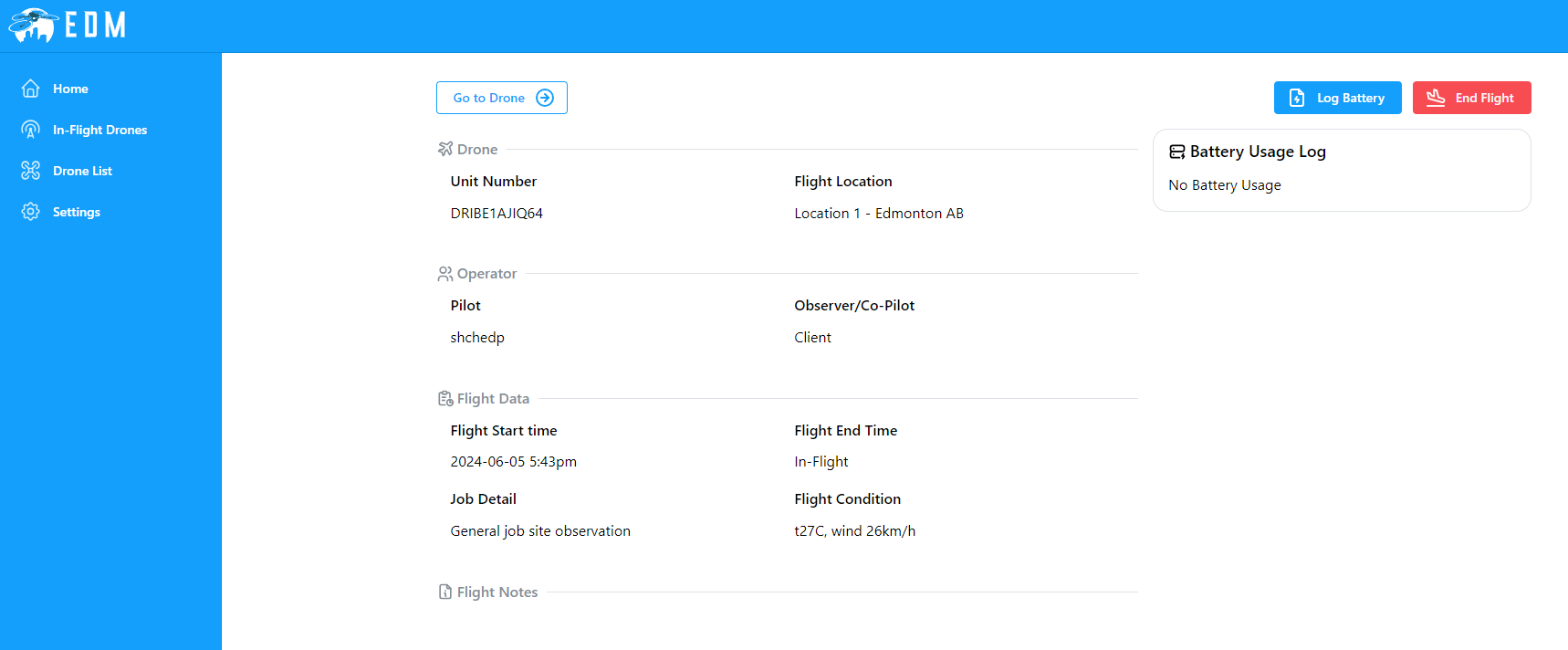
Flight single view page shows all basic flight information plus some extra, such as observer/co-pilot, job details, flight conditions and battery usage.
By clicking on the Go to Drone button on the top of the page you can get to the drone single view page.
NOTE: See Drone Details View for more about drone single view page.
Clicking on the Log Battery button allows you to add battery usage information.
To end the flight, click on the End Flight button at the top.
Log Battery
As was mentioned above, you can log battery usage by clicking Log Battery button on the flight single view page or trough an item menu on the in-flight drones list. You will see a dialog box similar to the following.
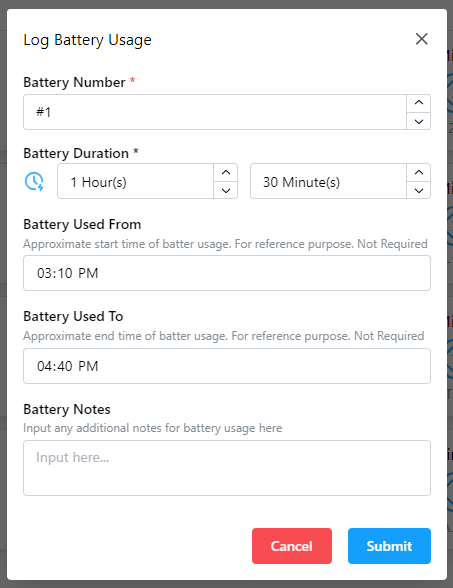
Battery number and duration are only mandatory fields. Optionally, you can specify battery usage start and finish time as well as any notes. Confirm by clicking Submit.
End Flight
You can finish a flight session by clicking the End Flight button on the flight single view page or trough an item menu on the in-flight drones list. You will see a dialog box similar to the following.
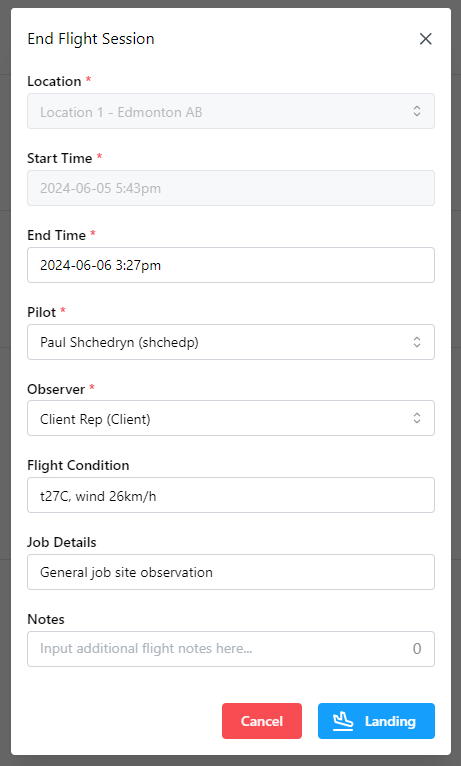
Most of the fields are prepopulated with data from the beginning of the flight, but you can modify any value at this stage, with the exception of the location and start time fields. The end time field is usually set to the current time. Confirm by clicking Landing.