Manage Personnel
The Manage Personnel module in ETHOS helps you keep track of project roles and the records that each user must maintain to fulfill their role. You can find the module under the Personnel menu item.
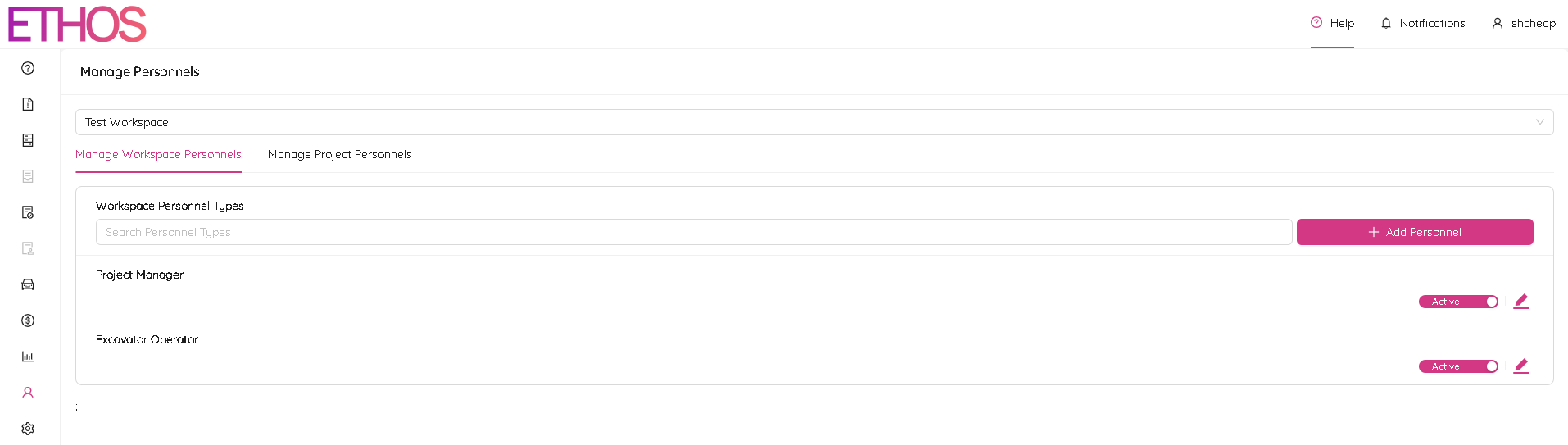
To get started, you'll need to select a workspace from the dropdown list at the top of the page. Once you've selected a workspace, you'll be able to view and manage the project roles and personnel records associated with that workspace.
From the Manage Personnel page, you can add new roles (Personnel Types) and assign them to users, as well as view and edit training records for each role.
Once you've selected a workspace, you'll see two tabs: Manage Workspace Personnels and Manage Project Personnels.
Manage Workspace Personnels
The Manage Workspace Personnels tab allows you to define a list of personnel types. Personnel Types can be viewed as presets for specific record requirements for the project.
For example, if you create a Personnel Type called "Safety Technician", you can define the specific records that users assigned to that Personnel Type must maintain, such as safety training certificates or equipment inspection reports. Then, when you assign a user to the "Safety Technician" Personnel Type, the system will automatically require to maintain those specific records.
Once you've accessed the Manage Workspace Personnels tab, you'll see a list of previously added Personnel Types. To search for a specific Personnel Type, you can use the Search Personnel Types panel at the top of the list.
To add a new Personnel Type, simply click on the + Add Personnel button. This will open the Add Personnel box, where you can enter a Personnel Type name and, optionally, a brief description. Once you've entered the necessary information, click the Save button to create the new Personnel Type.

If you need to edit an existing Personnel Type, you can do so by clicking on the  icon next to the Personnel Type. This will open the Edit Personnel box, where you can make any necessary changes to the Personnel Type name or description. Once you've made your changes, click the Save button to update the Personnel Type.

In addition to adding, editing, and searching Personnel Types, you can also deactivate any Personnel Type by clicking on the Active toggle. This can be useful if a Personnel Type is no longer needed or if you want to temporarily disable a Personnel Type for some reason.

Manage Project Personnels
On the Manage Project Personnels tab, you can set up a list of records required for a specific Personnel Type and assign specific users to that Personnel Type.
Project Record Requirements
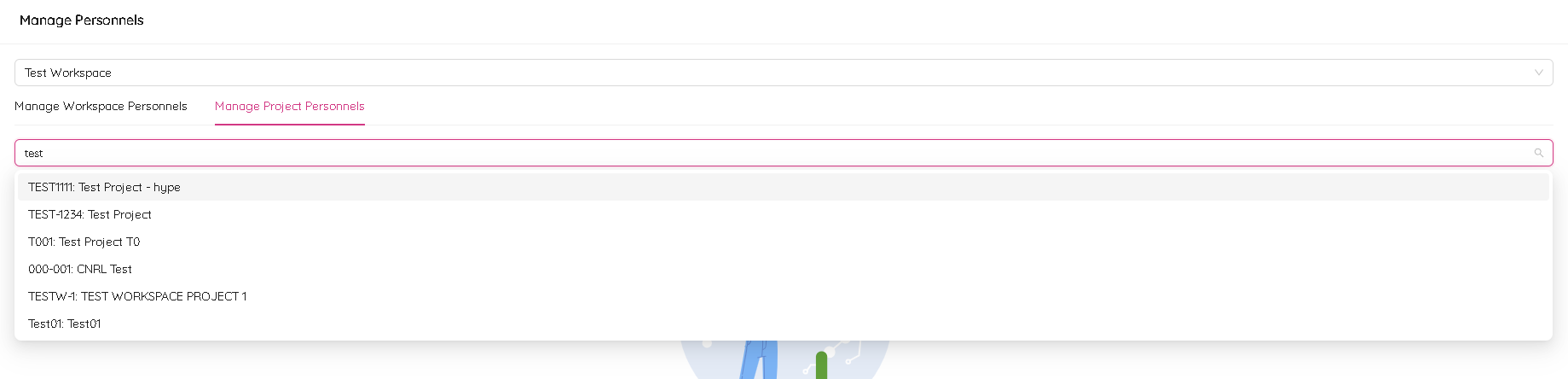
To get started, select the project that you want to manage from the dropdown list at the top of the Project Record Requirements subtab. You can make a quick search by typing in a project name.
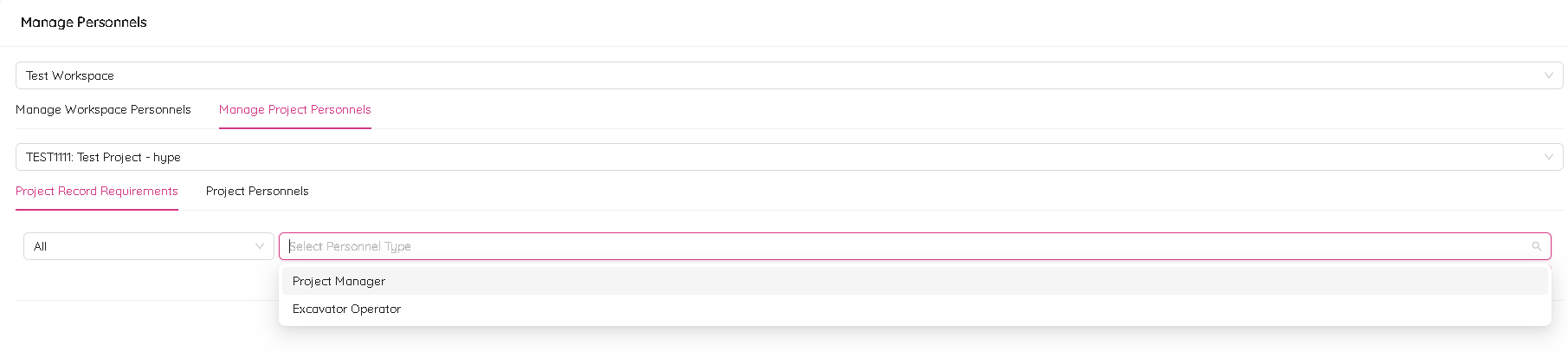
Once you've selected a project, you can then select a set of records required for a particular Personnel Type using the Project Record Requirements subtab. Here, you can define the specific records that users assigned to that Personnel Type must maintain for the project, such as safety training certificates. First select a specific Personnel Type from a dropdown list.
Once you've selected the Personnel Type, you can add record requirements by clicking on the + button. This will open the Add Record Requirement box, where you can select one or a few records.
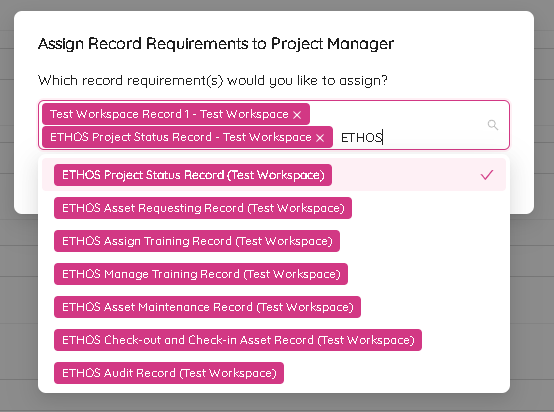
NOTE: You can make a quick search across the records by typing in a search word.
If you need to delete a record requirement, simply click on the Delete link next to it. You can also search across record requirements using the search panel at the top of the list.
If a user obtains a training record that is not under the current workspace, you can add workspace collaborations by clicking the Approved Workspace Collaborations button in order to pull records from different workspaces. This will open a popup window where you can select a workspace from the dropdown list.

If you don't see the workspace you're looking for in the list, you'll need to reach out to the workspace admin for that workspace. This can be useful for ensuring that users have all the necessary records to fulfill their roles, even if those records are stored in different workspaces (see Workspace Collaboration for more details).
Project Personnels
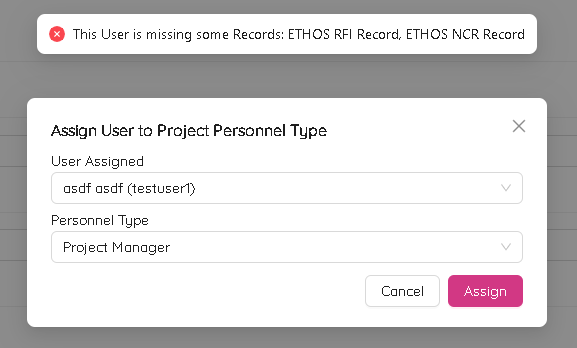
On the Project Personnel subtab, you can assign a user to a Personnel Type by clicking on the Assign User to Personnel Type button. From there, you can select the user and the Personnel Type from the dropdown lists.

If the user doesn't have the required records for the Personnel Type, you will see a message indicating that they are missing some records. You can use this information to remind the user to update their records or to provide them with additional training as needed.
On the Project Personnels subtab, you can also see a list of users within each section that represents every Personnel Type they are assigned to.
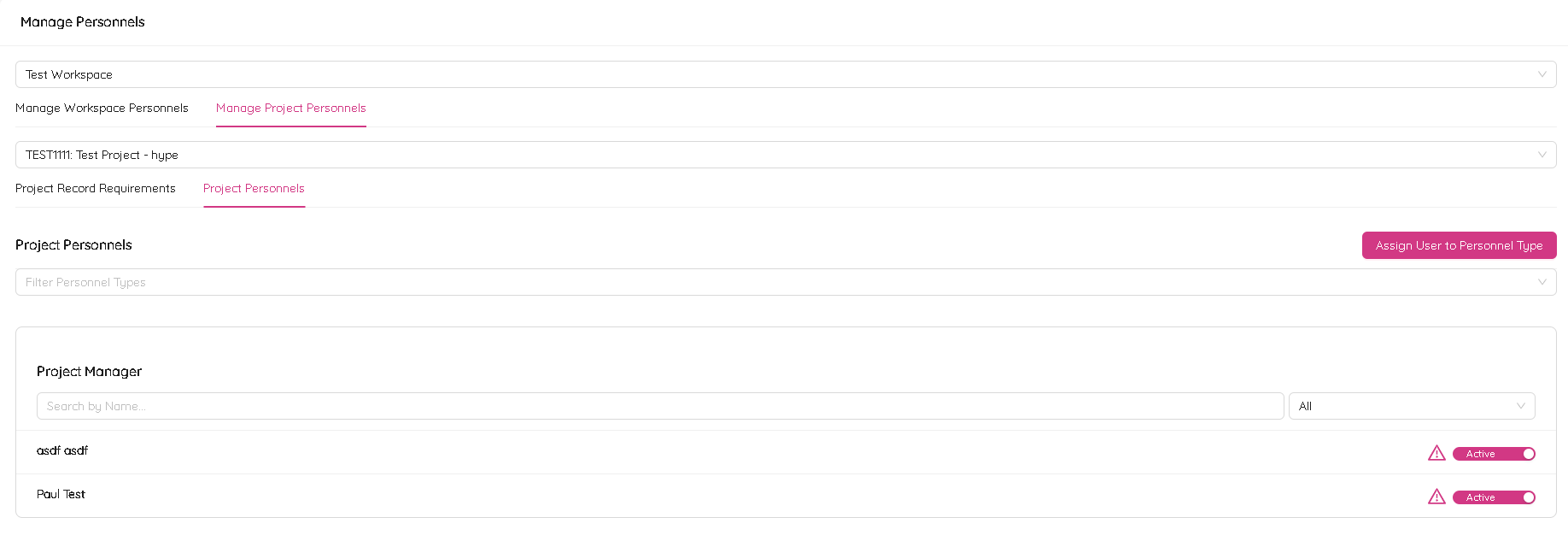
If a user's records required for the role have expired, you will see an exclamation mark icon next to their name, indicating that they are missing some required records.

To summarize, with the ETHOS Manage Personnel module, you have the tools you need to manage project roles and personnel records.