Reset Password
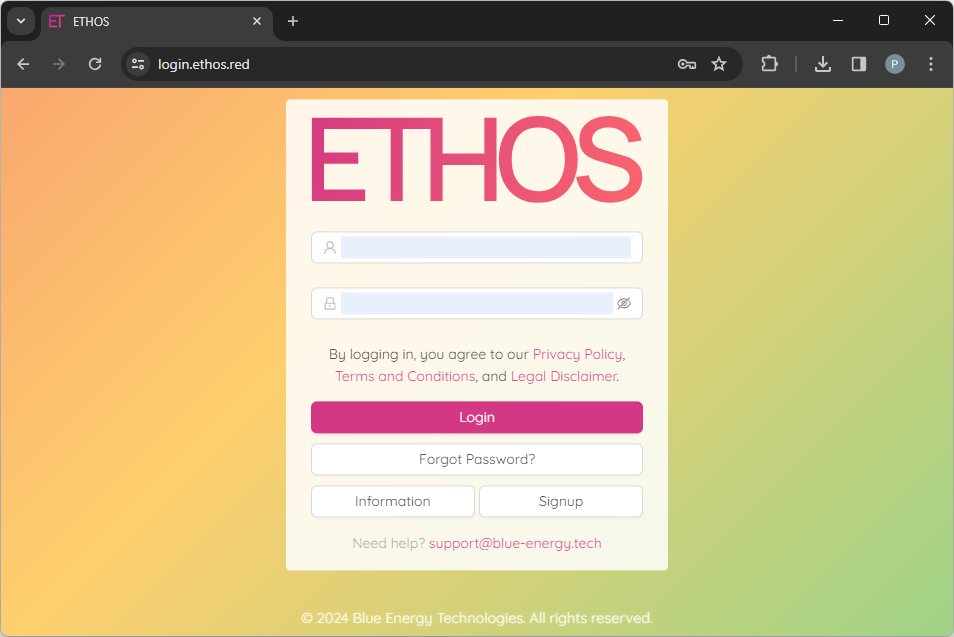
On the main login page, you have to enter your username and password to log into the application. If you forget your password, you can reset it by clicking on the Forgot Password? button.
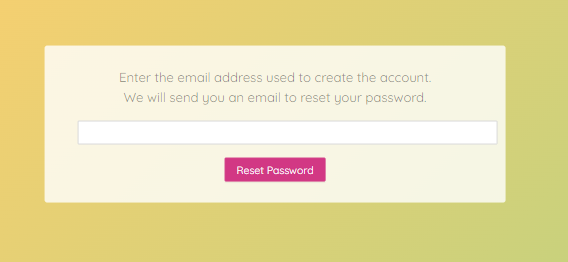
Enter your email in the following dialog box and click Reset Password.
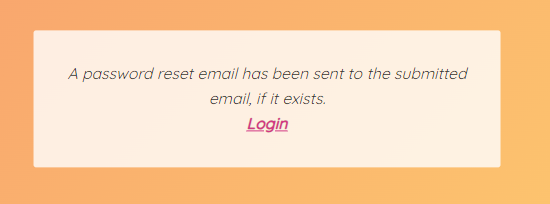
After that, you will see a message similar to the following saying that a password reset email has been sent to your mailbox.
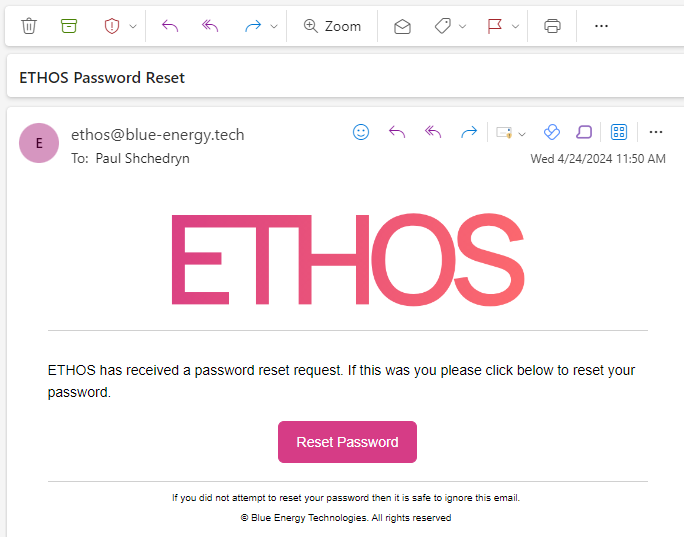
Open the email and click on the Reset Password button in it.
You will be redirected back to the reset password form.
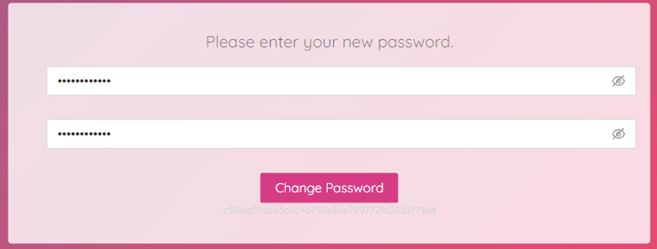
Enter your new password, make sure it is at least 8 characters long and a combination of uppercase letters, lowercase letters, numbers, and symbols. Confirm by clicking on the Change Password button.
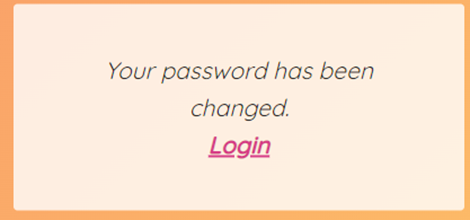
Finally, you will see the message saying that your password was reset. Click on the Login link to get back to the Login Page where you can log into the ETHOS application using your new password.