Log-in to ETHOS
Typically, before logging in the first time, you receive an invitation letter from your workspace administrator or a letter from a Support Analyst with instructions on how to access ETHOS.
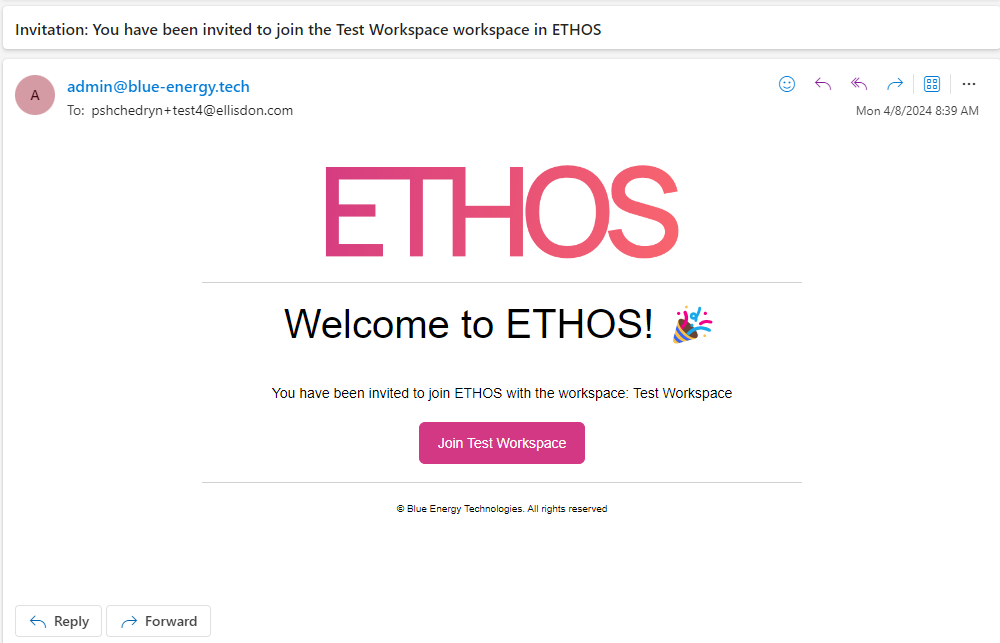
The invitation email will be similar to the following.
Following the Join link from the letter will show a form like the following.
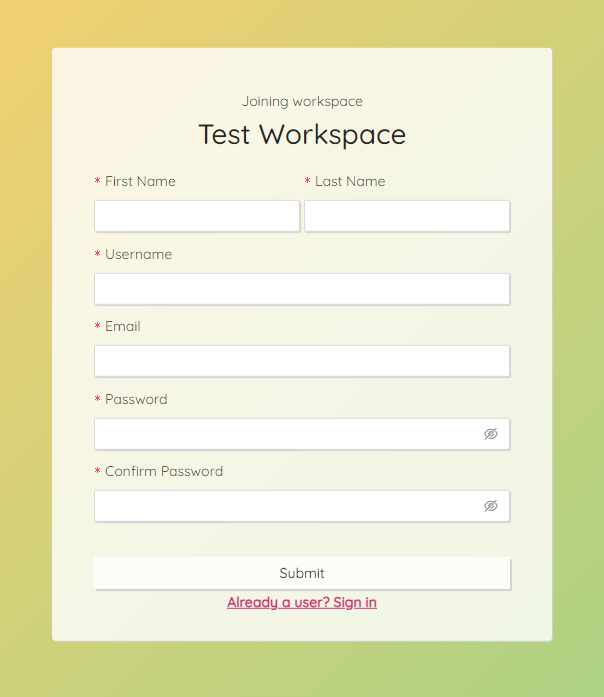
Fill in the form to complete the creation of your profile. Note that your password should be at least 8 characters long and be a combination of uppercase letters, lowercase letters, numbers, and symbols.
Proceed to login.ethos.red to open the application.
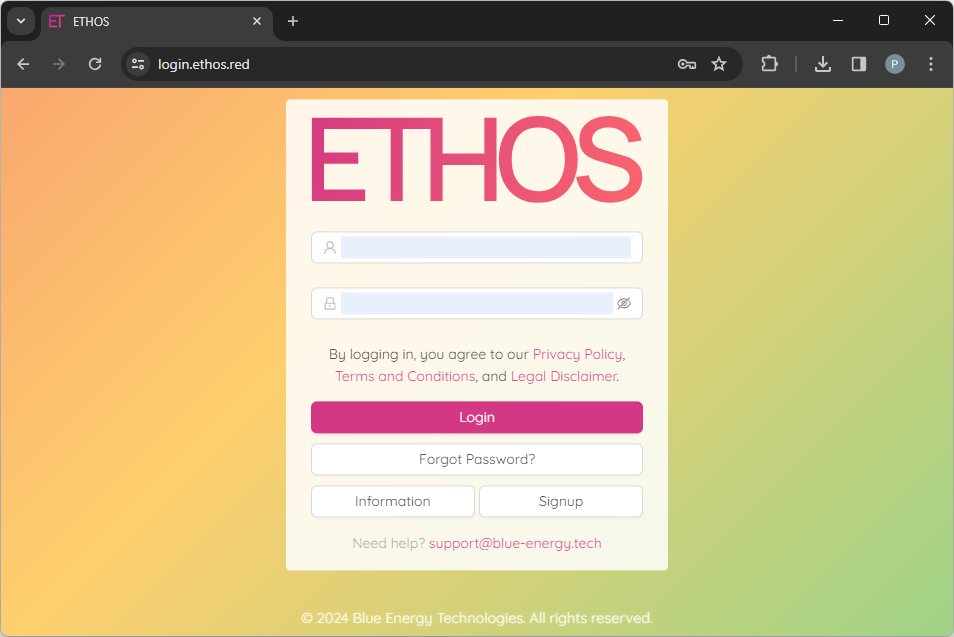
To log in, you have to specify your username or email and password and click on the Login button.
NOTE: you can make the password you are entering visible by clicking
icon.
NOTE: If you need to re-set your password, follow the Reset Password manual.
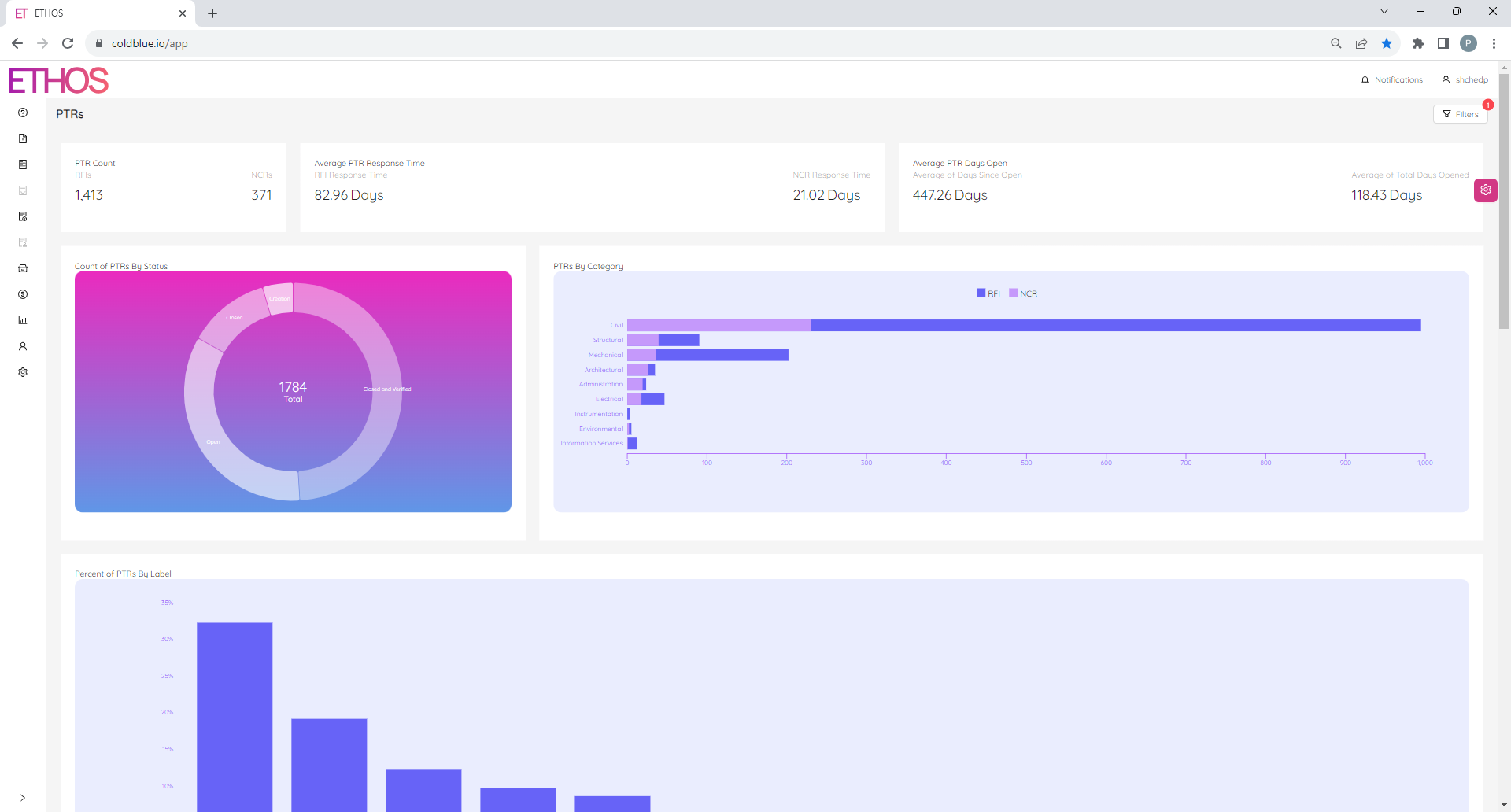
Finally, the first page you see after log-in is the Project Technical Reports (PTRs) home page, which will be similar to the following.