Project Statuses
The "Project Statuses" module enables viewing and updating of project statuses. It is recommended to update job status biweekly or more frequently if necessary to know the status and record history.

By selecting “Project Statuses” from the "Project Acivity" menu of popup panel you will be redirected to the ETHOS Project Statuses page.
NOTE: A project must be created in ETHOS to be visible on the "Project Statuses" page. Contact the project administrator to create the project in ETHOS if it has not been created yet.
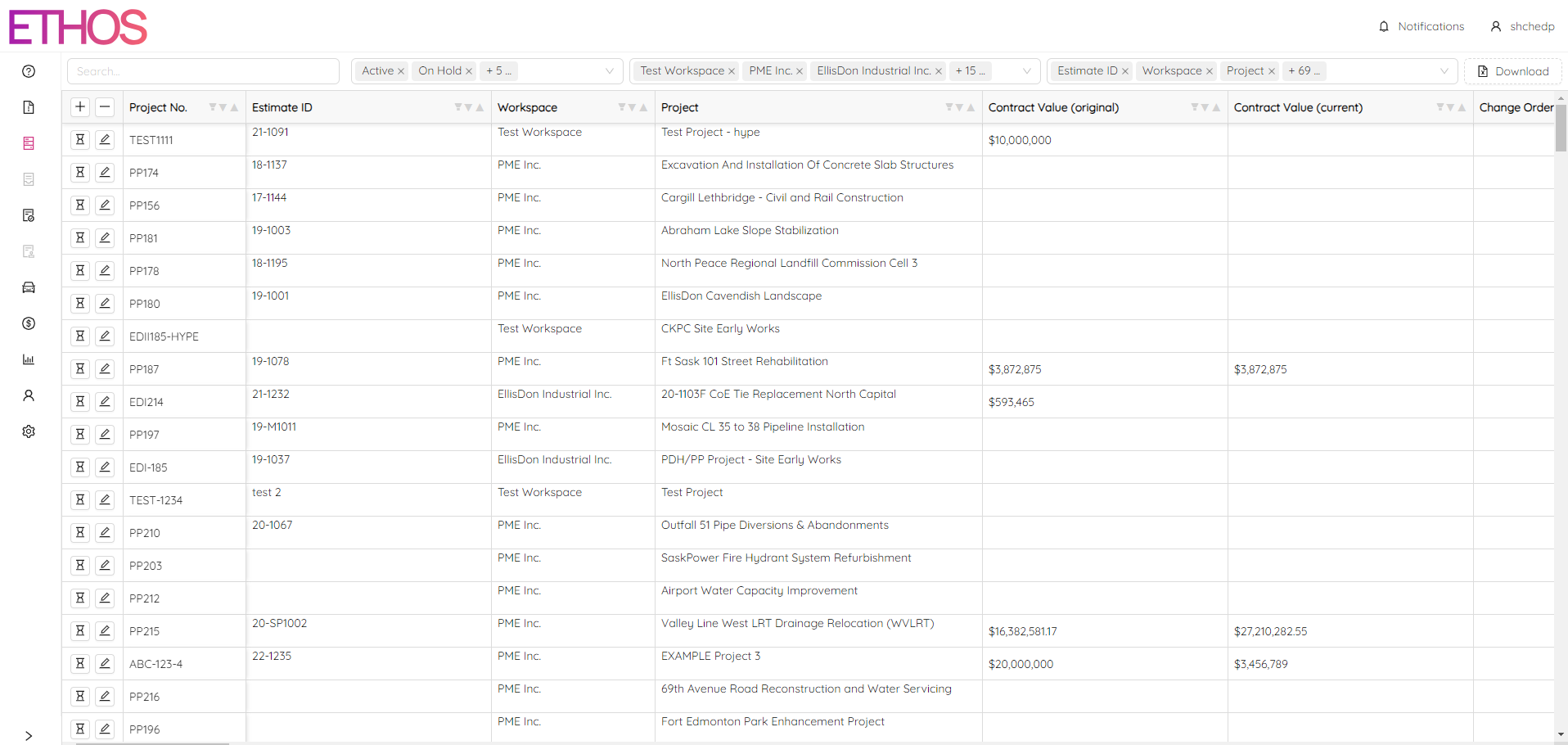
You can filter out projects in a few ways:
- make a search request
- filter by project status
- filter by workspace
Search
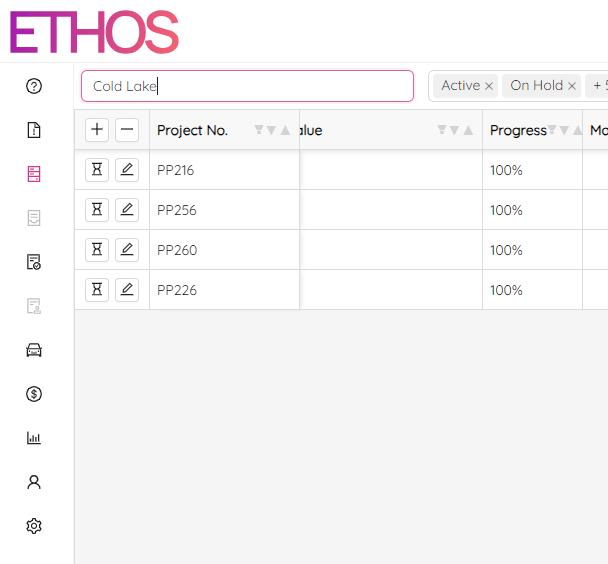
Specific projects can be searched for by using the "Search..." bar at the top left of the table. The application will search across all attributes of the projects.
Filter by Status
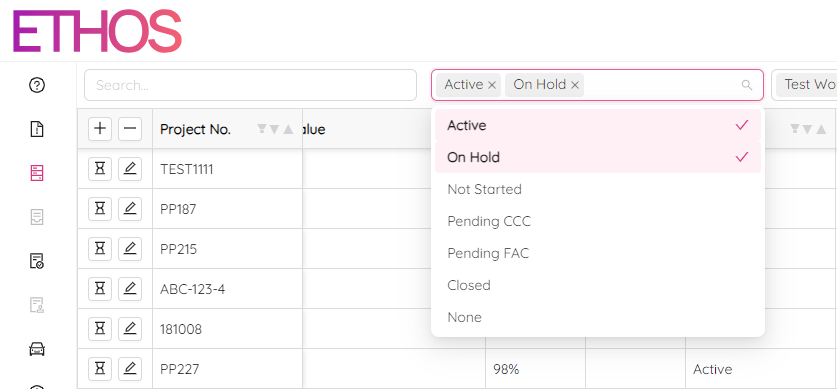
Project statuses are:
- Active
- On Hold
- Not Started
- Pending CCC
- Pending FAC
- Closed
- None
You can apply the filter by selecting a project status in the dropdown list at the top of the page. Feel free to pick one or several statuses.
Additionally, you can refine the filter by clicking on the  icon on the "Status" column title. Notice that you can choose only among statuses that you have already picked using the dropdown list at the top of the page.
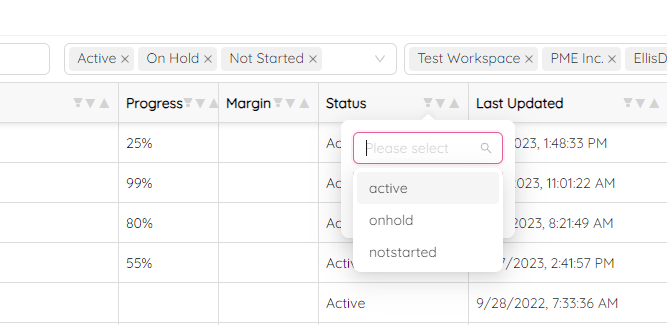
Select one or a few statuses, press the Esc button or click inside the box to hide the list, and click on the "Filter" to apply refinement.
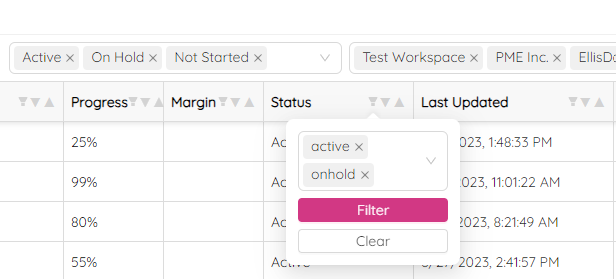
To clear refinement, click on the icon again and click the "Clear" button.
Filter by Workspace
You can apply the filter by selecting a workspace in the dropdown list at the top of the page. Feel free to pick one or a few workspaces. By typing in a request you can quickly search among the workspaces.
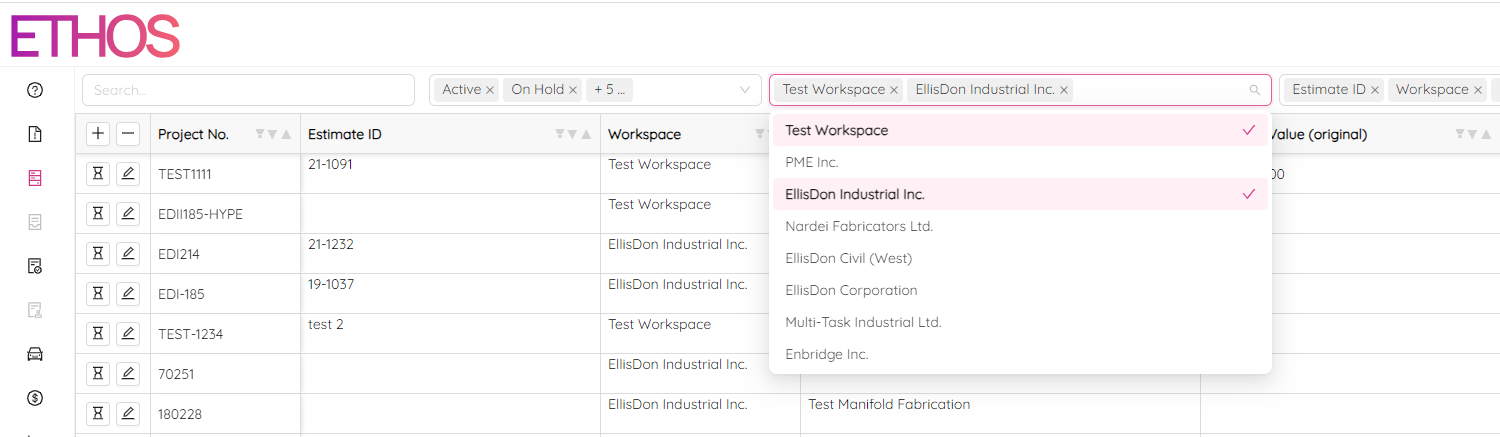
Similarly to the status filter, you can refine the workspace filter by clicking on the icon on the "Workspace" column title. Notice that you can select only among workspaces that you have already picked using the dropdown list at the top of the page.
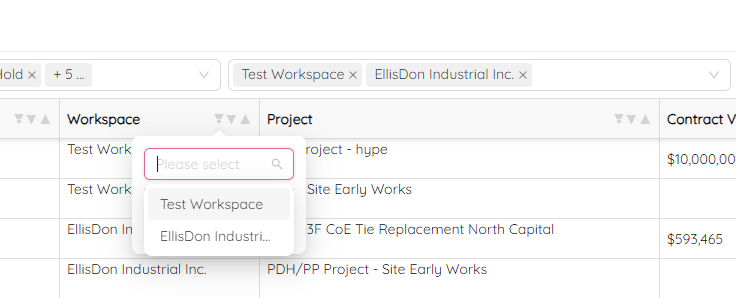
Select one or a few workspaces, press the Esc button or click inside the box to hide the list, and click on the "Filter" to apply refinement.
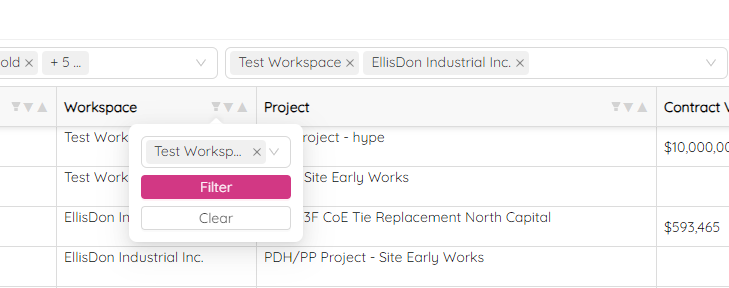
To clear refinement, click on the icon again and click the "Clear" button.
Add or Remove Columns
You can select or deselect the columns you want to see in the table by clicking on the dropdown list at the top right of the page. Please feel free to type in your request to quickly locate a column.
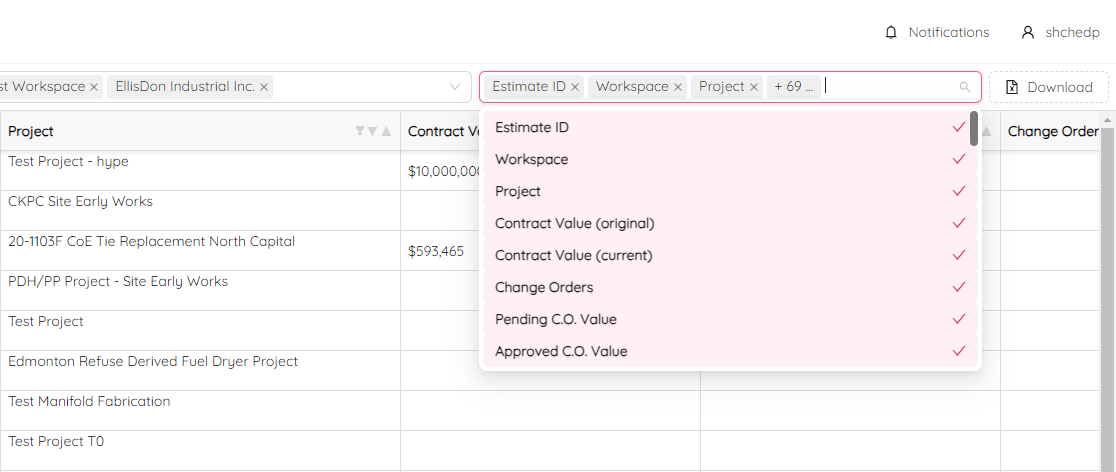
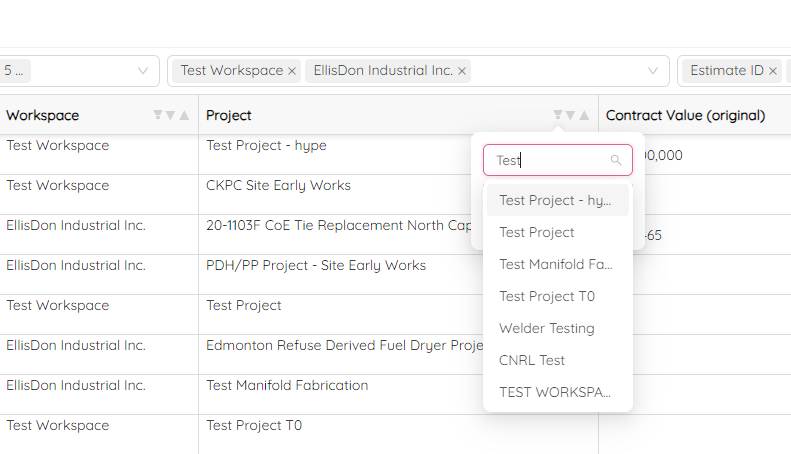
Filter by any column
You can filter by any column of the table by clicking on the icon on the column title.
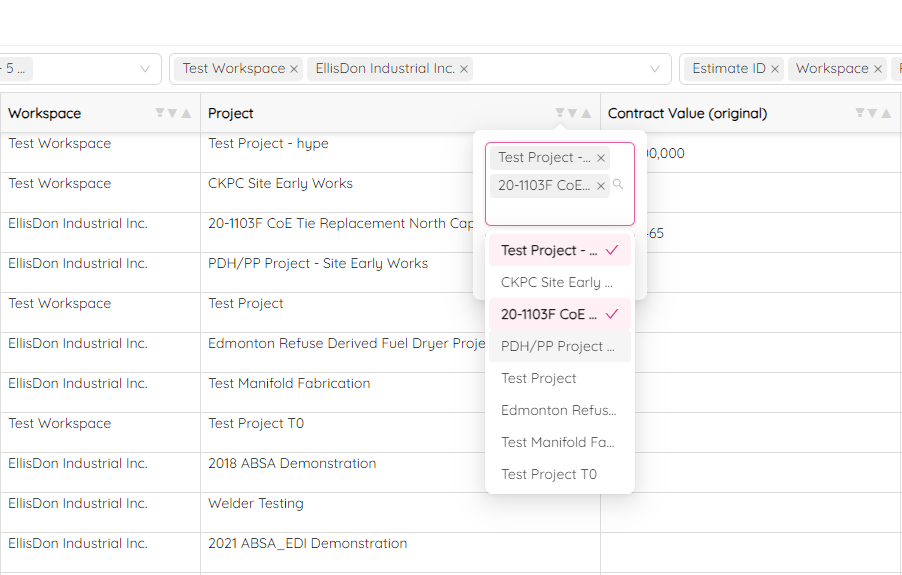
Select one or a few items, press the Esc button or click inside the box to hide the list, and click on the "Filter" to apply.
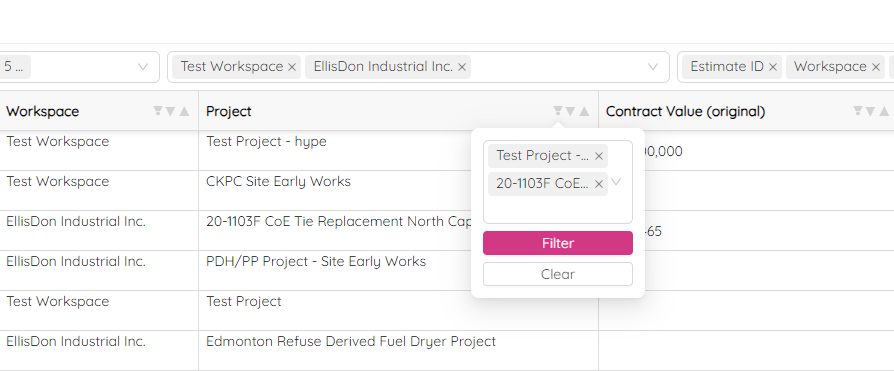
To clear filter, click on the icon again and click the "Clear" button. Feel free to type in a reqeust to quickly locate an item.
Filter by Value
Filtering by project value looks slightly different. By clicking on the icon on the column title you will see the following box.
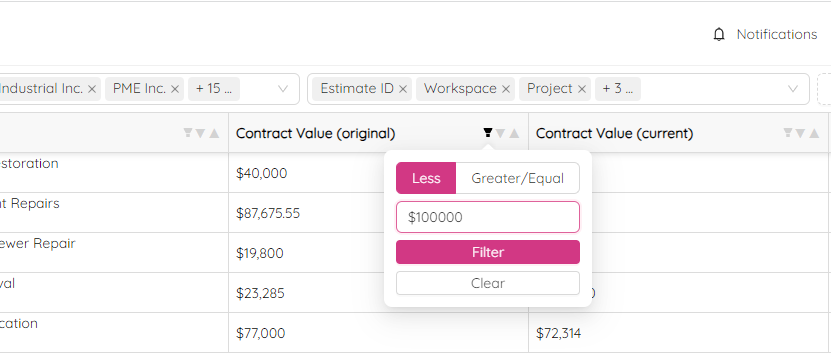
Here, you can filter all projects whose value is less or greater/equal to a specific amount. To clear filter, click on the icon again and click the "Clear" button.
Sort Table
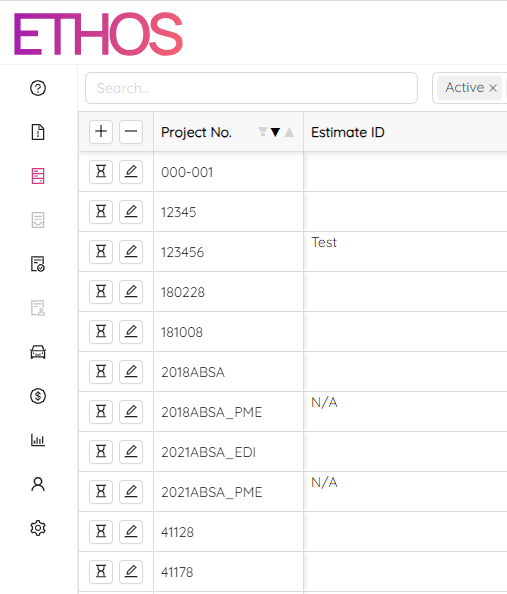
You can sort the table by any column simply by clicking on the  icon on the column title. Clicking again, you will switch between ascending and descending order.
Change Rows Height
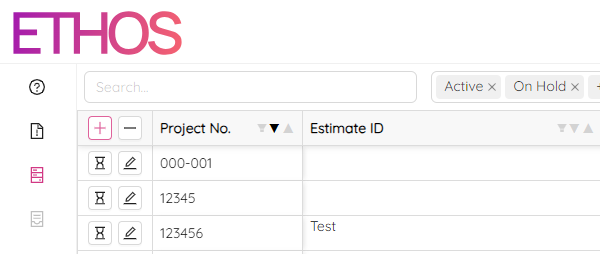
By clicking on the "+" and "-" icons at the top left part of the table, you can increase and decrease the rows' height.
Change Project
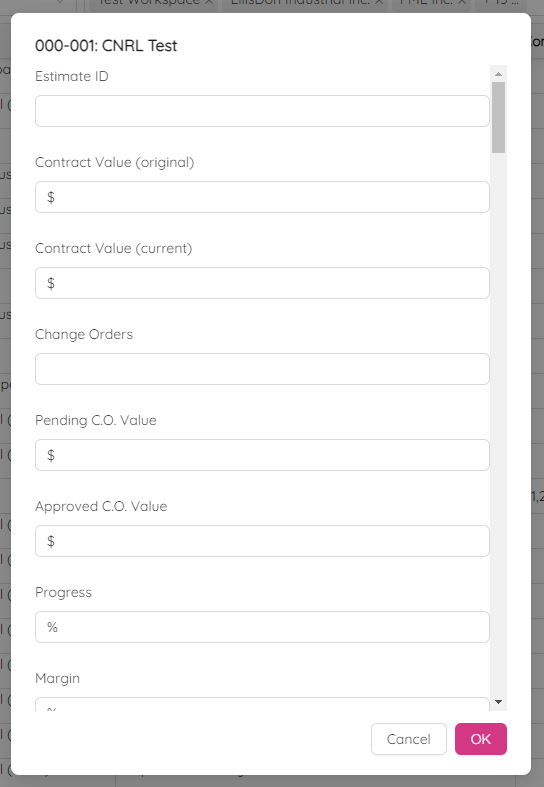
Click on the  icon at the beginning of a row to edit a particular project. Click "OK" to save changes.
View History
You can view a project history by clicking on the  icon at the beginning of a row to edit a particular project. The history panel will pop up on the right side of the page.
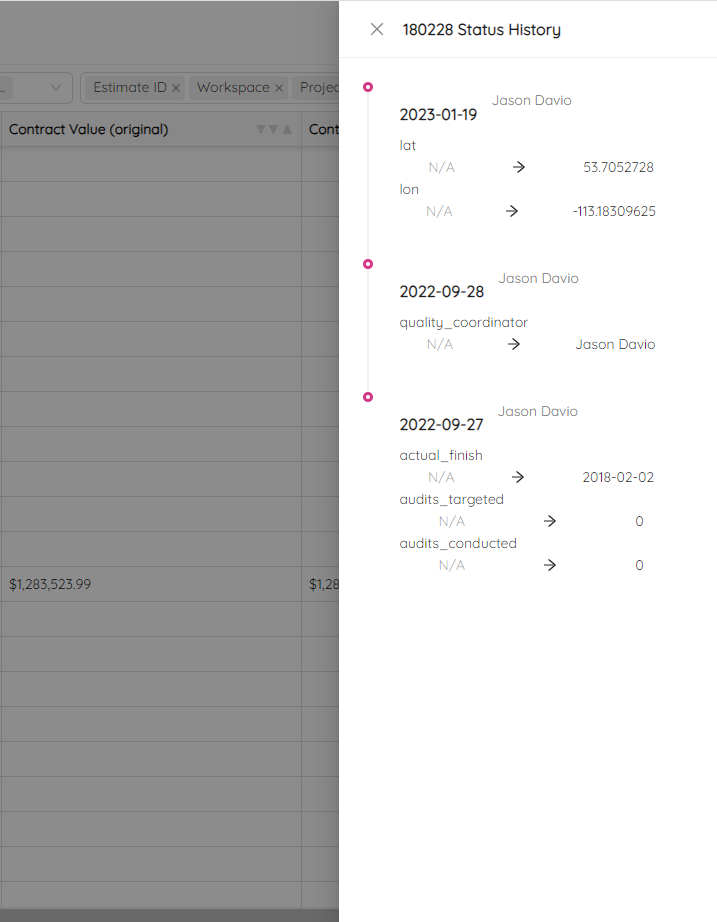
The history panel shows the date of previous updates, the name of who made changes and what changes were made.
Export to CSV
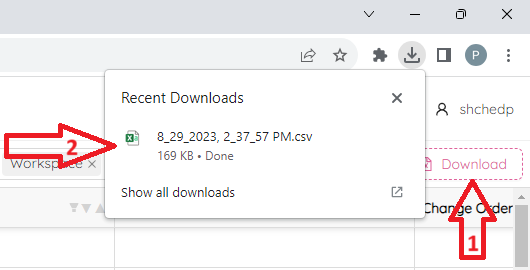
By clicking on the "Download" button at the top right of the page, you can export the table to CSV file.