Submitting to Coordination
After creating an RFI following the steps in the previous section, you can now select who will be responsible for the coordination of the RFI.
Coordinators

- Hover over the pencil icon next to "Coordinators" under the Labels section. A popup that reads "Edit Coordinators" will appear.
- Click on the pencil icon to open the Coordinators selection section.
Adding a Coordinator
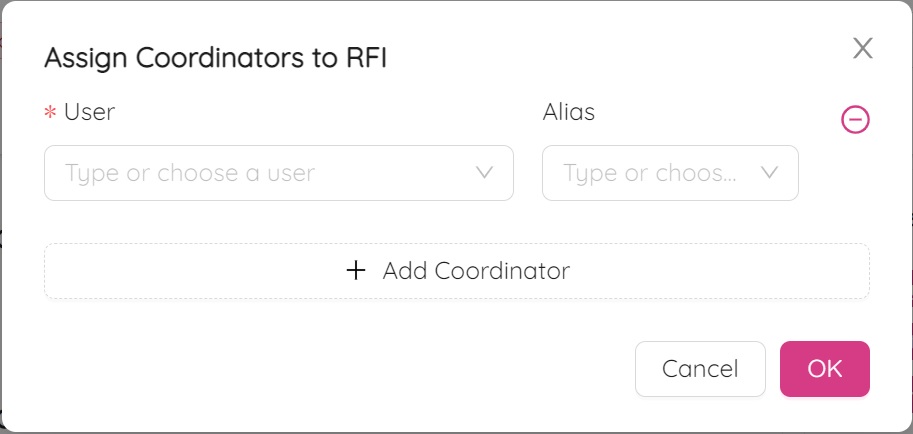
- Click on "+Add Coordinator" to open the Coordinator selection screen.
- Click in the cell below "* User" to display a list of available users.
If the person you need is not listed, contact the Project Admin.
- If you are filling the information on behalf of someone else (Alias), choose that person in the dropdown.
If their name is not available, contact the Project Admin.
- After adding the Coordinator and/or Alias, click the "OK" button.
Deleting a Coordinator or Alias
- Click on the "-" icon next to the Coordinator/Alias to delete the selection.
- Once you click "OK", an email will be sent automatically to the assigned Coordinator.
Leaving a Comment
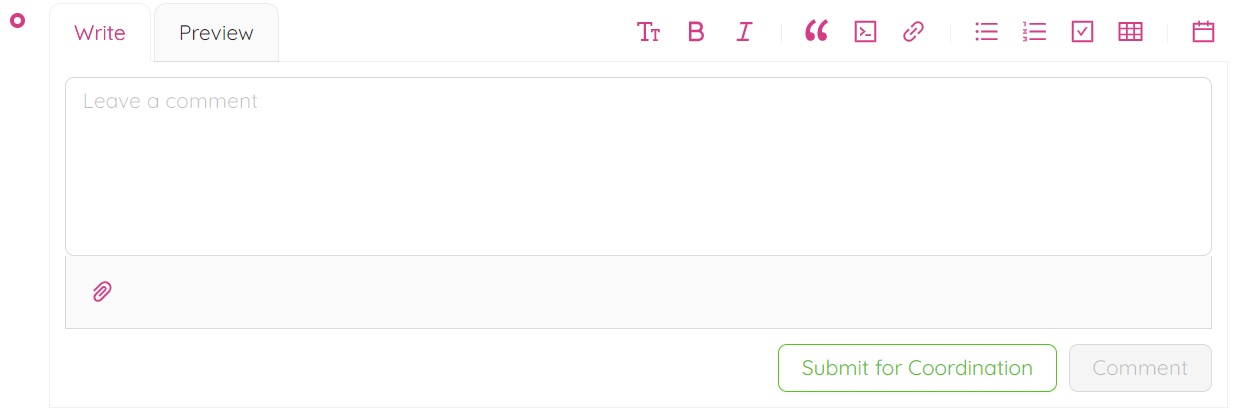
- Scroll down to the "Leave a Comment" section at the bottom of the page.
- Type any comments you would like to add, using different formatting options as needed.
- If necessary, upload documents by clicking the paperclip icon and selecting the required document.
- Click "Submit for Coordination".
Submitting for Coordination
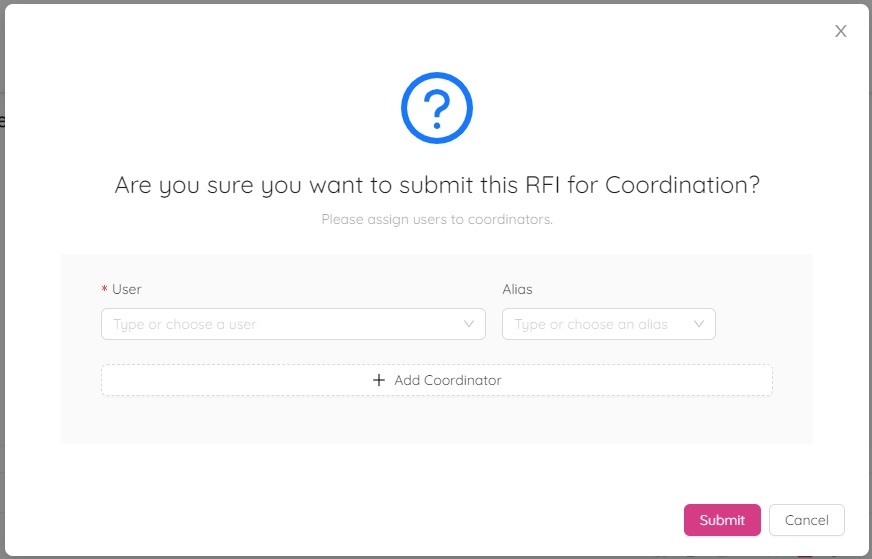
- After clicking "Submit for Coordination", a popup message will appear asking, "Are you sure you want to submit this RFI for Coordination?" followed by "Please assign users to coordinator."
- Verify that all coordinators are added and click "Submit".
- The RFI status will change to "Coordination".
Editing an RFI
- To edit information in the RFI, click the pencil icon in the section you want to edit.
- Scroll down to the bottom of the page, type any comments you would like to add, and click "Submit for Coordination".
- A popup message will appear asking, "Are you sure you want to submit this RFI for Coordination?" followed by "Please assign users to coordinator."
- Verify that all coordinators are added and click "Submit".
- The RFI status will change to "Coordination".
- An automatic email will be sent to the Coordinator(s) for this RFI.
Note that only ONE of the Coordinators will have the opportunity to respond to the RFI.