Submitting to Technical Review
As a Coordinator, you can review the RFI and assign Reviewers, Additional Reviewers, and Acceptor(s). Refer to the section "Coordinators" if you need to add the Coordinator role to Users in your project.
Reviewers and Additional Reviewers
- Hover over the pencil icon next to "Reviewers/Additional Reviewers" to see a popup that reads "Add/Remove Reviewers/Additional Reviewers".
- Click on the pencil icon to open the section for selecting Reviewers/Additional Reviewers.
Adding Reviewers
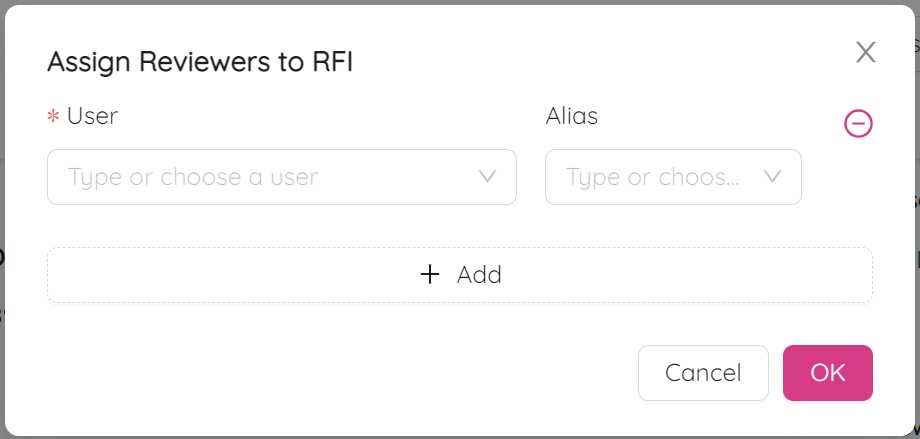
- Click on "+Add" to open the Reviewer selection screen.
- Click in the cell below "*User" to display a list of available users. If the person you need is not listed, contact the Project Admin.
- If you are filling the information on behalf of someone else (Alias), choose that person in the dropdown. If their name is not available, contact the Project Admin.
- After adding the Reviewer and/or Alias, click the "OK" button.
The above steps also apply to Additional Reviewers.
An automatic email will be sent to the Reviewer(s) for this RFI. If multiple Reviewers are assigned, they will all have the opportunity to respond to the RFI.
Acceptors
- Hover over the pencil icon next to "Acceptors" to see a popup that reads "Add/Remove Acceptors".
- Click on the pencil icon to open the section for selecting Acceptors.
Adding Acceptors
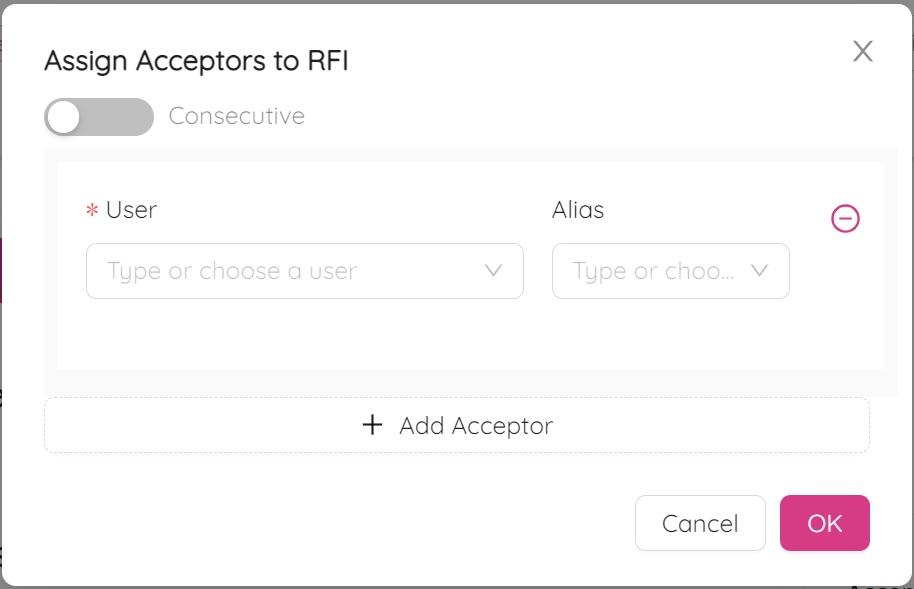
- Click on "+Add" to open the Acceptor selection screen.
- Click in the cell below "*User" to display a list of available users. If the person you need is not listed, contact the Project Admin.
- If you are filling the information on behalf of someone else (Alias), choose that person in the dropdown. If their name is not available, contact the Project Admin.
- Optionally, toggle whether to make Acceptors accept consecutively or not by changing the switch icon.
Leaving a Comment and Submitting for Technical Review
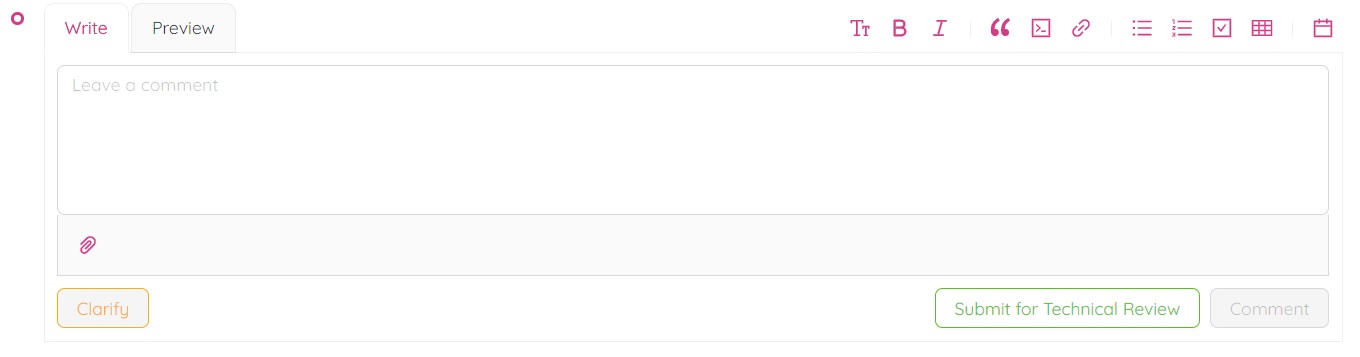
- Scroll down to the "Leave a Comment" section at the bottom of the page.
- Type any comments you would like to add, using different formatting options as needed.
- If necessary, upload documents by clicking the paperclip icon and selecting the required document.
- Click "Submit for Technical Review".
After clicking "Submit for Technical Review", a popup message will appear asking, "Are you sure you want to submit this RFI for Technical Review?"
At this stage, you can add more Reviewers and Acceptors, and switch the toggle to make the Acceptors accept consecutively or not.
At the bottom of the screen, you can set the RFI Visibility as Internal or External.
After clicking "Submit", the RFI status will change to "Technical Review", and an automatic email will be sent to the Reviewer(s) for this RFI.
Link RFI with previously Issued RFI: After submitting for Technical Reviewn, the RFI can be linked with previous RFIs. This can be accomplished by editing the RFI history, specifically under "Submitted for Technical Review".
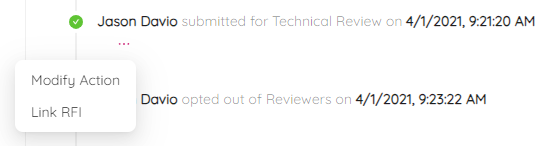
- Find "submitted for Technical Review" in RFI's history.
- Click on "three dots" icon.
- In the dialog box select "Link RFI" option.
- Enter RFI number that you want to link with this RFI. If you are linking multiple RFI’s then the use of comma to separate the RFIs.
- Click on "Save" to save to link.

You will notice linked RFI number in history and RFI log ("Linked RFIs" column).
Editing an RFI as a Coordinator
- To edit information in the RFI, click the pencil icon in the section you want to edit.
- Scroll down to the bottom of the page, type any comments you would like to add, and click "Submit for Technical Review".
- A popup message will appear asking, "Are you sure you want to submit this RFI for Technical Review?" followed by "Please assign users to Reviewers & Acceptors."
- At this stage, you can verify and add more Reviewers and Acceptors, as well as turn the toggle on requiring Acceptors to answer consecutively.
- Set RFI Visibility as Internal or External below Reviewers and Acceptors.
- After clicking "Submit", the RFI Status will change to "Technical Review", and an automatic email will be sent to the Reviewer(s) for this RFI. Note that only ONE of the Reviewers will have the opportunity to respond to the RFI.
If you (Coordinator) would like to clarify something in the RFI prior to submission for Technical Review, refer to the section on "Clarifying an RFI."
Technical Review Response
Reviewers can submit a technical response or request clarification for the RFI.
Submitting a Technical Response
- Scroll down to the "Leave a comment" section at the bottom of the page.
- Type your response and use any formatting as required.
- Click "Submit Response."
- When you click "Submit Response", a popup message will appear asking, "Does this response require additional review?"
Now you have two choices: "Submit for Acceptance" or "Submit for Additional Review."
Submit for Additional Review
If there is a need for Additional Review and the Additional Reviewers are already entered in the RFI:
- Click "Submit for Additional Review".
- A window will pop up asking, "Are you sure you want to submit this RFI for Additional Review?" followed by "Please assign users to additional reviewers and acceptors." In this window, you can verify and add Additional Reviewers and Acceptors if they are not already entered in the RFI.
- Once you click "Submit", an automatic email notification will be sent to the Additional Reviewers.