Add ETHOS to iPhone Home Screen
This manual describes adding the ETHOS application to your iPhone home screen from different browsers such as Safari, Google Chrome and Microsoft Edge.
Safari Browser
-
The first step of getting ETHOS added to your iPhone home screen is to navigate to login.ethos.red
-
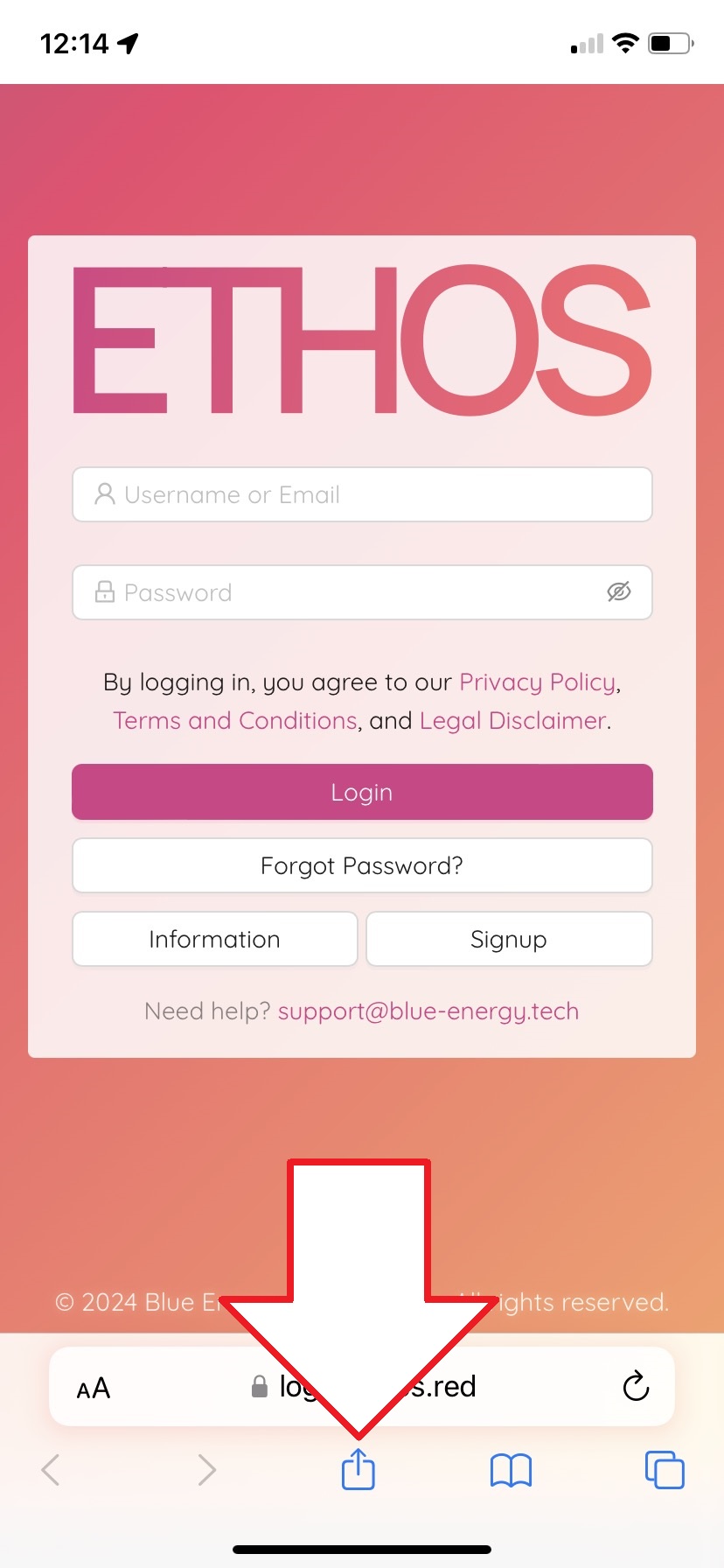
Once you see the ETHOS application in Safari you will see at the bottom of your screen an icon with a square and an arrow pointing up. Tap it to open a browser menu.
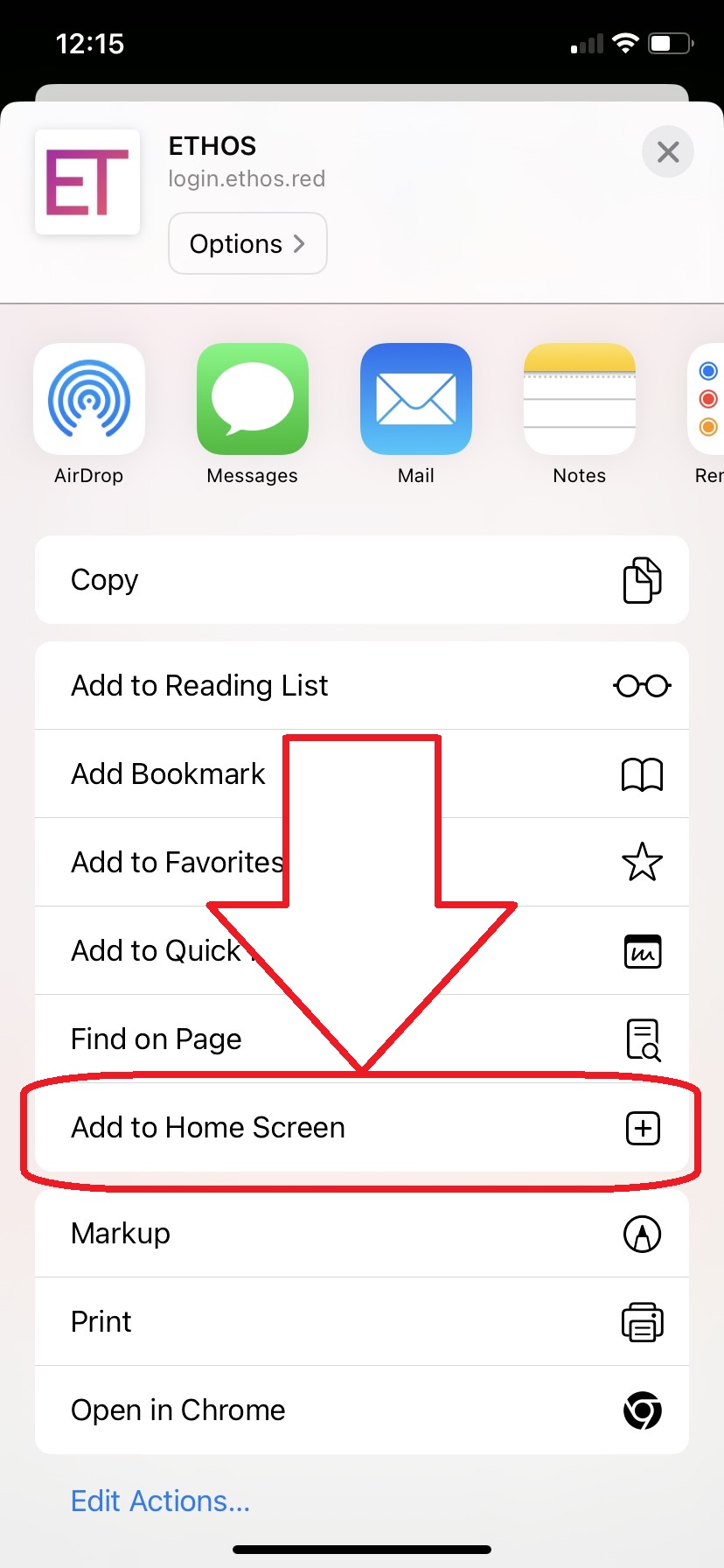
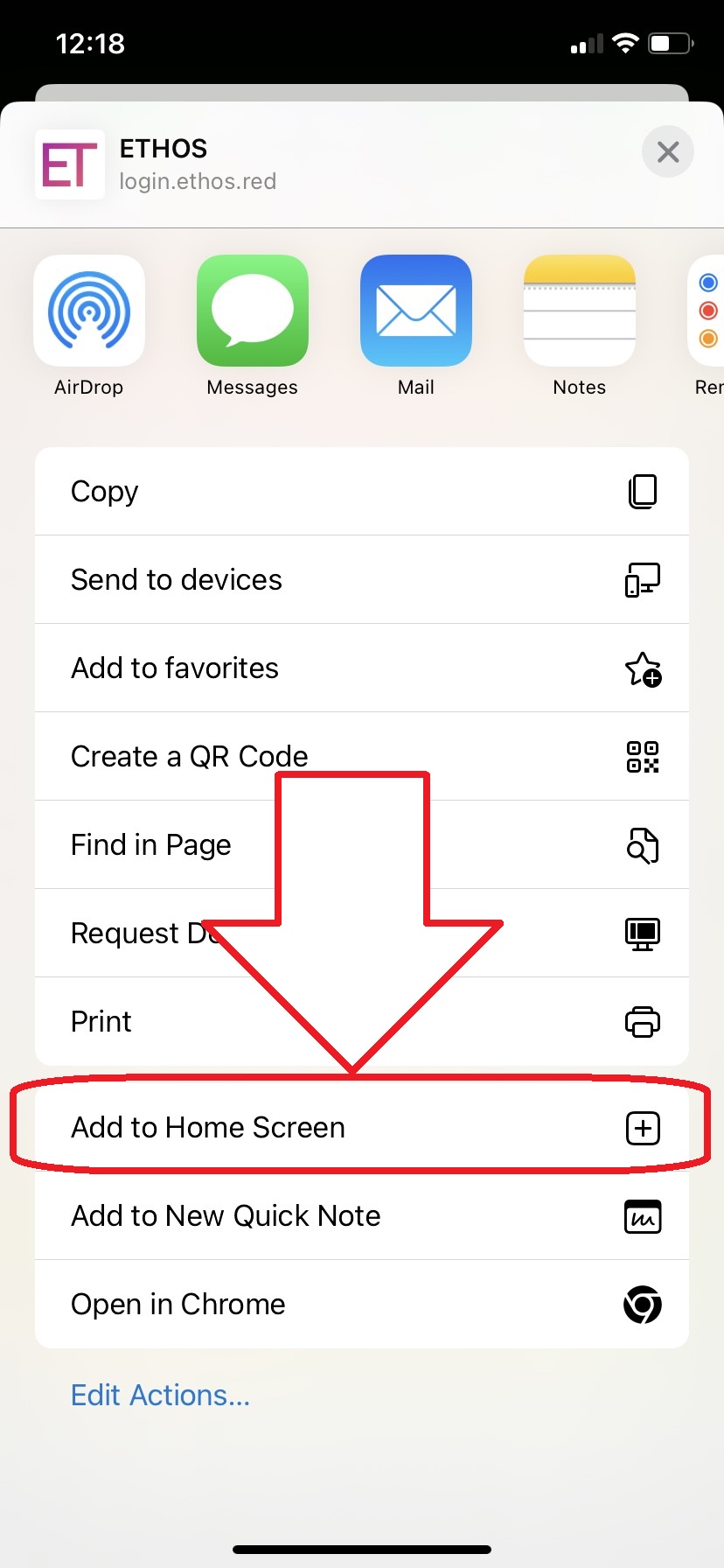
- Once at this screen you will scroll down until you see the option to Add to Home Screen. Tap on the menu item.
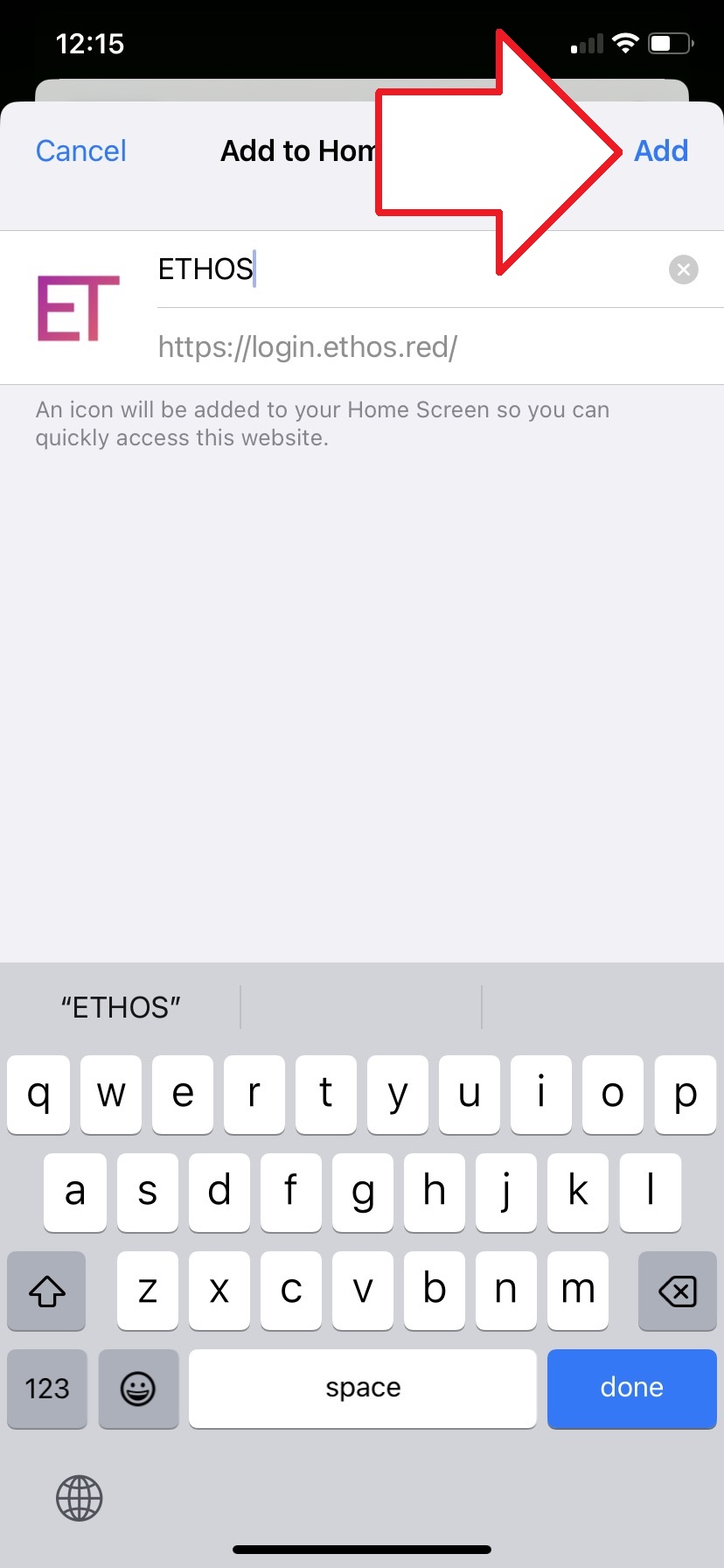
- Tap the Add button to to confirm!
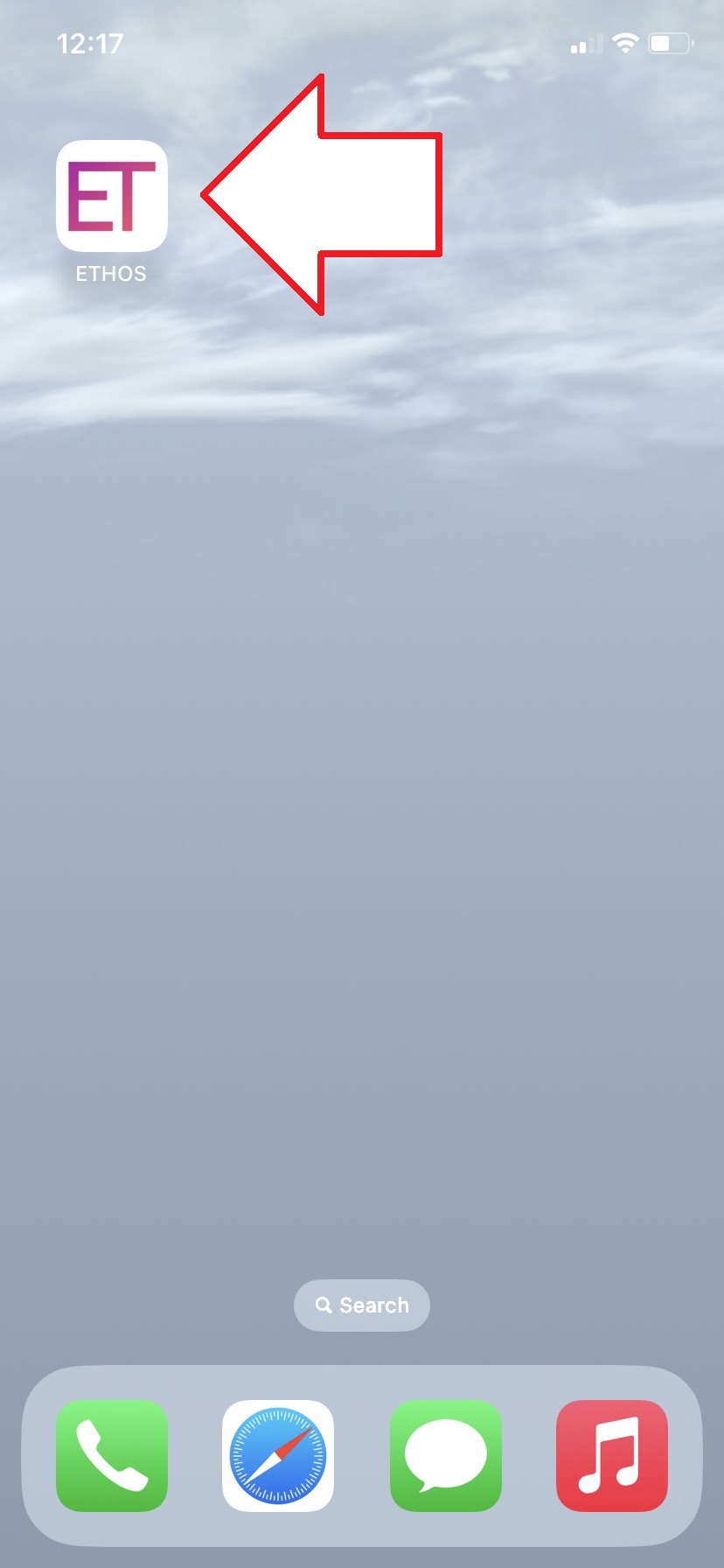
- The ETHOS shortcut will now be on your home screen and easily accessible.
Google Chrome Browser
-
The first step of getting ETHOS added to your iPhone home screen is to navigate to login.ethos.red
-
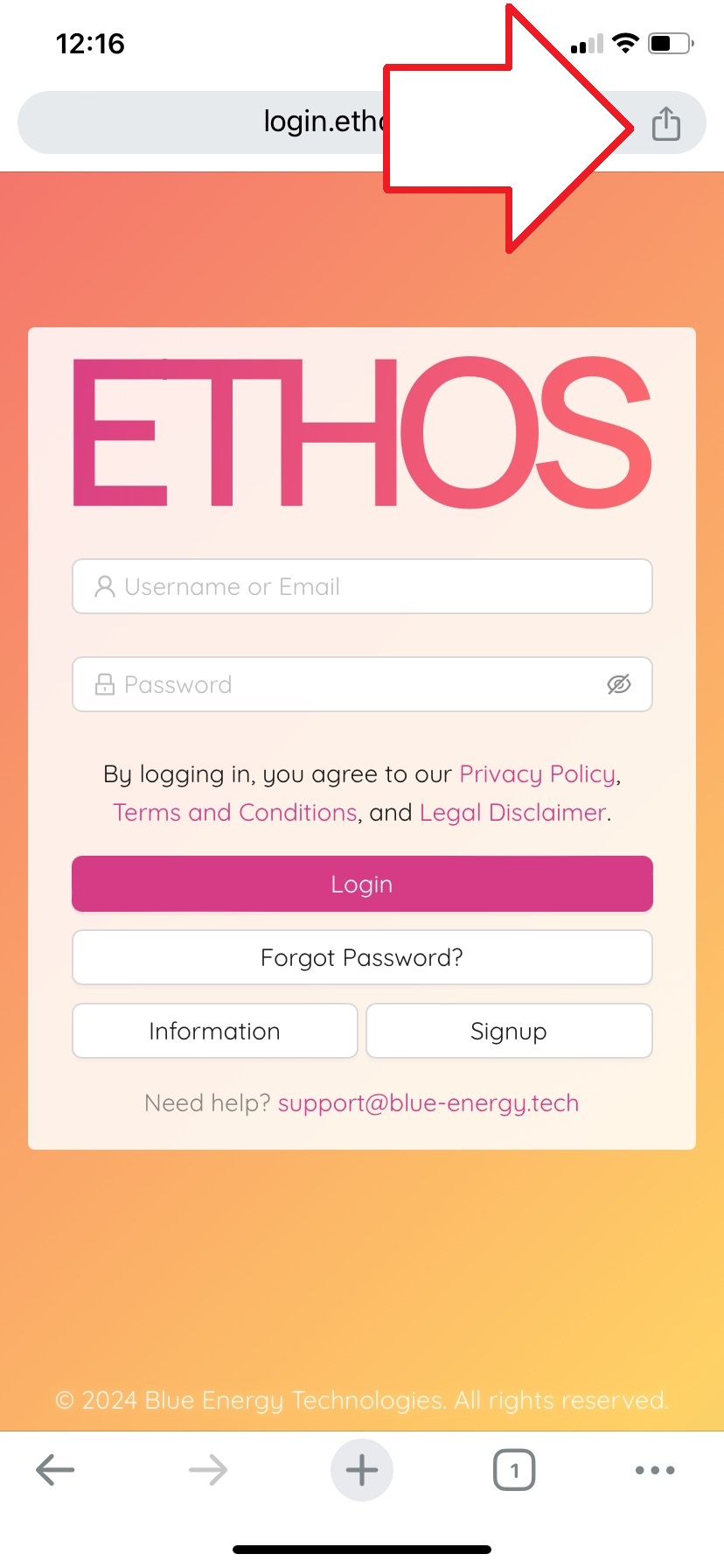
Once you see the ETHOS application in Chrome you will see at the top of your screen an icon with a square and an arrow pointing up. Tap it to open a browser menu.
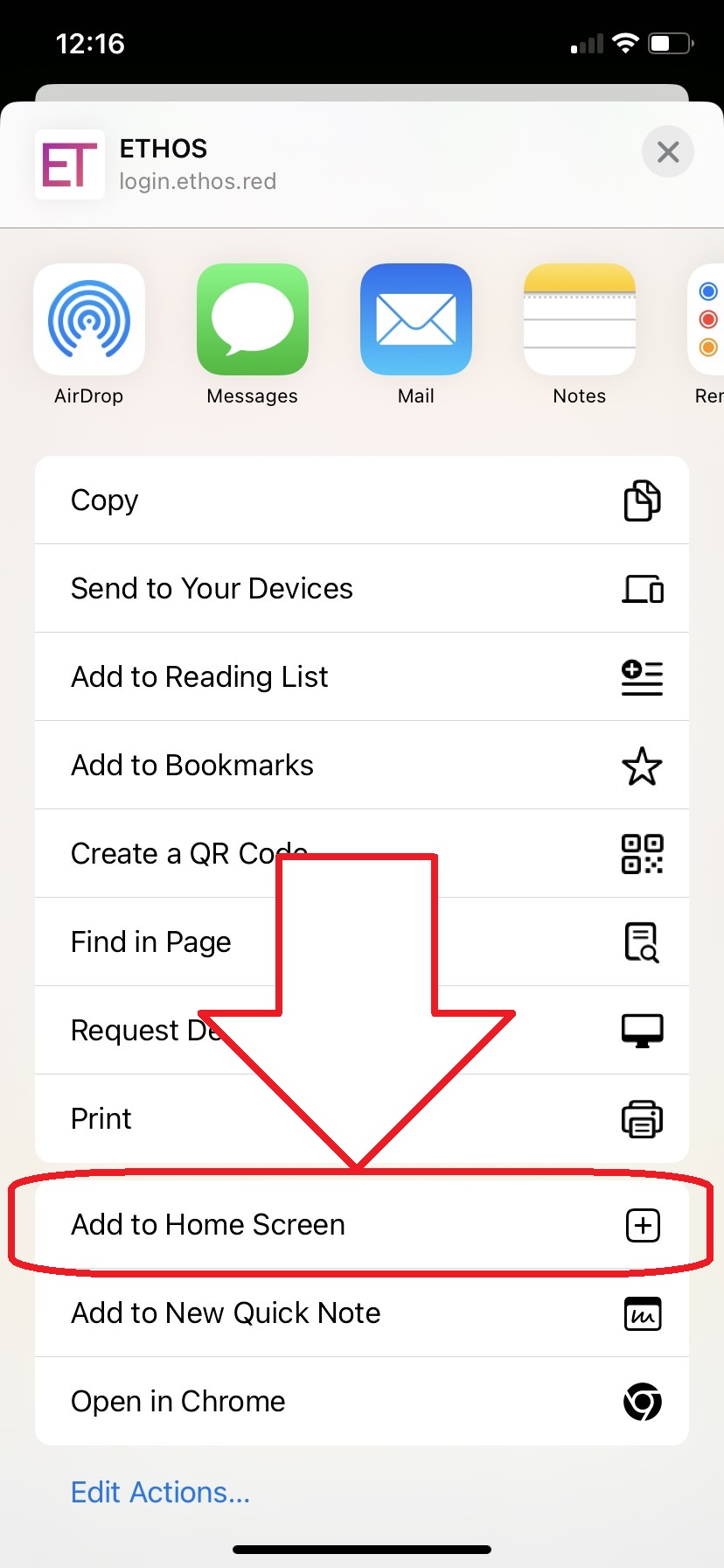
- Once at this screen you will scroll down until you see the option to Add to Home Screen. Tap on the menu item.
- Tap the Add button to confirm.
- The ETHOS shortcut will now be on your home screen and easily accessible.
Microsoft Edge Browser
-
The first step of getting ETHOS added to your iPhone home screen is to navigate to login.ethos.red
-
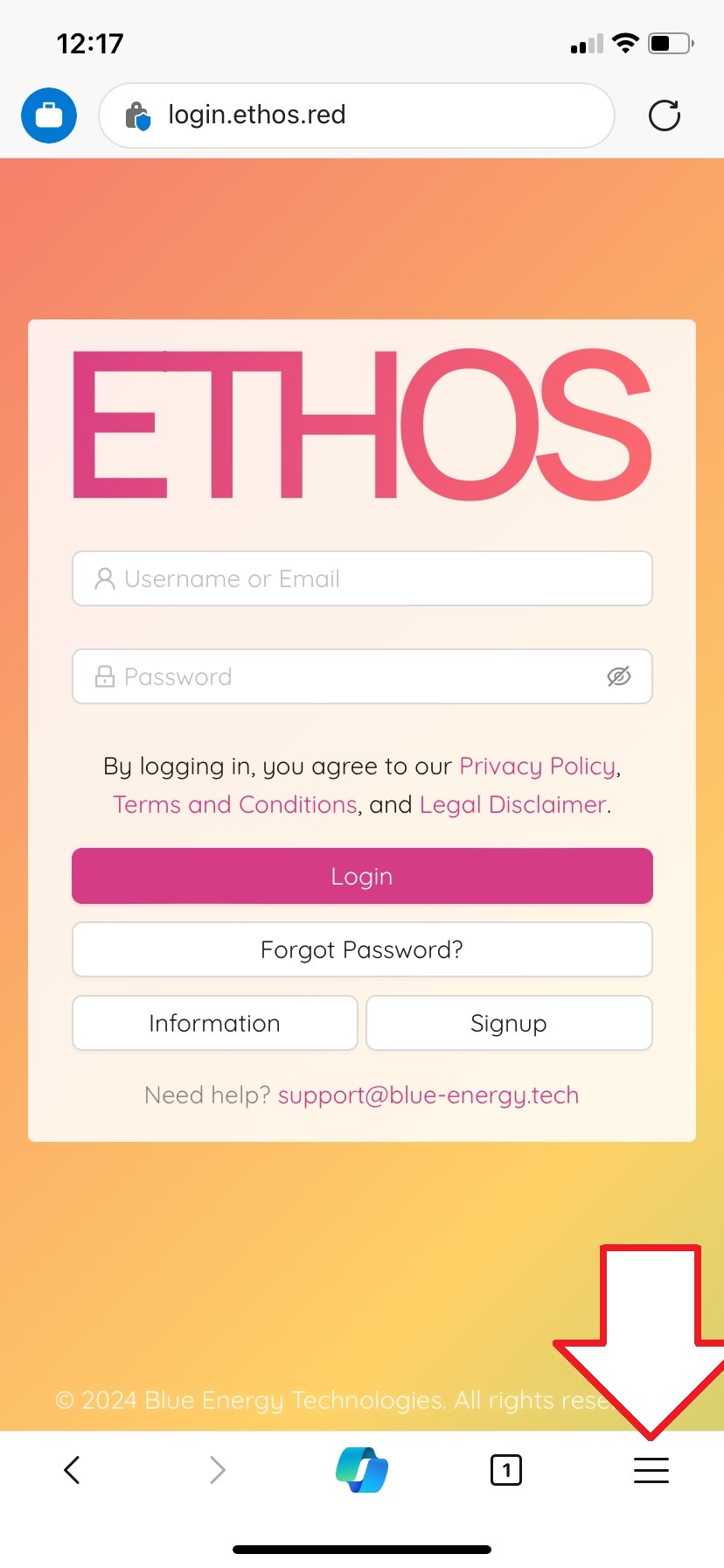
Once you see the ETHOS application in Edge, you will see at the bottom of your screen a "burger"-icon with three horizontal lines. Tap it to open a browser menu.
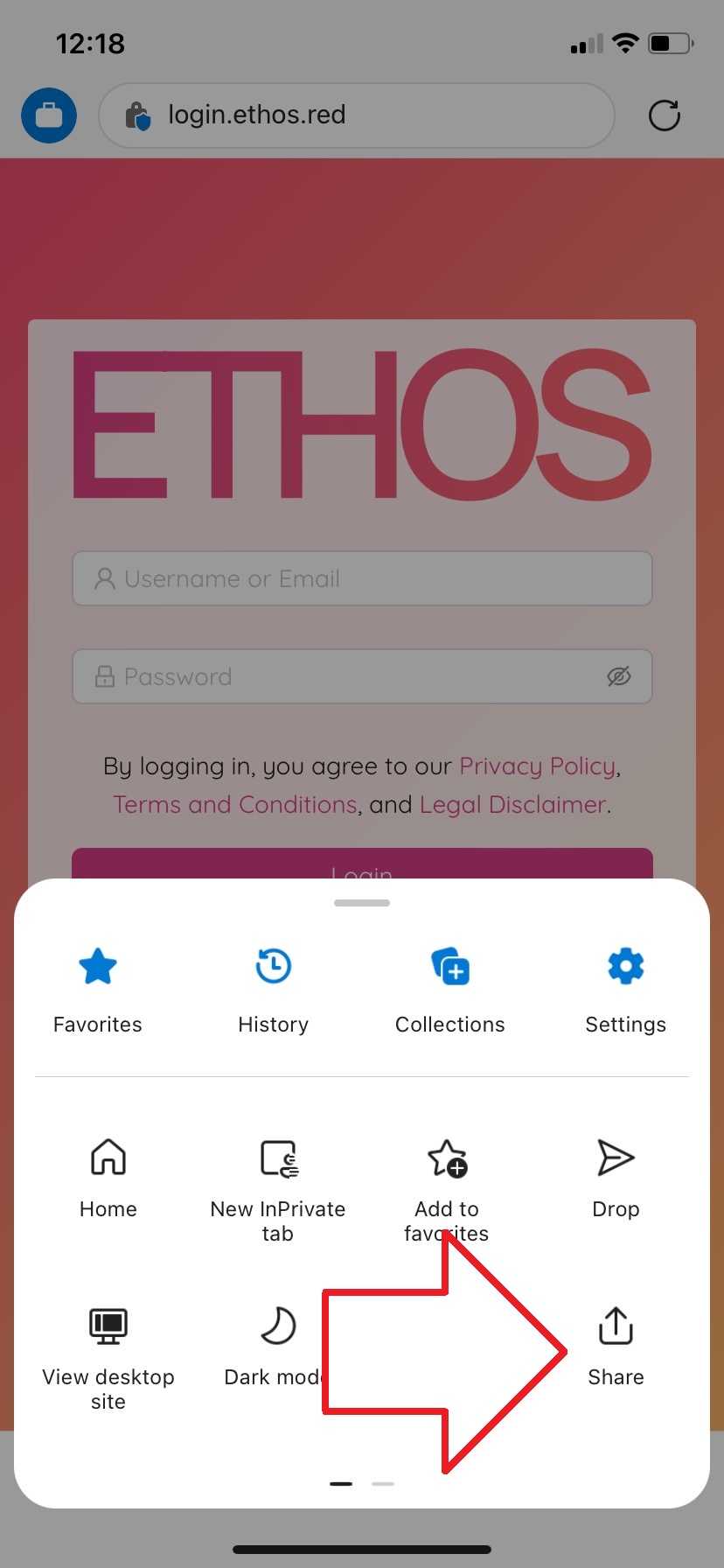
- Tap the Share button.
- Once at this screen you will scroll down until you see the option to Add to Home Screen. Tap on the menu item.
- Tap the Add button to confirm.
- The ETHOS shortcut will now be on your home screen and easily accessible.