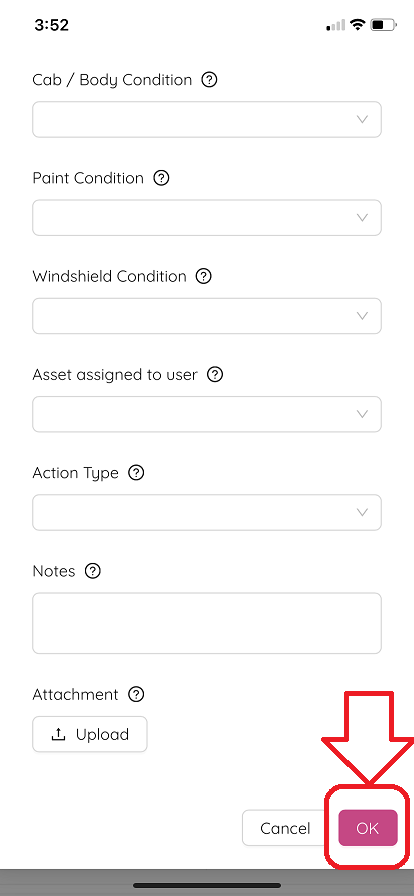
How do I enter or update asset HR in ETHOS on my phone?
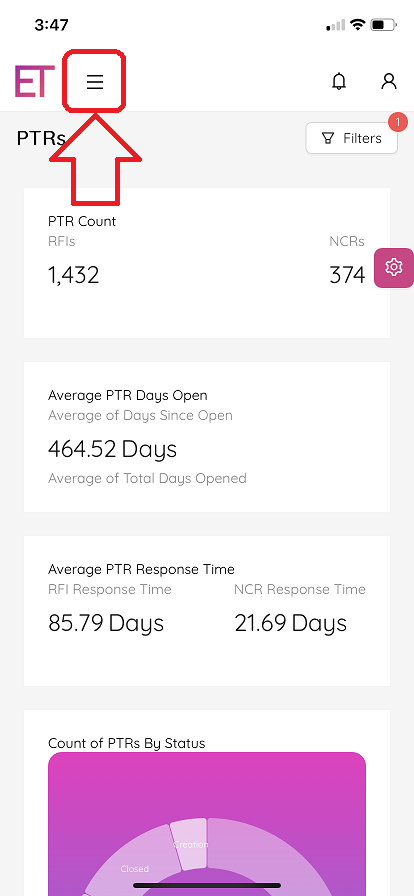
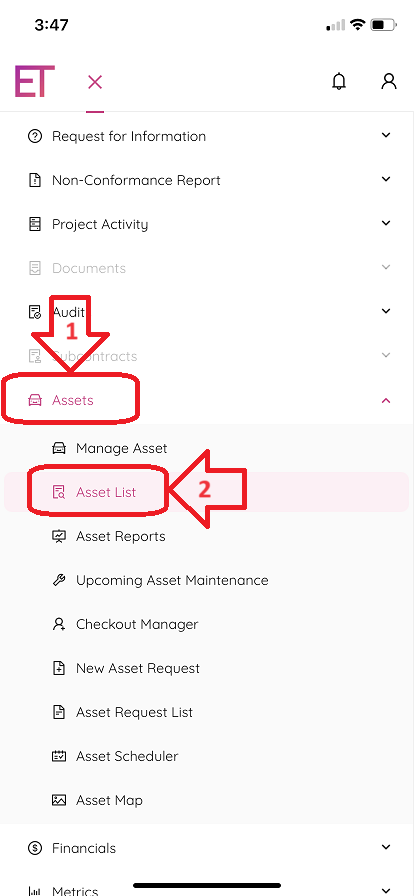
- Once you are logged into the ETHOS application navigate to the Asset List. This can be done by tapping on the "burger"-icon (three horizonatl lines) located at the top left of your screen. Then, tap “Assets” and “Asset List”.
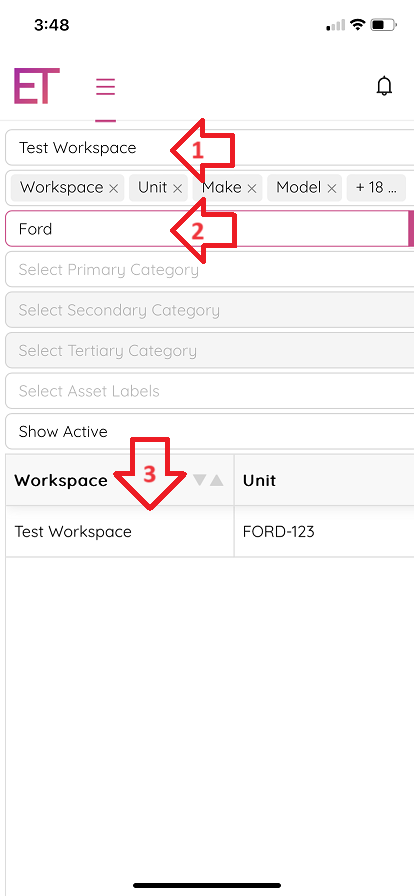
- Once at the “Asset List” screen, type/select your workspace, enter your vehicle unit number in the search bar, and tap on your vehicle to navigate to the “Asset Single View” screen.
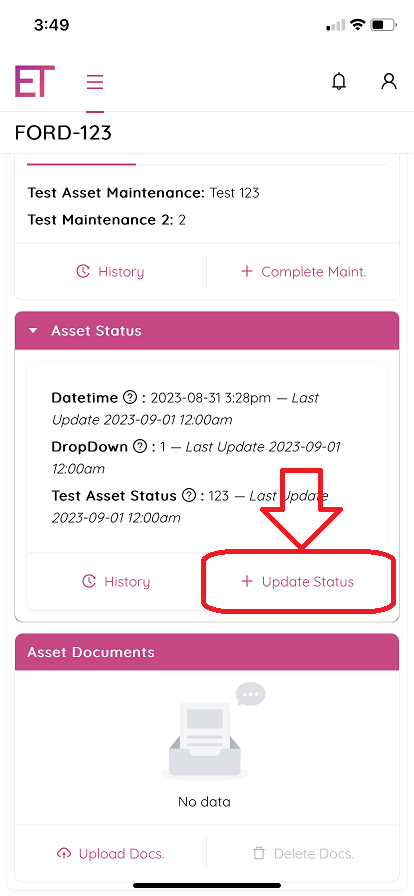
- Once you are on the “Asset Single View” screen, you can update your HR by tapping the “Update Status” button, entering the current date, time, and hours.
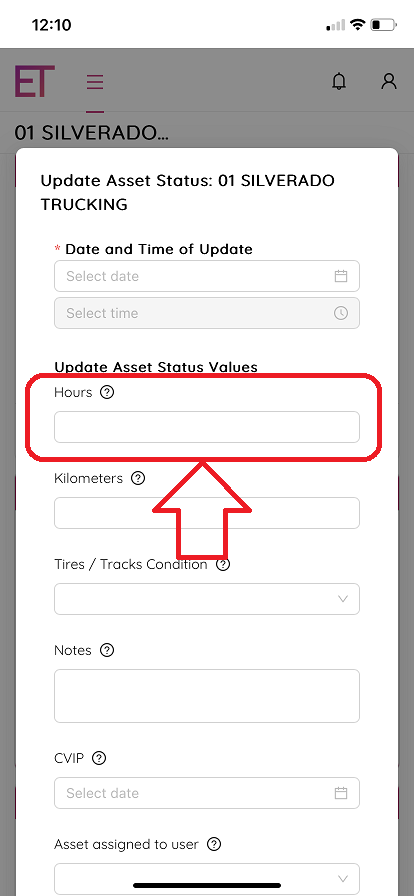
- Tap “OK” at the bottom part of the page to submit updates.