Asset Scheduler
Please note that Asset Scheduler is currently in development and some features may not be fully functional or may be subject to change. While we strive to provide accurate and up-to-date information in our documentation, please keep in mind that the content is subject to change as the product continues to evolve. We appreciate your understanding and patience as we work to improve Asset Scheduler and make it the best possible tool for managing your asset requests.
Asset Scheduler is designed to help you view asset requests within a specified time period. The module has four different views that you can select from, including the Asset View, Project View, Asset Category View, and Project Asset Category View.
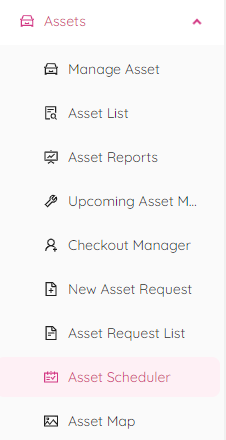
You can find Asset Scheduler page under the Assets menu.
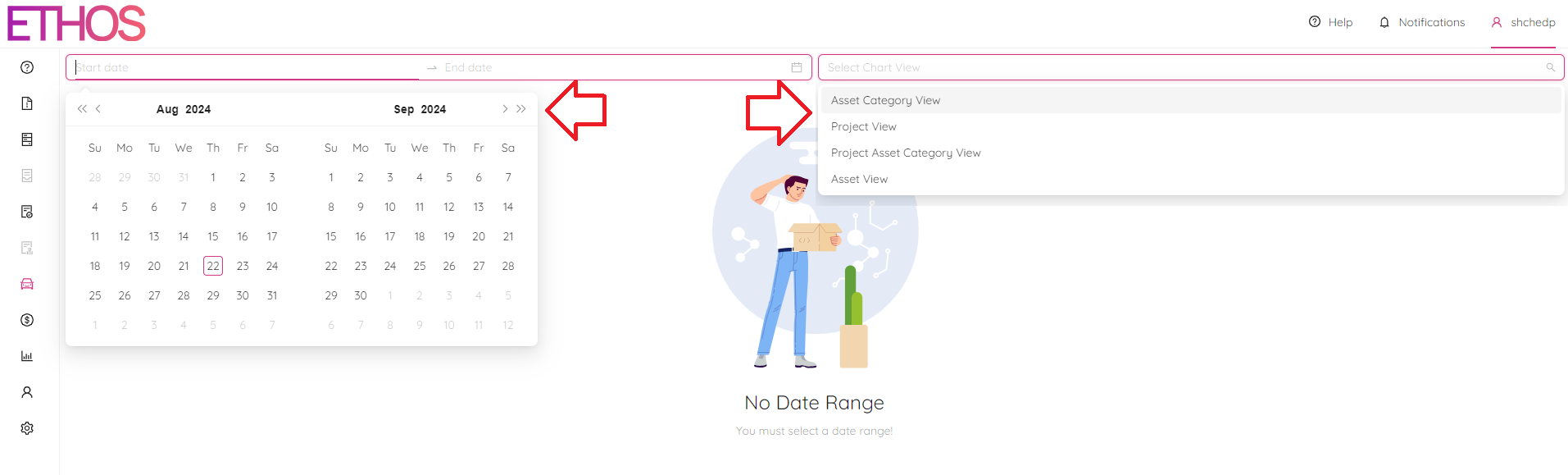
First, you'll need to select a date range and view that you want to see. Once you've done that, you'll then need to choose one or more workspaces and/or projects that you want to view.
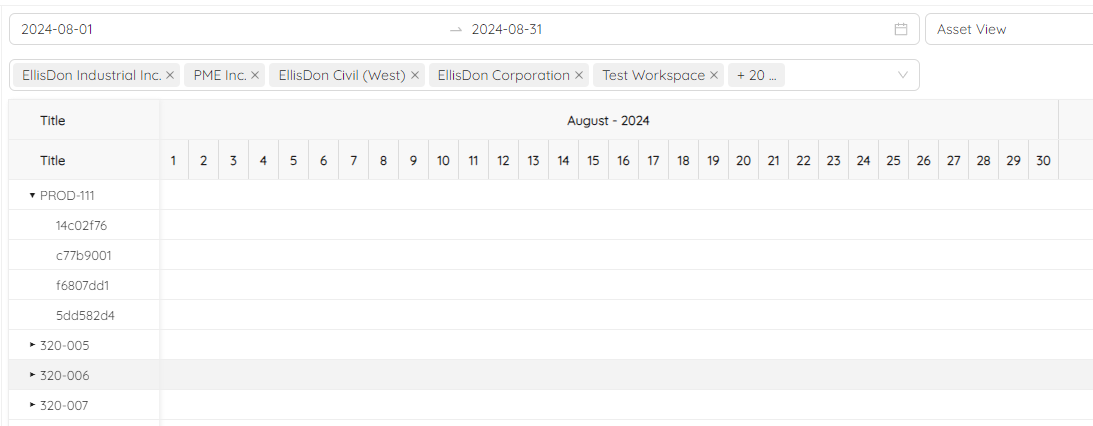
Asset View
In the Asset View you can view requests based on the requester's name. Simply click on the name to expand it, and you'll be able to see all of the requests that the person has made within that date range.
Project View
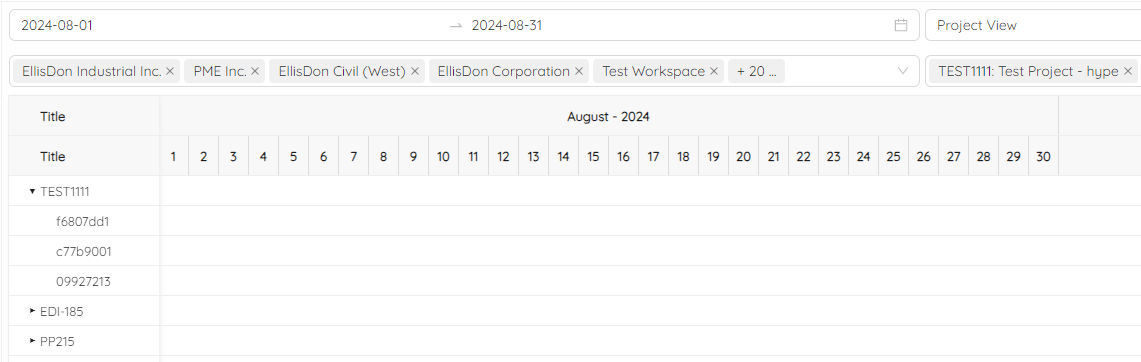
The Project View in Asset Scheduler allows you to view requests based on the project. In the first grid column, you'll see a list of all the projects, and you can click on a specific project number to expand it and see all the requests made within that project.
Asset Category View
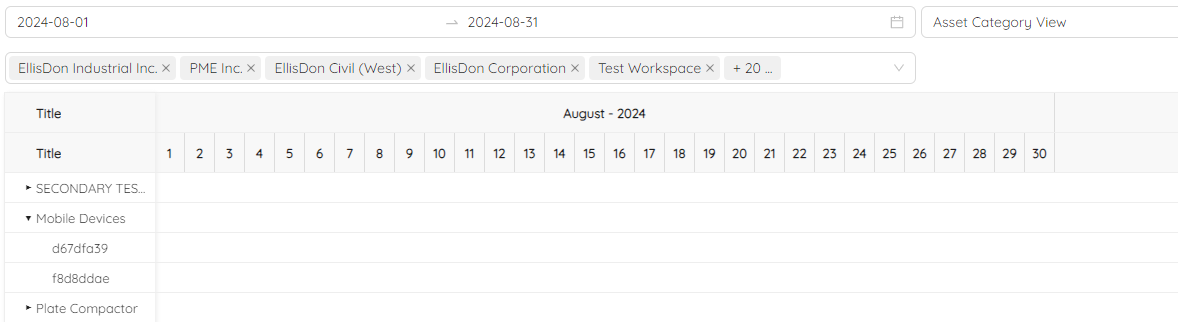
The Asset Category View in Asset Scheduler allows you to view requests based on the primary categories of the assets. In the first grid column, you'll see a list of all the primary categories for the assets. From there, you can click on a specific category to expand it and see all the requests made for assets under that category.
Project Asset Category View
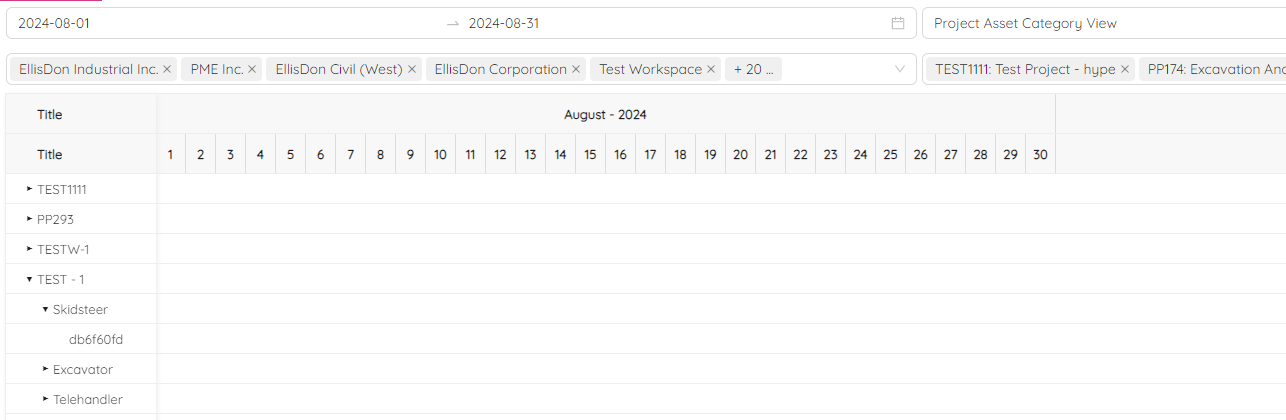
The Project Asset Category View in Asset Scheduler allows you to view requests based on both the project and the primary categories of assets. In the first grid column, you'll see a list of all the projects, and you can click on a specific project to expand it and see a list of primary categories for assets used in that project. From there, you can click on a specific category to see all the requests made for assets under that category for that particular project.