Asset Map
The Asset Map module allows you to view the locations of assets on a map.
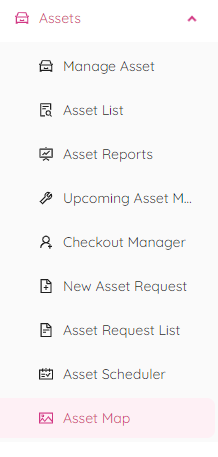
To access the Asset Map page, click on "Assets" and then select "Asset Map" from the popup panel.
Map Review
Underneath the filter panels, you will find a map area showing assets represented by coloured points.  .
.
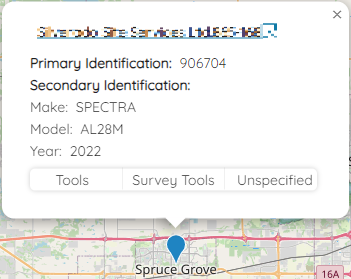
By clicking on a specific asset, you can view a pop-up box with a brief description, including the asset's identifiers and primary, secondary, and tertiary categories. Clicking on the title of the box will take you to the asset's single-view page.
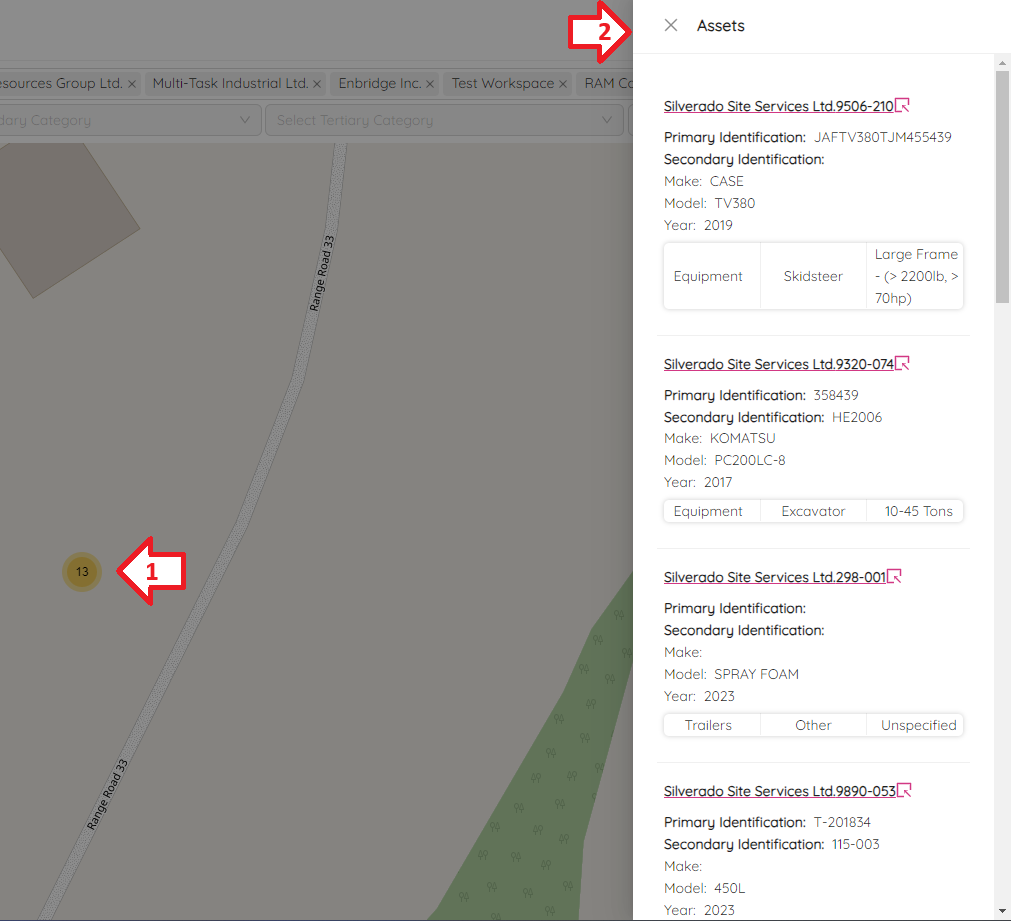
If there are multiple assets in a location, you will see a coloured circle with the number of assets in it. The colour of the circle describes how many assets are in that particular location.
 - Green indicates less than ten assets.
 - Yellow indicates ten or more assets.
 - Red indicates one hundred or more assets.
Clicking on the group of assets in one location will show you a side panel with a list of the assets and their brief descriptions, including their identifiers and primary, secondary, and tertiary categories. Clicking on any asset title will take you to the asset's single-view page.
Zoom-in/zoom-out
To zoom in or out on the map, click on "+" or "-" button at the top left corner or simply scroll your mouse wheel.

Filter By Workspace
Click on the "Workspace" dropdown list to select workspaces which workspace's assets you want to see or click "Select All" checkbox to view all workspaces.
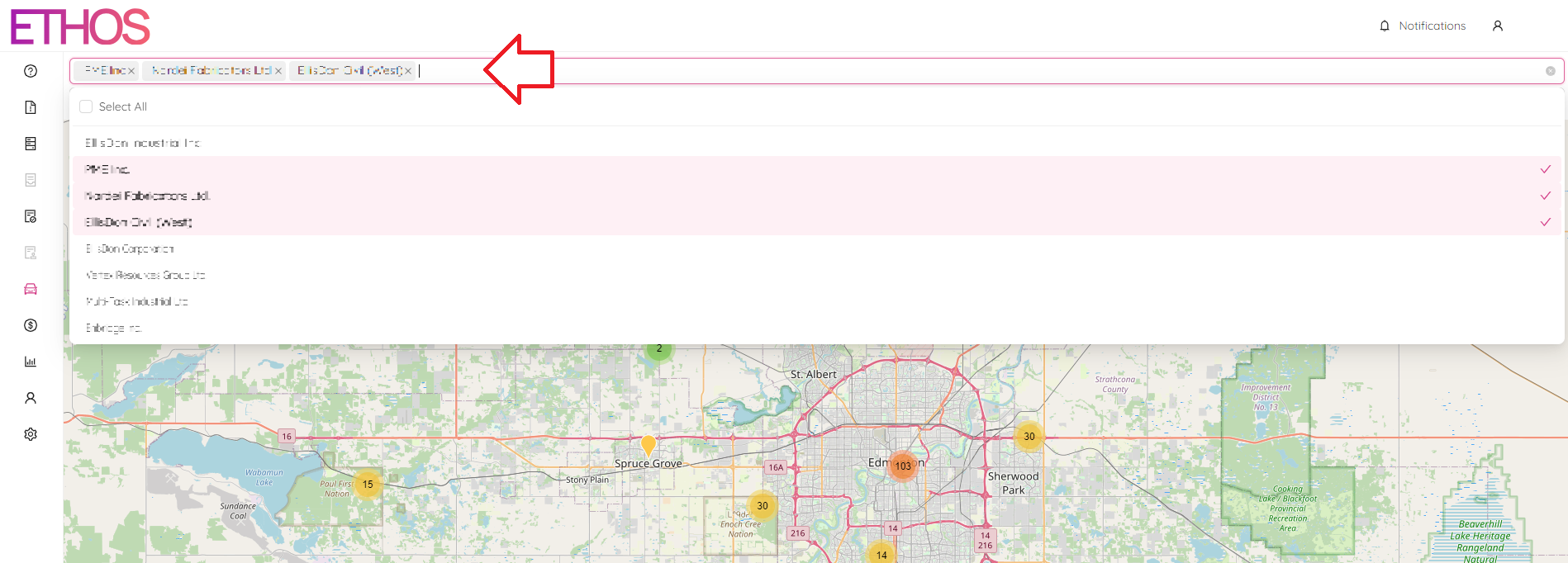
You can scroll down the list or type in a request for a quick search.
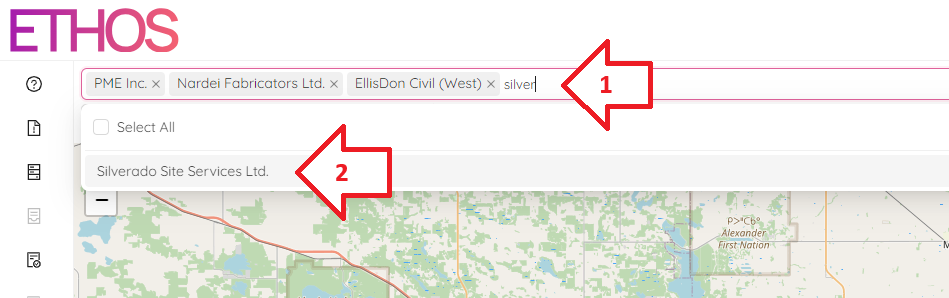
To deselect any workspace, simply click it again in the list or click little "X" button.
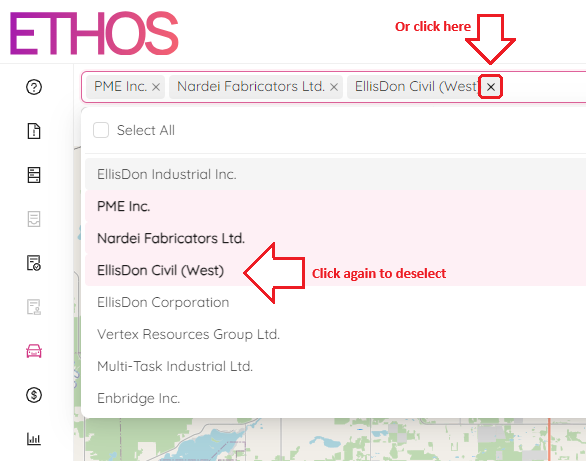
To clear all selected workspaces, click the little "X" at the end of the field.
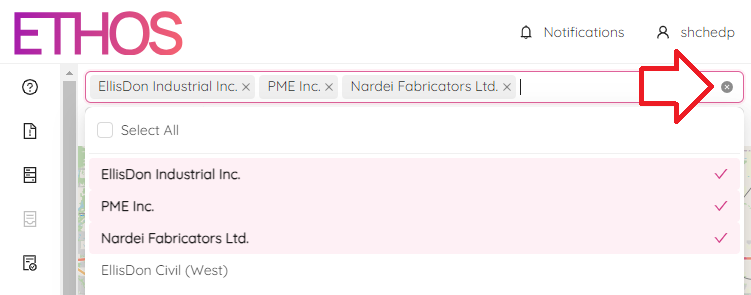
After selecting your desired workspaces, click on the map to see the result.
Quick Search
Below the workspace filter you will find a "Search" panel which you can use to filter assets by any attribute.
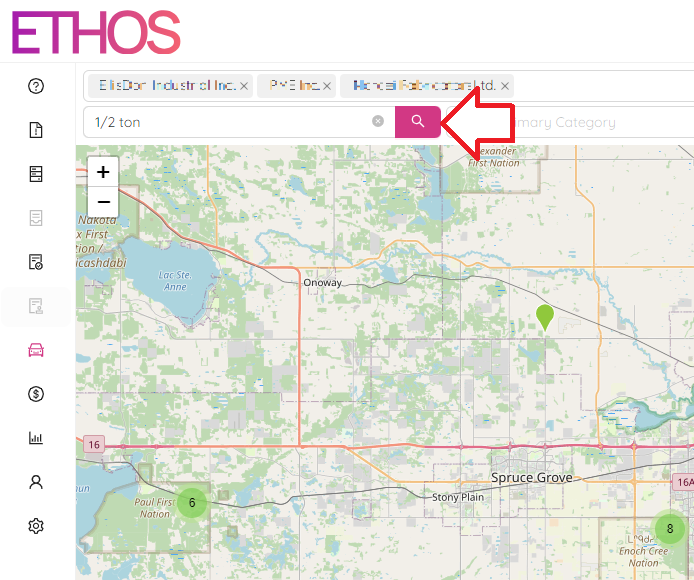
Filter By Category
Next to the Search panel you will see Primary-Secondary-Tertiary Categories filter. Scroll through the drop-down list and pick a category, or type in a search request to see only assets under the specific category.
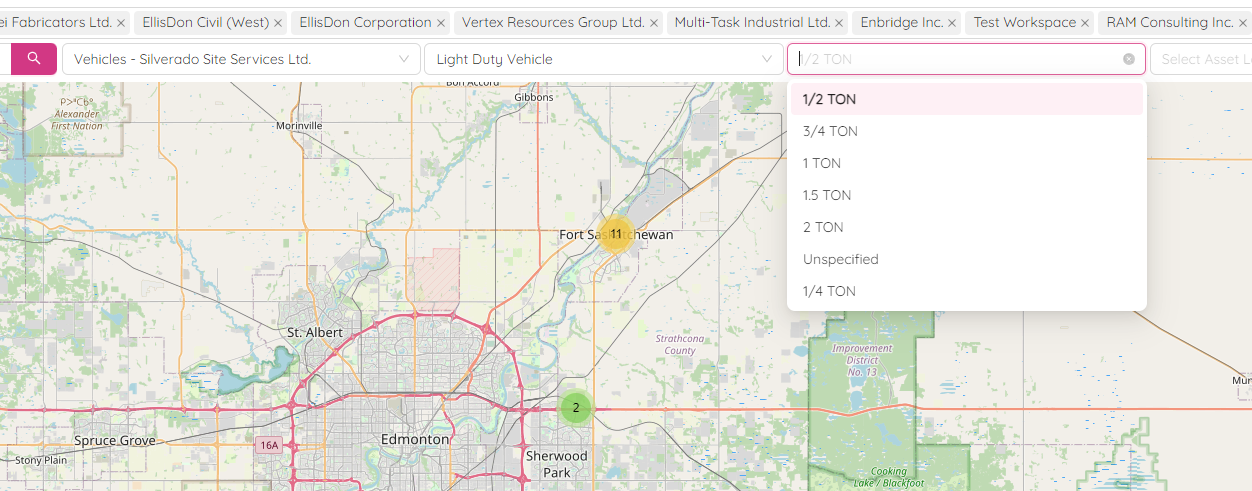
Filter By Label
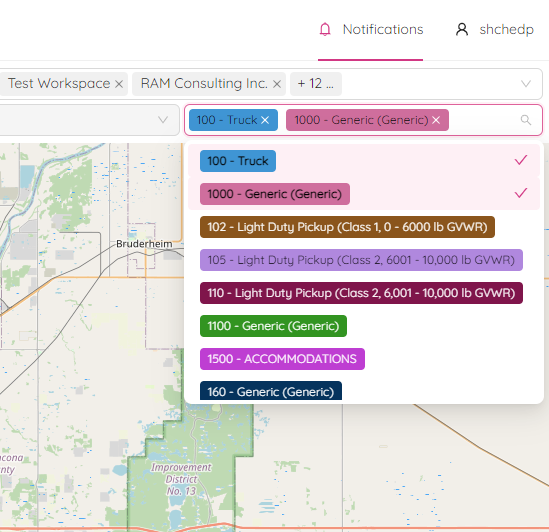
Beside to the Category filters you will find the Asset Label filter, which allows you to see only those assets that have a particular label. You can select as many labels as you want as well as deselect them by clicking on them one more time or clicking on the little "X" button next to each label.