Asset Category Management
Assets can be logically divided into categories to define statuses, details, and maintenance. Manage these categories by selecting Manage Asset under the Assets menu.

From there, select your desired workspace and click on the Asset Category Management tab.
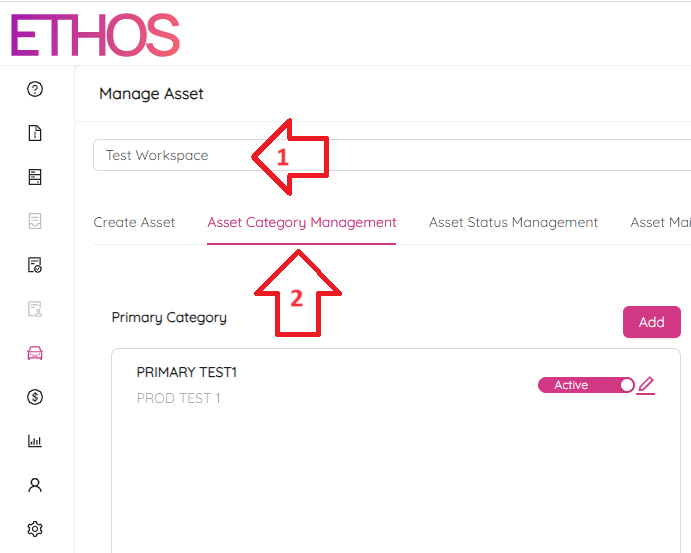
The page is divided into three sections: Primary, Secondary, and Tertiary category.
Create Category
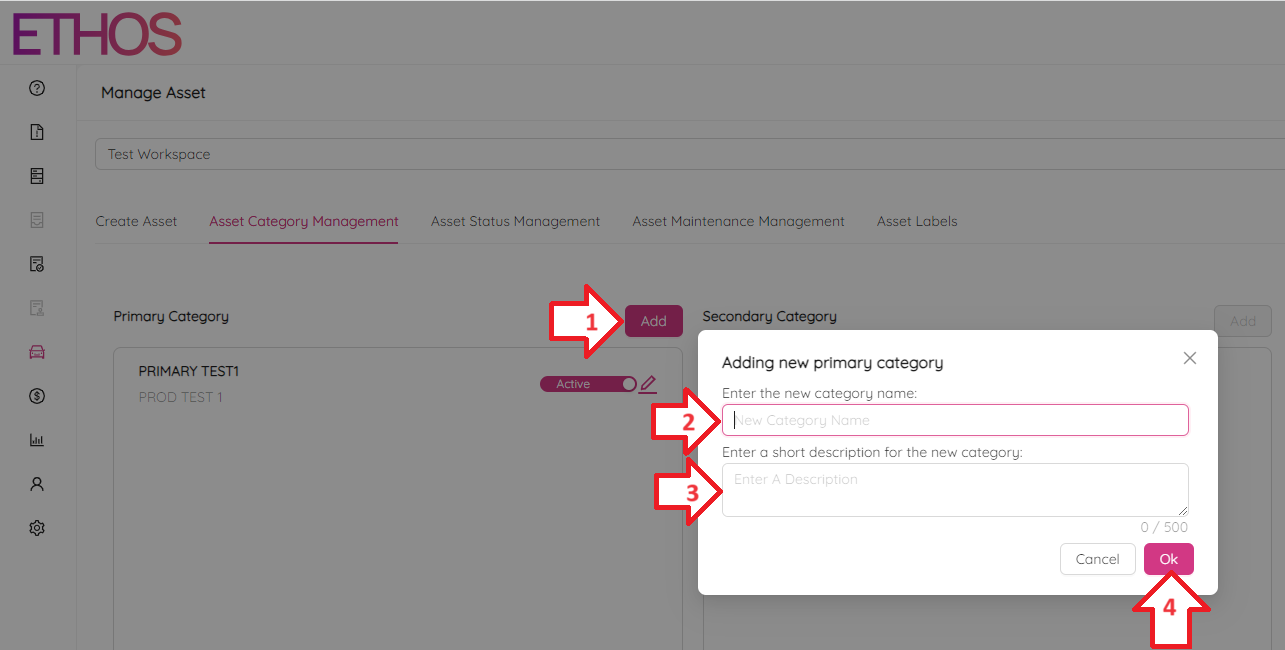
To add a new Primary Category, click on the Add button in the Primary Category section and enter the category name and brief brief description.
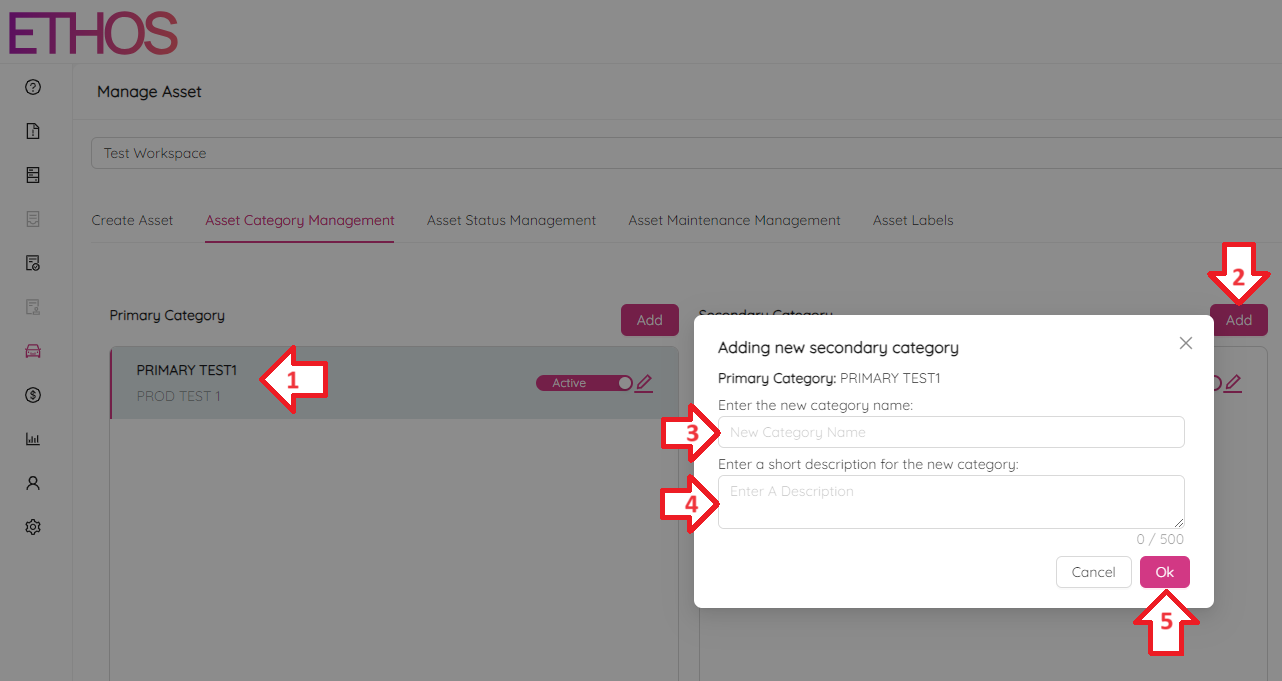
To add a new Secondary category, first select the Primary category you want it to fall under, then click the Add button in the Secondary Category section. Enter the category name and brief description.
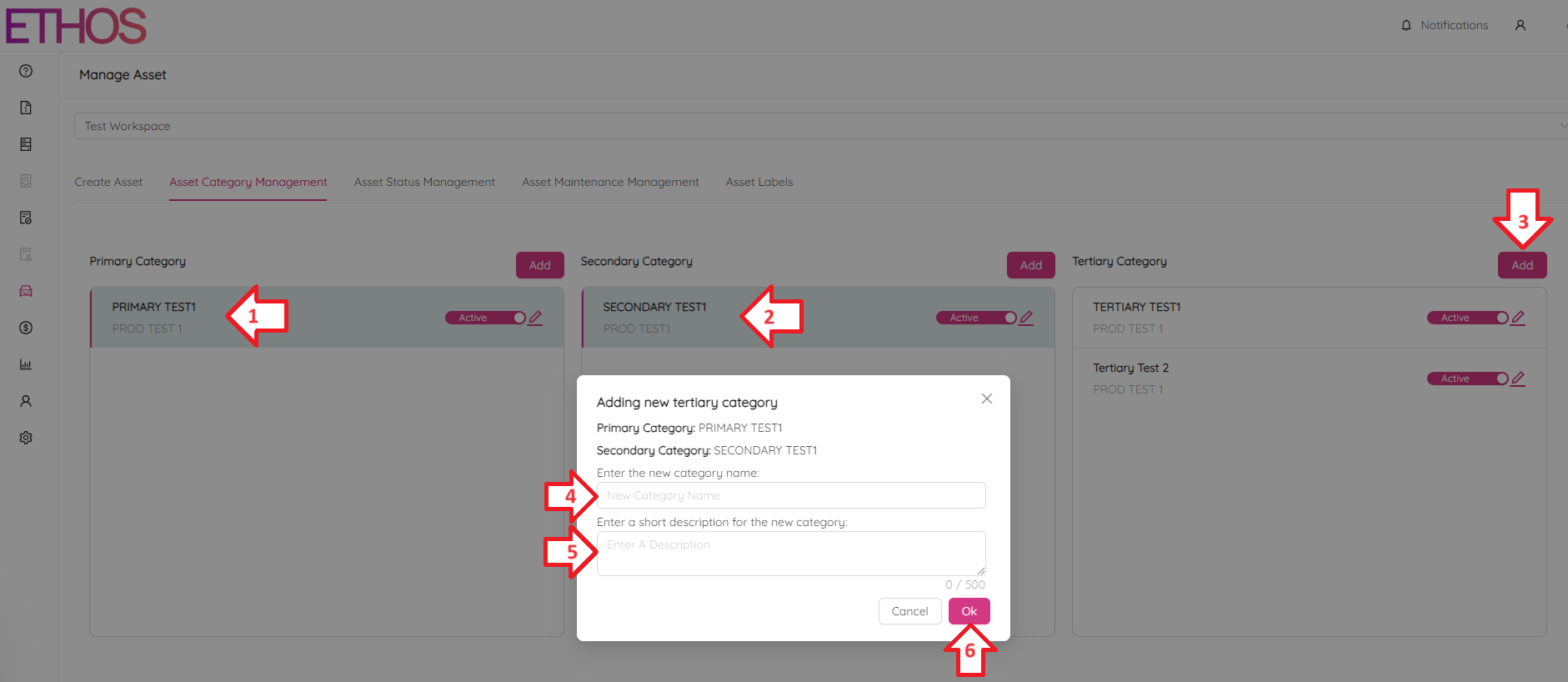
To add a new Tertiary category, select the Primary and Secondary categories you want it to fall under, then click the Add button in the Tertiary Category section. Enter the category name and brief description.
Edit or Delete Category
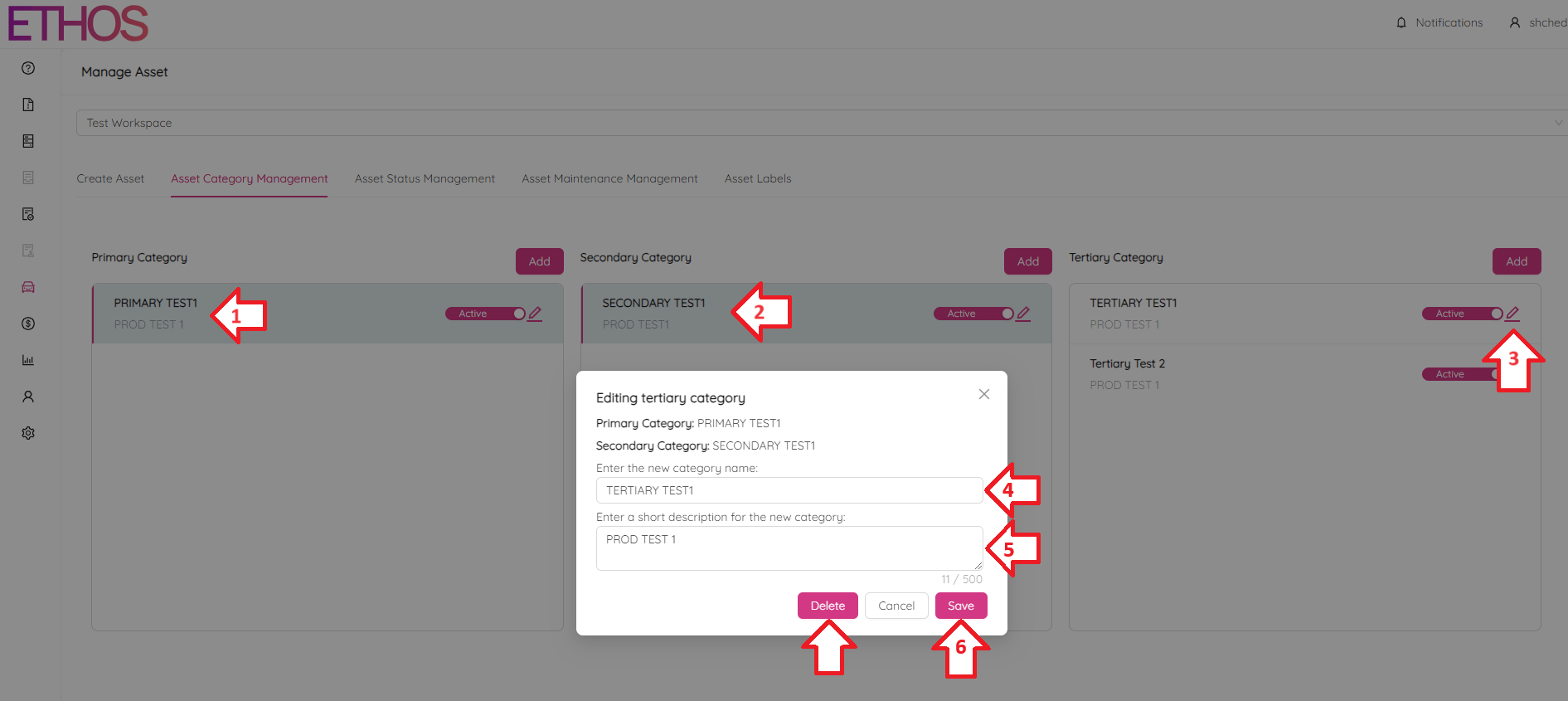
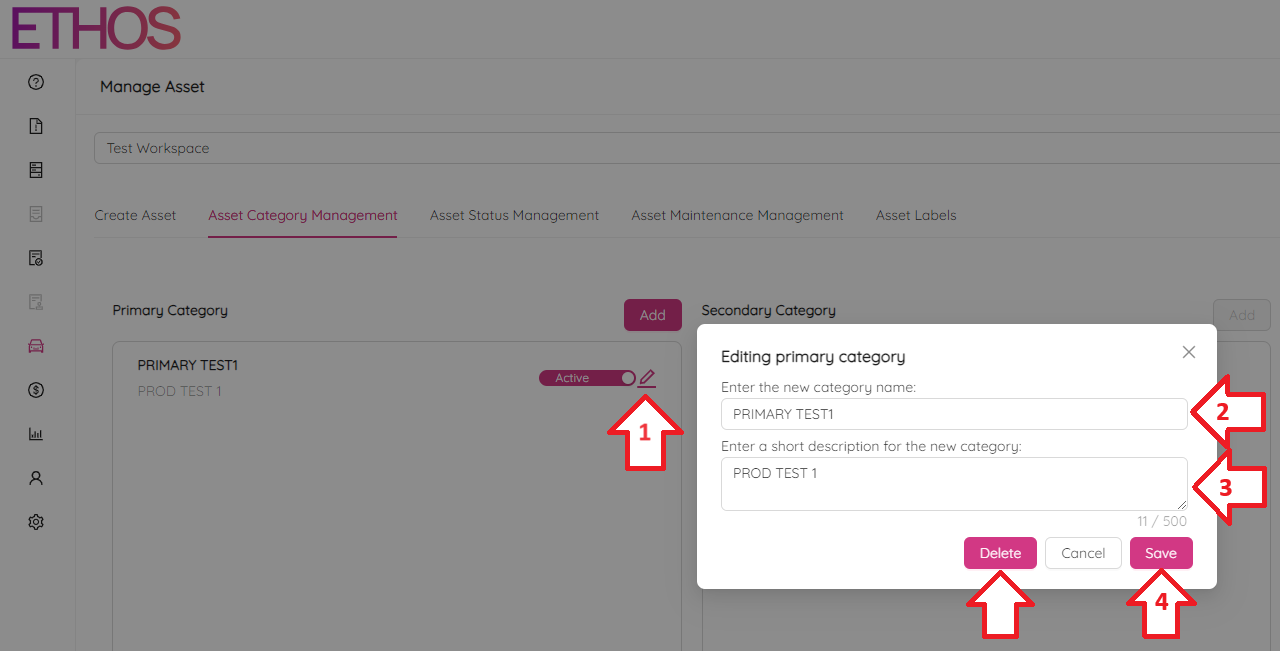
To edit a Primary category, click on the  icon in the Primary Category section and modify the category name and description. Also, here you can delete the category by clicking on the Delete button.
NOTE: You cannot delete a Primary Category that holds any subcategory under it. First, delete all subcategories and after that delete the parent category.
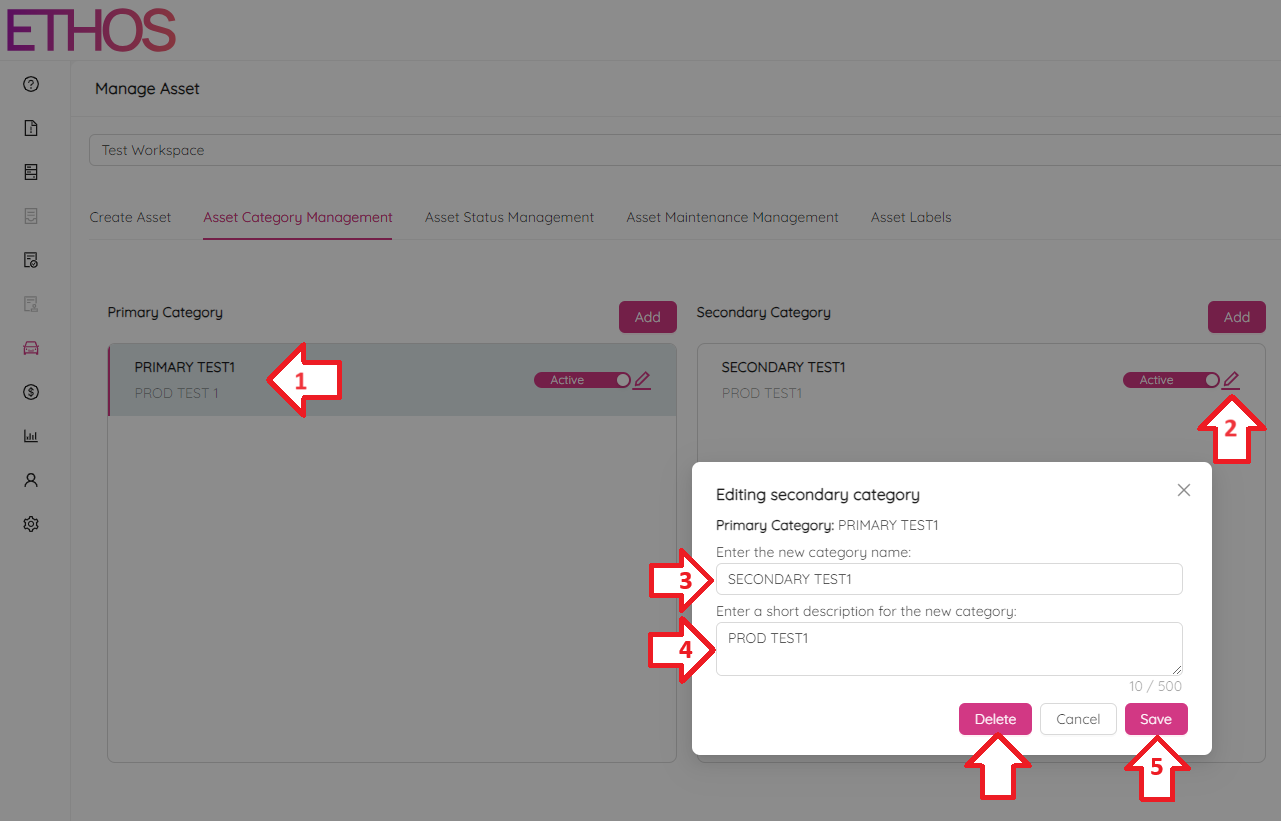
To edit a Secondary Category, first select the Primary Category it falls under, then click the icon in the Secondary Category section. Also, here you can delete the category by clicking on the Delete button.
NOTE: You cannot delete a Secondary Category that holds any subcategory under it. First, delete all subcategories and after that delete the parent category.
To edit a Tertiary category, select the Primary and Secondary categories it falls under, then click the icon in the Tertiary Category section. Also, here you can delete the category by clicking on the Delete button.