Asset Reports
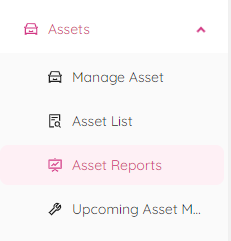
In the Asset Reports module you can generate a wide range of reports to help you manage and maintain assets. Here are a list of the reports that you can access (click on the report name to view more):
- Asset Change Log
- Completed Maintenance Report
- No Assigned Maintenance Report
- Upcoming Maintenance Report
- Asset Location Report
- Deficiency Report
- Dispatched Report
- Daily Relocation Report
- Project Asset History Report
- Status Change Report
- Historical Asset Snapshot Report
Asset Change Log
This report provides a detailed history of all changes made to an asset, including any modifications to its attributes or location.
To view the change history of a specific asset, select your desired workspace, and choose an asset from the drop-down list. Additionally, you can type in the search request to search for a specific asset number.
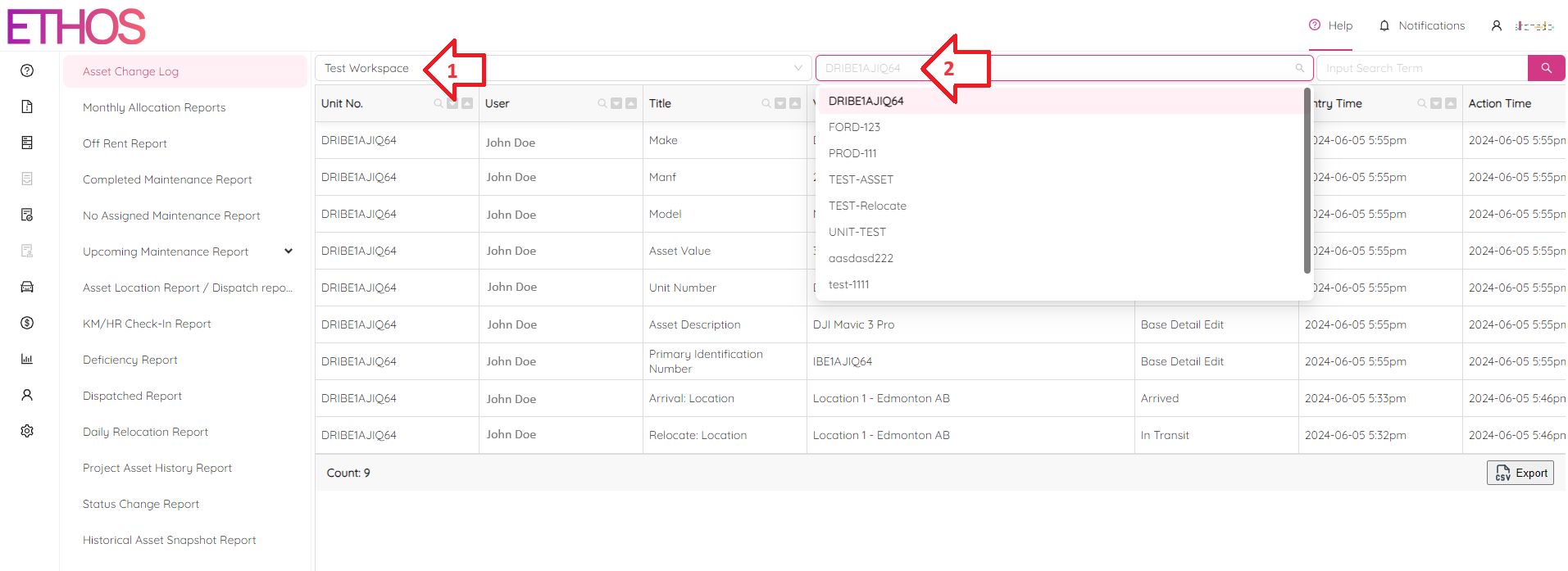
Once you have selected the asset, you will see a detailed history of all changes made to it, including changes to its attributes, statuses, maintenance and location.
Each record in the history includes several attributes:
- Unit No.: the number of the unit the record belongs to;
- User: the user who made the change;
- Title: the name of the attribute or status which was changed;
- Value: the value that was set to the attribute or status;
- Type: type of the value that was changed;
- Entry Time: date and time of the change;
- Action Time: date and time the record was created.
The "Entry Time" and "Action Time" attributes are usually identical, but when you update an asset status, you can set the date and time of the update to any point in the past or future.
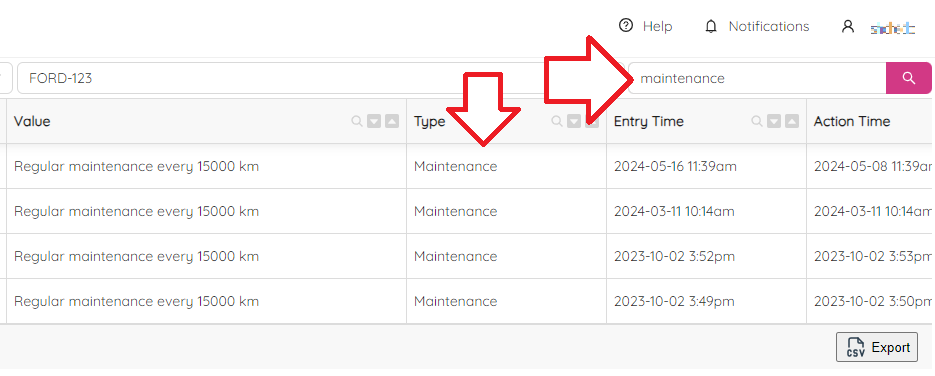
To make searching easier, there is a search bar next to the asset selector. For example, if you search for "maintenance", you will see all maintenance records related to the asset you have selected.
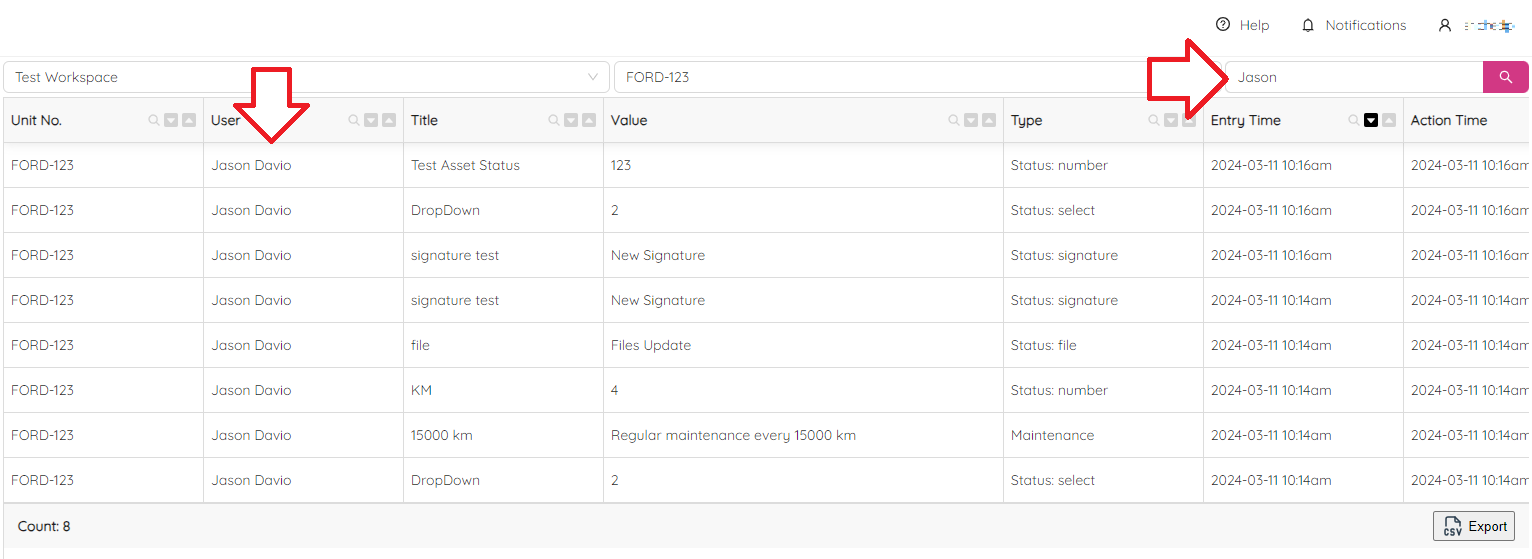
Similarly, if you search for a specific user's name, you will see all changes made by that user.
You can sort the table by any attribute simply by clicking on the  or
or  icons on the table header to sort in ascending or descending order. By default, the table is sorted by Entry Time in descending order.
Similarly, by clicking on the  icon and specifying the value you are looking for, you can filter the table by any column. You can also filter by several attributes to further refine your search. All applied filters are shown under the table and can be removed by clicking on the close button.
Additionally, under the table, there is a total records count that shows how many records match your search criteria. You can also export the report to a CSV file by clicking on the export button, making it easy to share the information with others.
Completed Maintenance Report
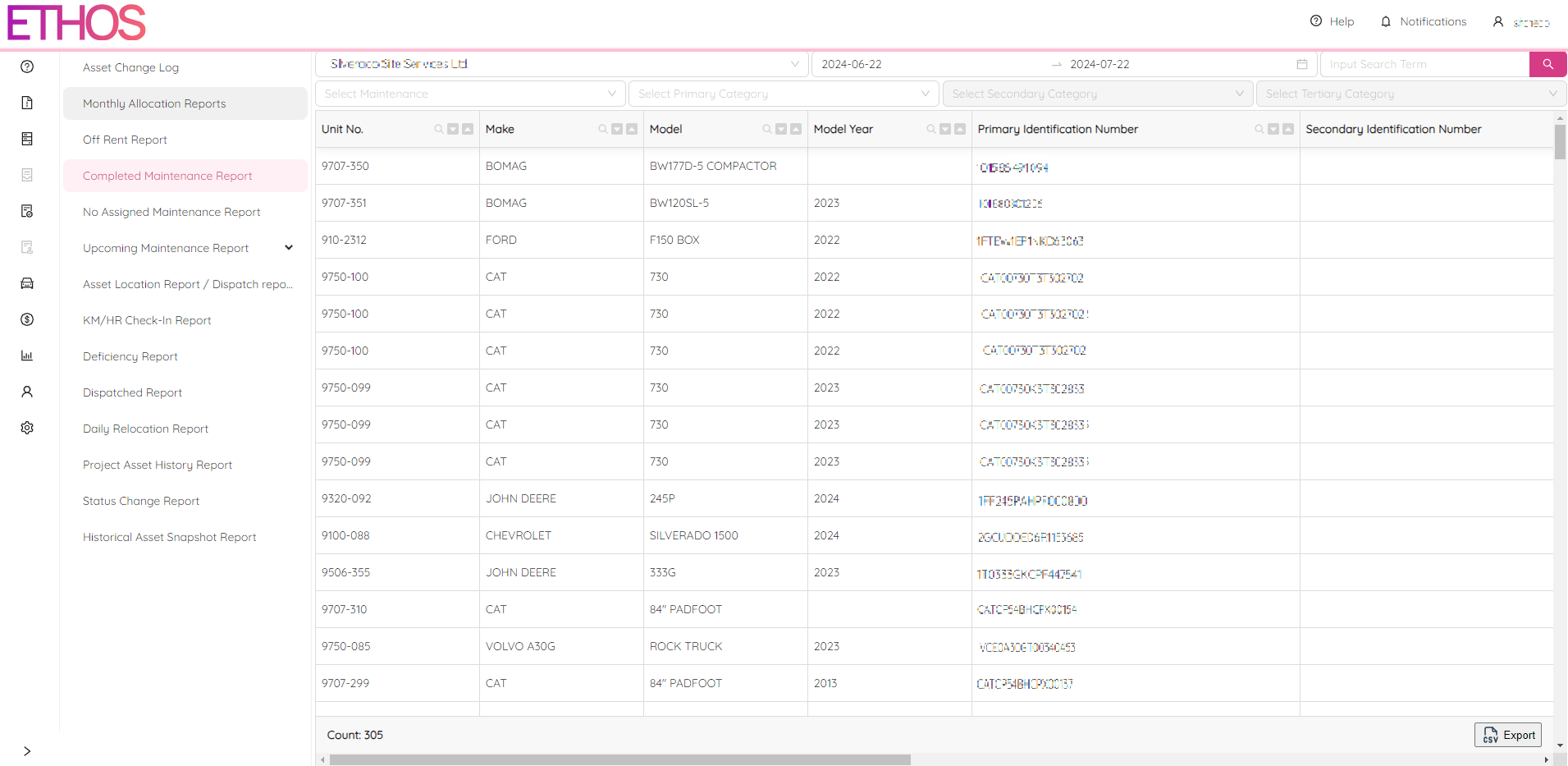
The Assets Completed Maintenance Report page opens access to detailed reports on completed maintenance tasks for the assets. To view a report, simply select a workplace and a time period. You will see details such as the unit number, make, model, maintenance title, when and by whom it was performed.
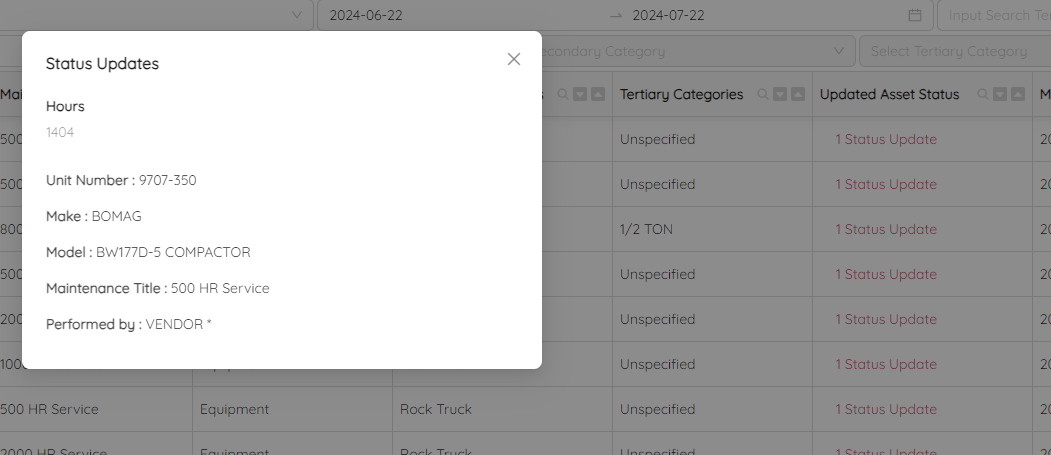
Additionally, you can see the Uploaded Asset Status attribute by clicking on which you will see statuses that have been updated during the maintenance.
To make it easier to find specific information, you can use the search panel to search for specific keywords or values. You can also sort the table by any column to organize the information in a way that is useful to you. In addition, you can filter maintenance by the title using the Select Maintenance drop-down field at the top. You can further refine your search by filtering by Primary, Secondary, and Tertiary categories using the fields of the same names.
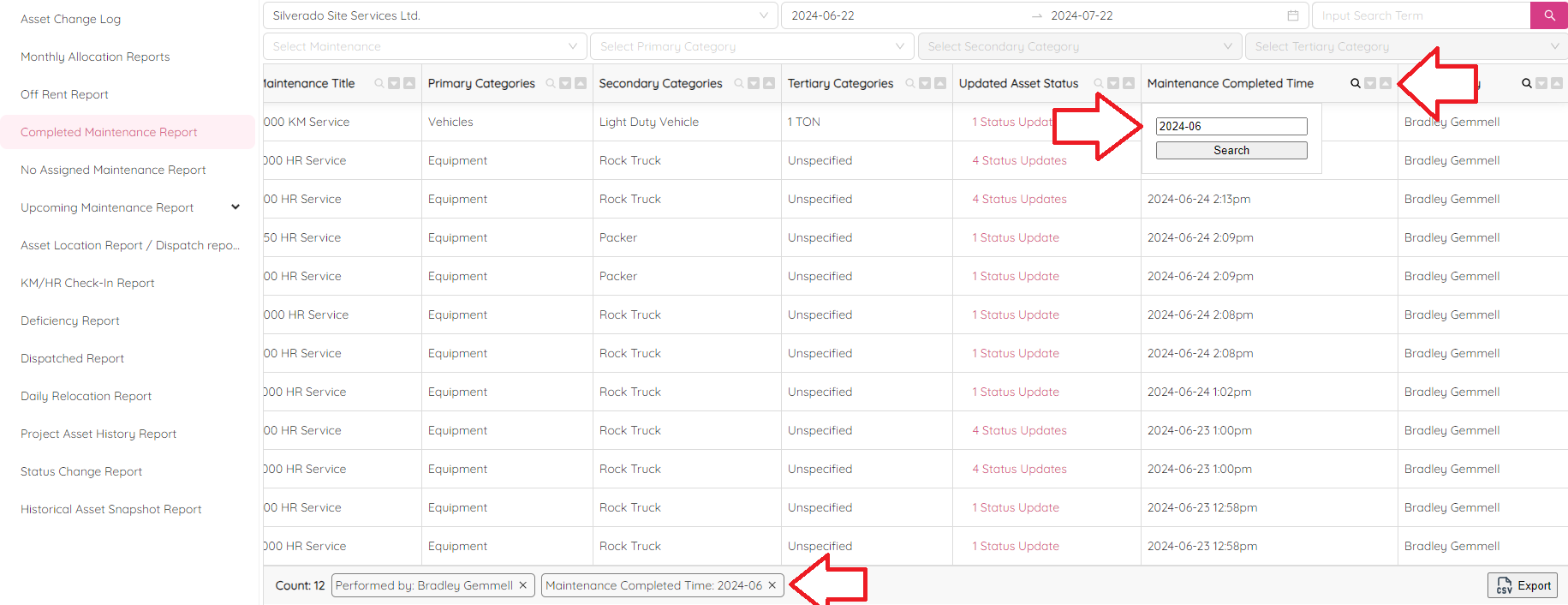
Under the table, you can see the total amount of records that match your search criteria. You can also export the table to a CSV file, making it easy to share the information with others or to use it for analysis purposes.
The Assets Completed Maintenance Reports page provides valuable insights into the completed maintenance tasks for assets, allowing to better manage and optimize their use.
No Assigned Maintenance Report
The No Assigned Maintenance Reports page helps to see detailed reports on assets that have no assigned maintenance tasks. To view a report, simply select a workplace. You will see details such as the unit number, make, model, and other relevant information.
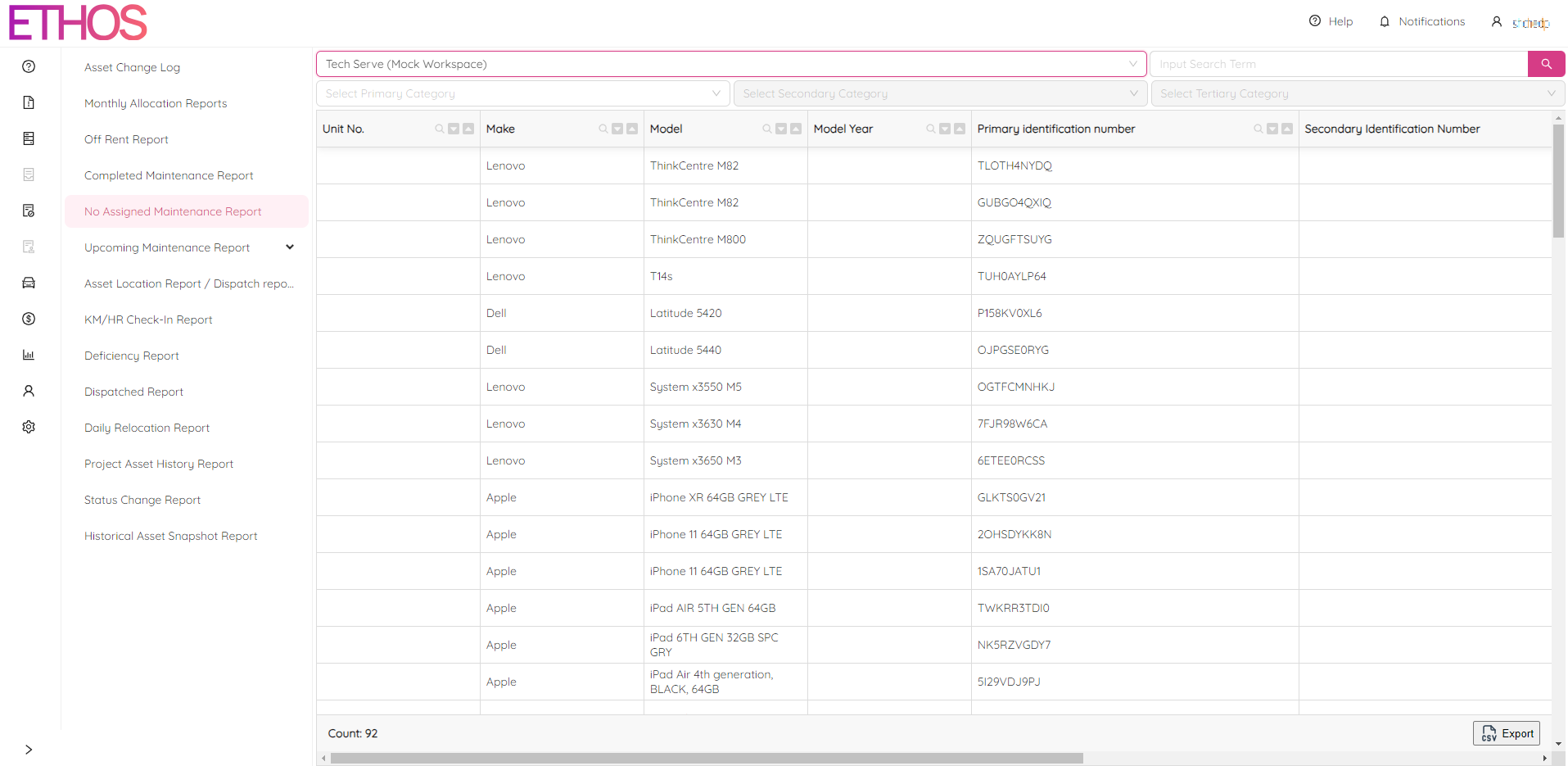
To make it easier to find specific information, you can use the search panel to search for specific keywords or values. You can also sort the table by any column to organize the information in a way that is useful to you. In addition, you can filter by Primary, Secondary, and Tertiary categories using the fields of the same names.

Under the table, you can see the total amount of records that match your search criteria. You can also export the table to a CSV file, making it easy to share the information with others or to use it for analysis purposes.
Upcoming Maintenance Report
The Upcoming Maintenance Report page is a tool that allows you to view details about upcoming maintenance for assets in your workplace. It has two reports: Maintenances by Time Interval and Maintenances by Status Trigger.
Maintenances by Time Interval
To access the report, you need to select a workplace. Once you've done that, you will see a table with information about assets that have upcoming maintenance due as well as assets that are overdue for maintenance. The report includes the number of days until maintenance is due and the maintenance status for each asset, which allows you to easily identify which assets require attention.
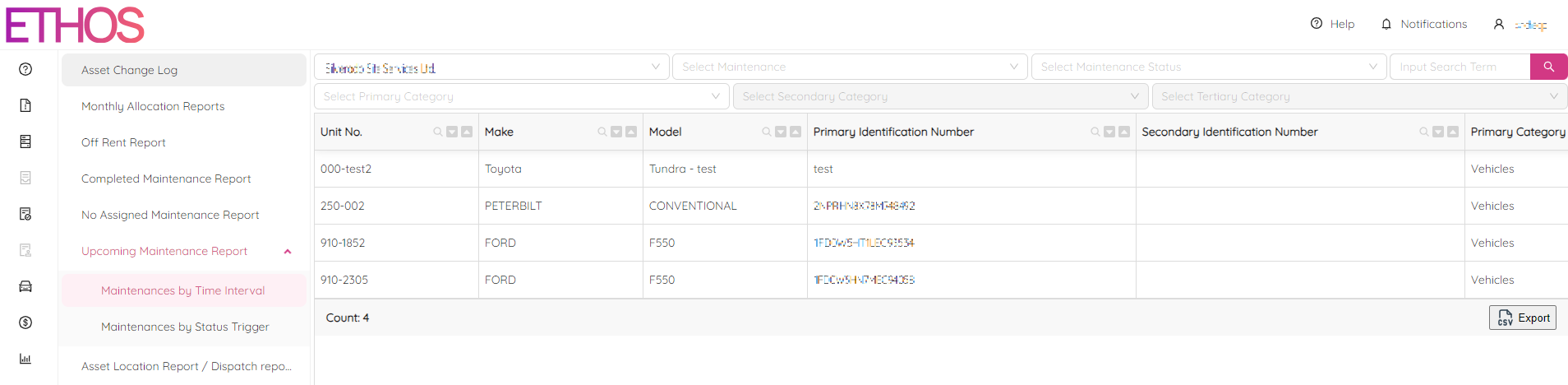
You can use the search panel to find specific assets or maintenance tasks, and you can sort the table by any column. You can also filter the table by primary, secondary, and tertiary categories, maintenance title, and maintenance status using fields of the same names. The filters that you apply are shown under the table, and you can remove any filter by clicking on it.

Additionally, you can see the total number of records displayed in the table, and you can export the table to a CSV file for further analysis or sharing with others.
Maintenances by Status Trigger
The report includes details such as the unit number, make, model, and other asset-specific information. It also includes information about the maintenance title and the trigger used to schedule maintenance, which can be either kilometers or hours.
The report shows the last maintenance status, which displays the number of kilometers or hours since the last maintenance was performed. It also shows the current status value, which displays the current number of kilometers or hours on the asset. The next maintenance value displays the number of kilometers or hours when the next maintenance task is due to happen. Additionally, the report displays the remaining value before due, which shows the amount of kilometers or hours left before the next maintenance task is due.
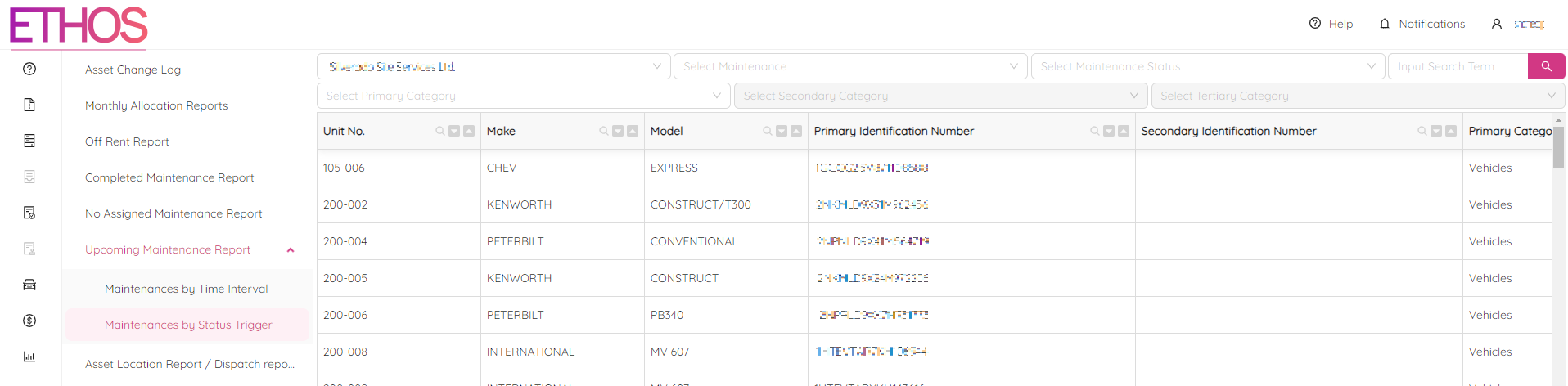
The search panel allows you to search for specific assets or maintenance tasks by entering keywords related to the asset or maintenance task in the search field. You can also filter the report based on specific maintenance titles, maintenance status, and primary, secondary, and tertiary categories using fields of the same names. The report also allows you to sort and filter the table by any column.
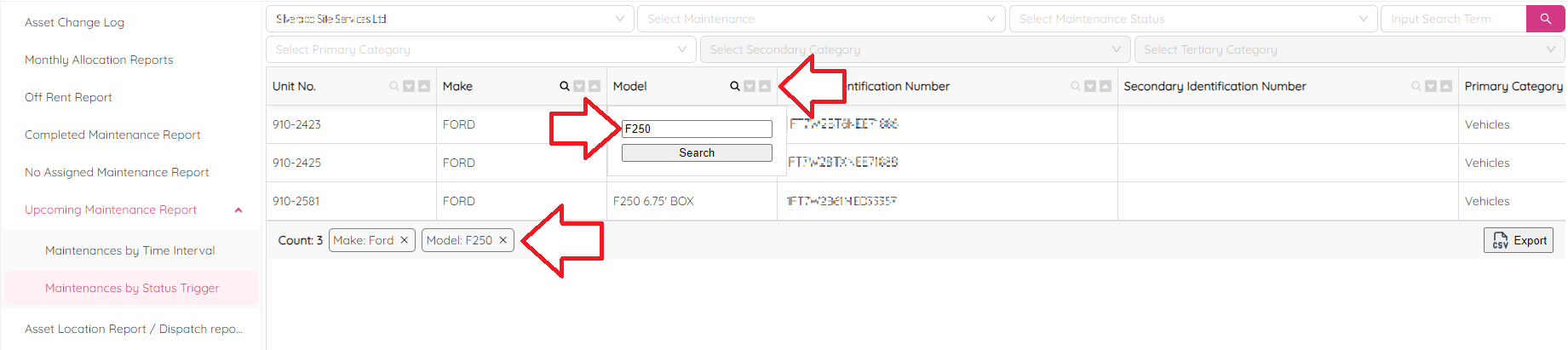
Under the table, the report displays the total number of records, as well as any filters that are currently applied. You can remove any filter by clicking on it.
Overall, the Upcoming Maintenance Report page is a useful tool for managing maintenance tasks and ensuring that assets are kept in good working order.
Asset Location Report
The report allows you to view the current location of assets. To access the report, you need to select a workplace. Once you've done that, you will see a table with information about each asset, including its unit number, make, model, current location, location timestamp, and location status. If the asset is in transit, the report will also show the place the asset was dispatched from.
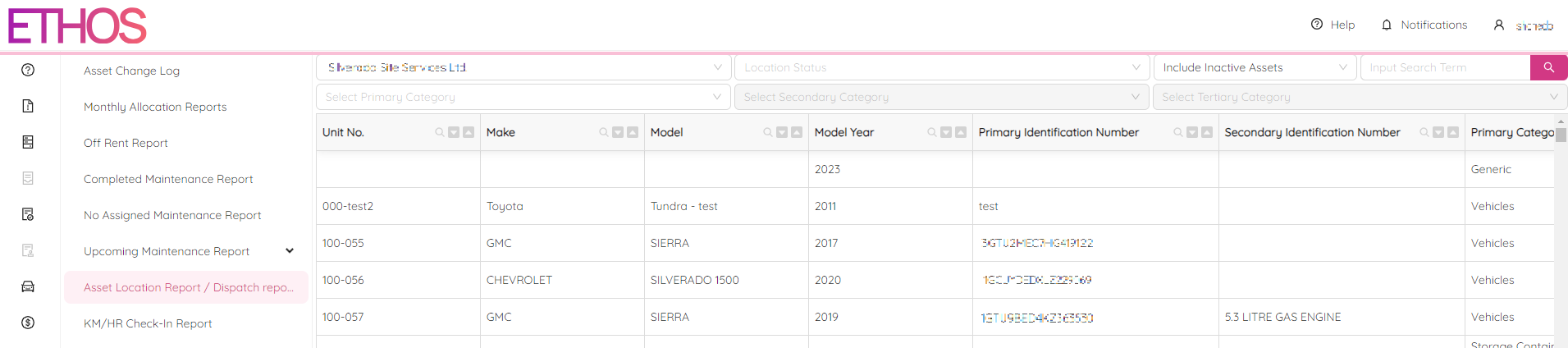
You can use the search panel to find specific assets or locations, and you can sort the table by any column. You can also filter the table by primary, secondary, and tertiary categories, location status, and active status using fields of the same names. The filters that you apply are shown under the table, and you can remove any filter by clicking on it.

Additionally, you can see the total number of records displayed in the table, and you can export the table to a CSV file for further analysis or sharing with others.
Deficiency Report
The report allows you to view details about deficiencies identified in your assets. To access the report, you need to select a workplace and a date range. Once you've done that, you will see a table with information about each asset, including its unit number, make, model, deficiency reason, and deficiency description, among other details.
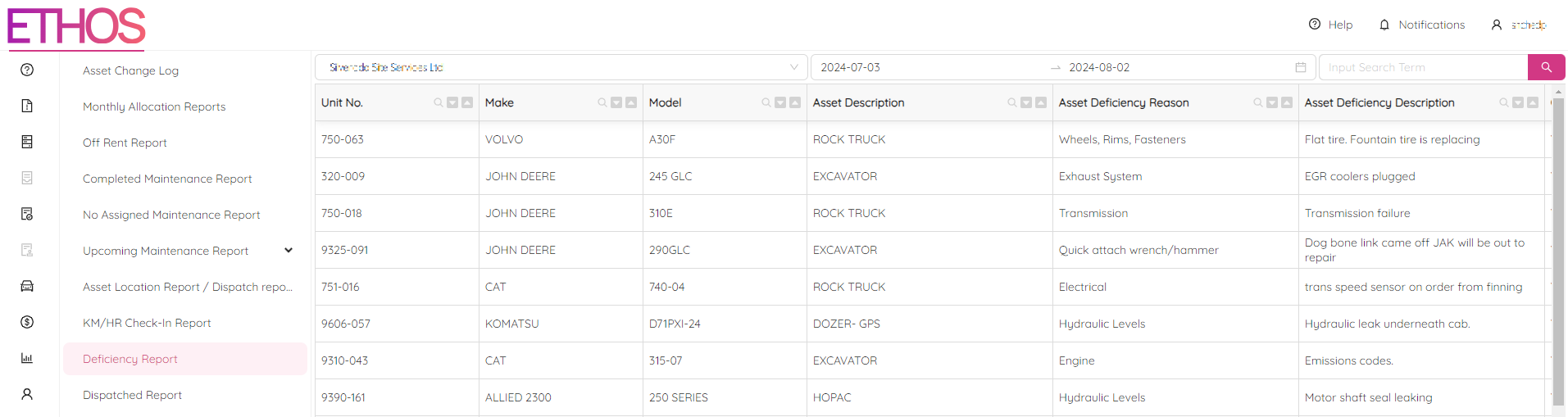
You can use the search panel to find specific deficiencies, and you can sort the table by any column. You can also filter the table by any column. The filters that you apply are shown under the table, and you can remove any filter by clicking on it.
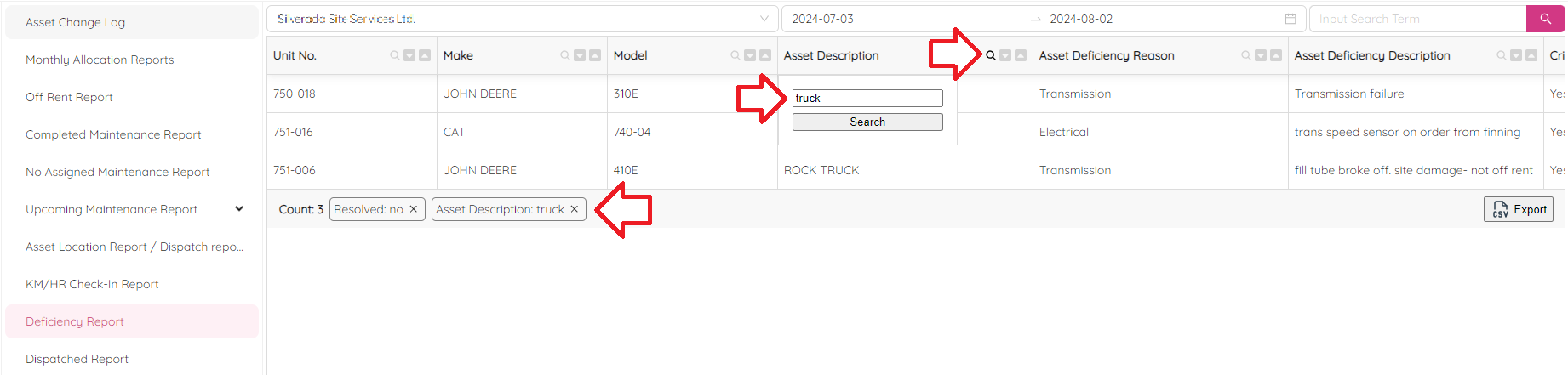
Additionally, you can see the total number of records displayed in the table, and you can export the table to a CSV file for further analysis or sharing with others.
Dispatched Report
The report allows you to view details about assets that have been dispatched. To access the report, you need to select a workplace. Once you've done that, you will see a table with information about each dispatched asset, including its unit number, make, model, location, project number, relocation time, and person responsible for the relocation.
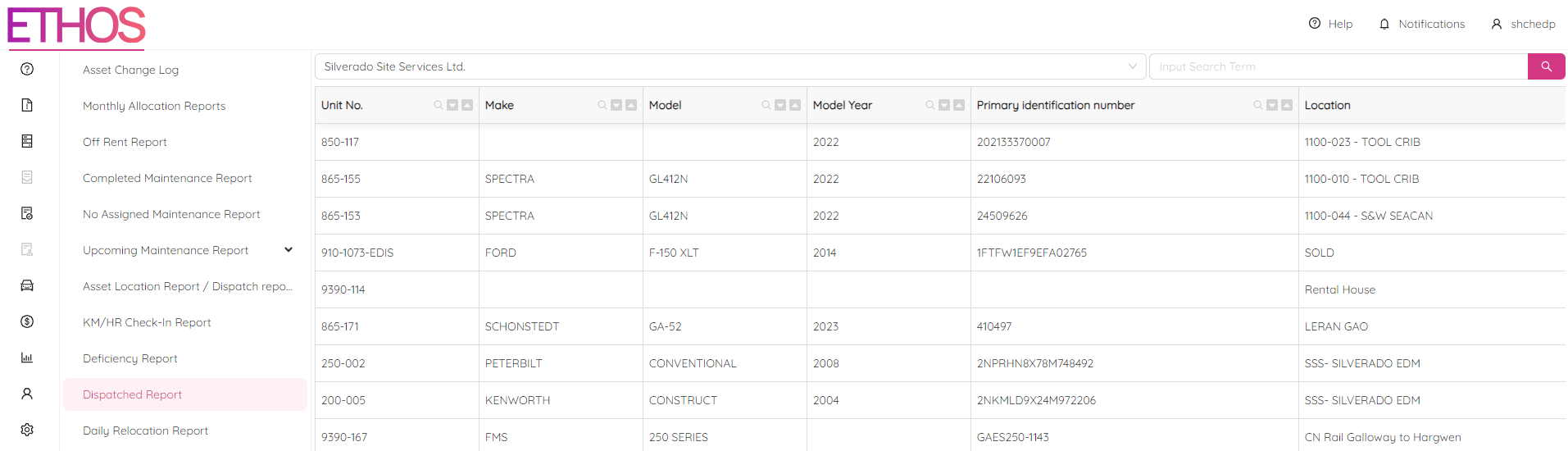
You can use the search panel to find specific assets or projects, and you can sort the table by any column. You can also filter the table by any column. The filters that you apply are shown under the table, and you can remove any filter by clicking on it.
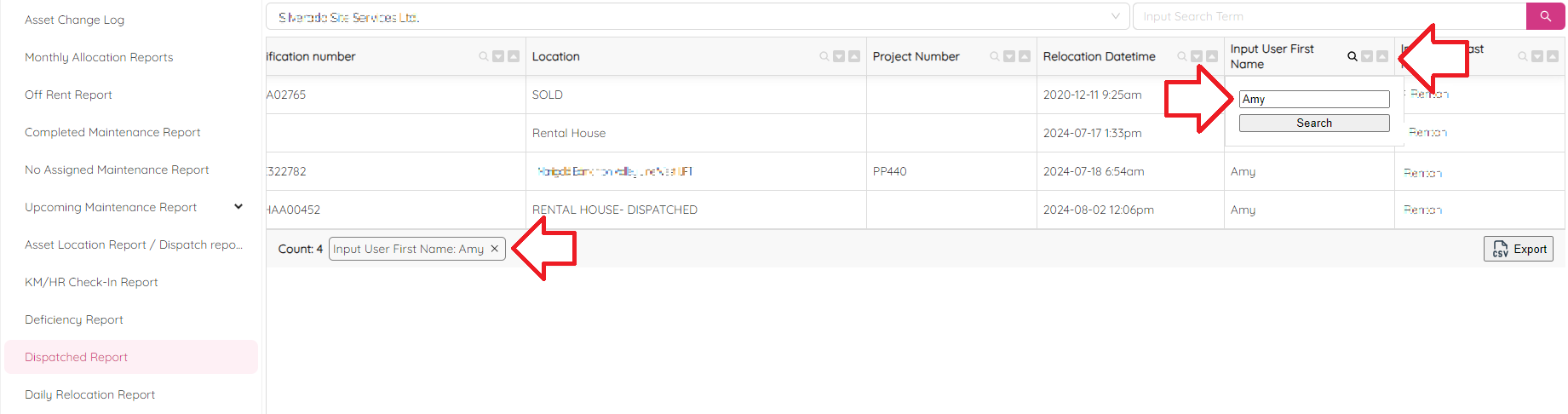
Additionally, you can see the total number of records displayed in the table, and you can export the table to a CSV file for further analysis or sharing with others.
Daily Relocation Report
The Daily Assets Relocation Report page is similar to the Asset Location Report, but it shows the location of assets for a specific date only, rather than the full location history. To access the report, you need to select a workplace and a date. By default, the current date is selected. Once you've done that, you will see a table with information about each asset, including its unit number, make, model, current location, relocation timestamp, and location status.
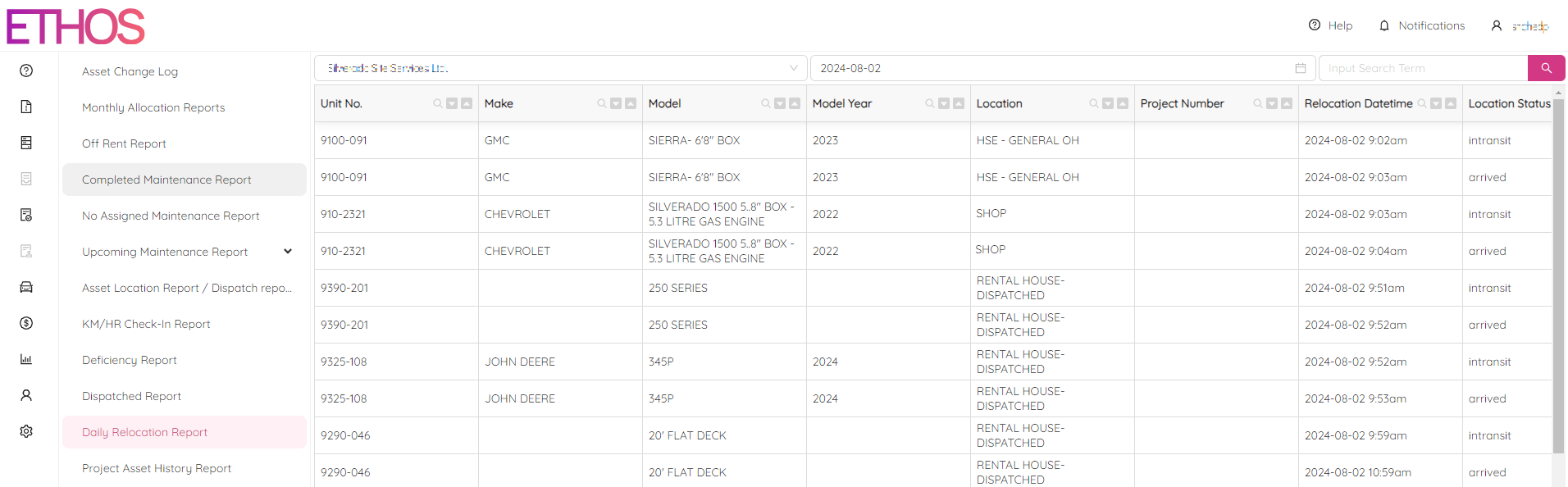
You can use the search panel to find specific assets or locations, and you can sort the table by any column. You can also filter the table by any column. The filters that you apply are shown under the table, and you can remove any filter by clicking on it.
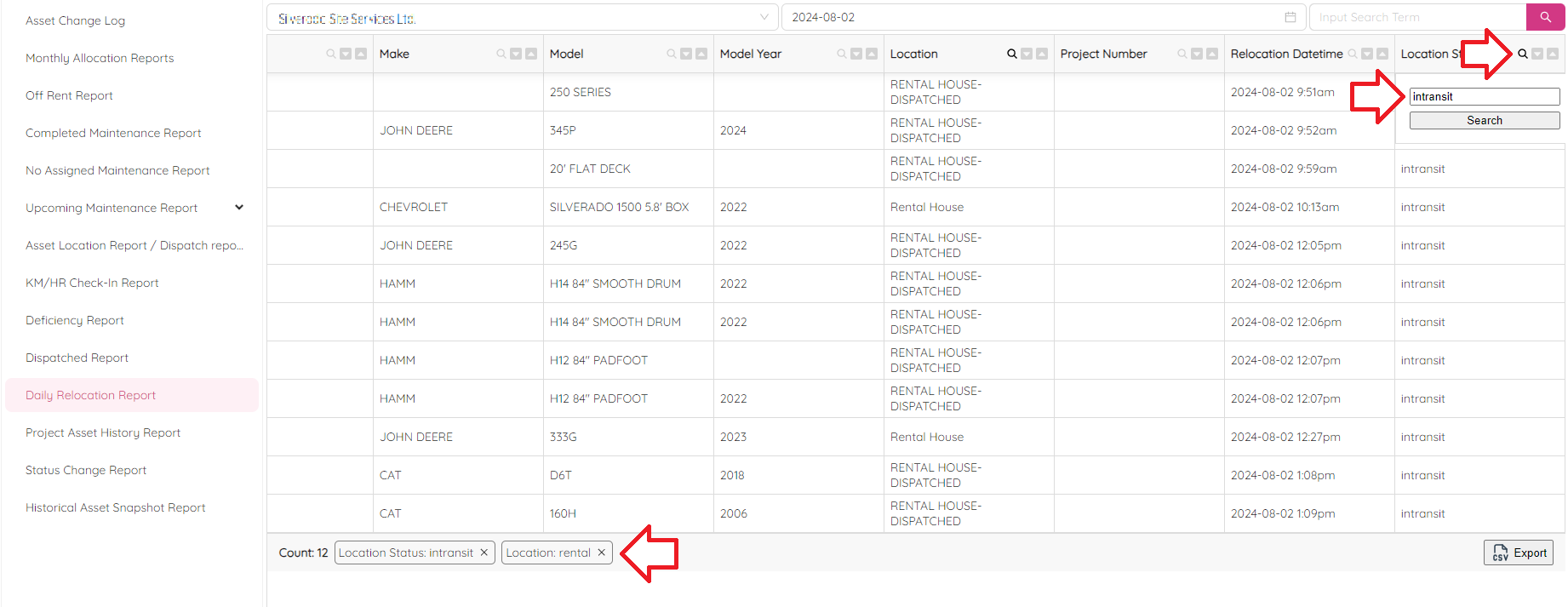
Additionally, you can see the total number of records displayed in the table, and you can export the table to a CSV file for further analysis or sharing with others.
Project Asset History Report
The report allows you to view details about assets that have been involved in a particular project. To access the report, you need to select a workplace and a project or location. Once you've done that, you will see a table with information about each asset that was involved in the project, including its unit number, make, model, location, location status, arrival time, and departure time.
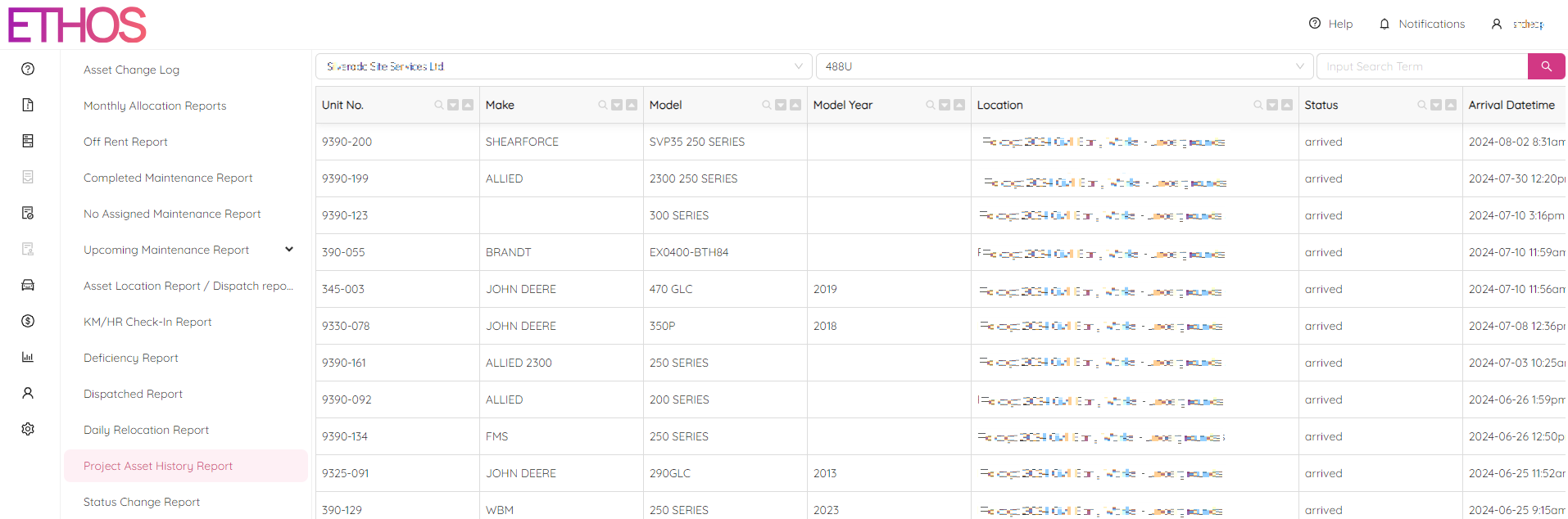
You can use the search panel to find specific assets or projects, and you can sort the table by any column. You can also filter the table by any column. The filters that you apply are shown under the table, and you can remove any filter by clicking on it.
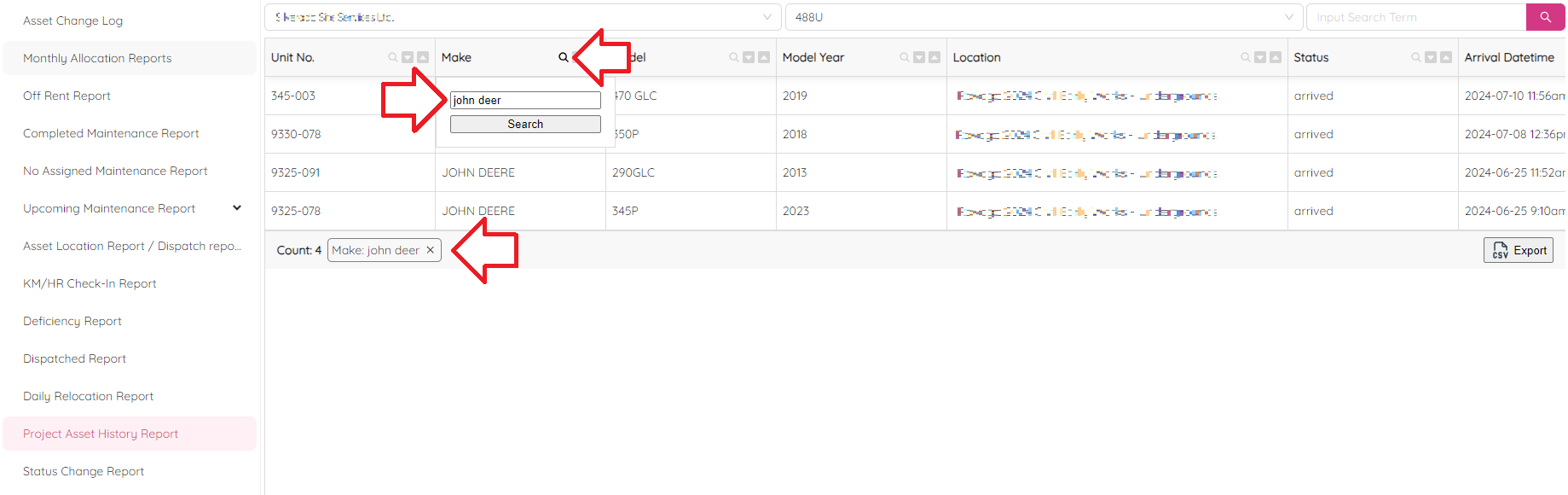
Additionally, you can see the total number of records displayed in the table, and you can export the table to a CSV file for further analysis or sharing with others.
Status Change Report
The report allows you to view the dynamic of the particular status within the selected date period. To access the report, select a workplace, a specific status, and a date period. Once you've done that, you will see a table with information about each asset that has undergone a status change, including its unit number, make, model, and status title. In addition, it provides details about the start and end values of the status change, as well as the start and end date and time of the status change.
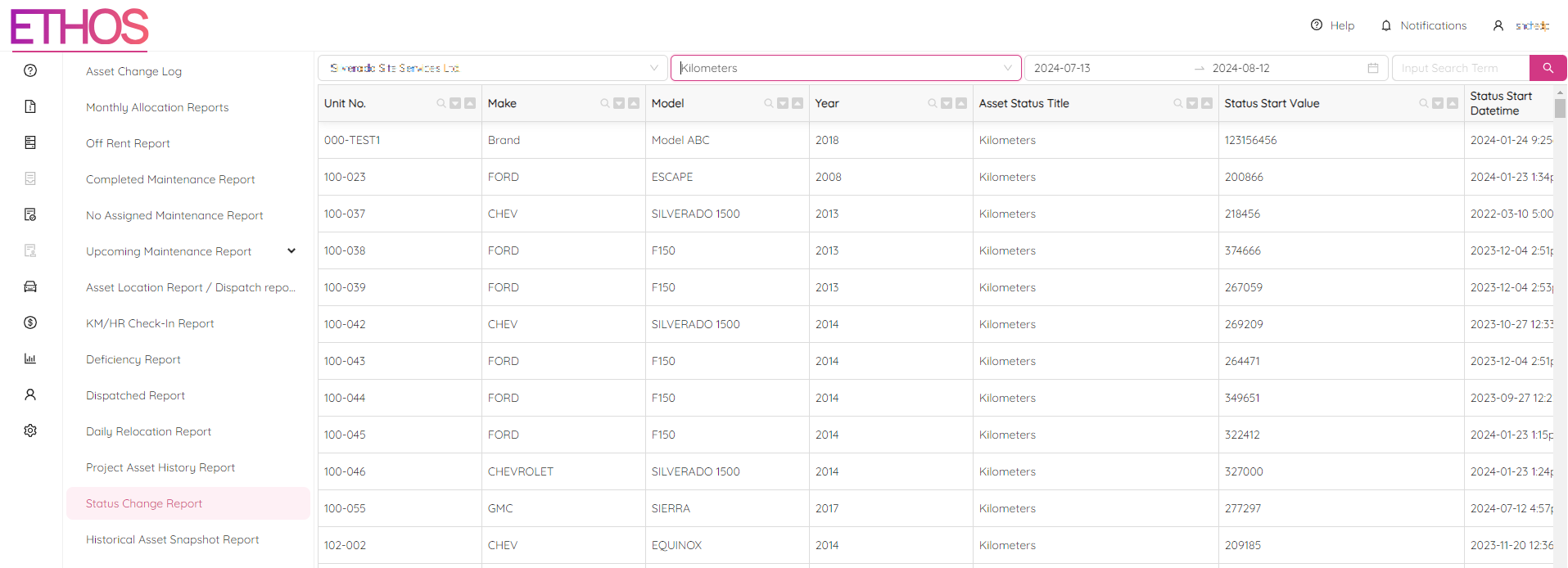
The start value in the Asset Status Change Report page represents the last known value on the first date in the selected date range. The status start datetime shows when the start value was recorded accordingly. On the other hand, the end value represents the last known value on the last date within the selected date range. The status end datetime shows when the end value was recorded.
You can use the search panel to find specific assets or status changes, and you can sort the table by any column. You can also filter the table by any column. The filters that you apply are shown under the table, and you can remove any filter by clicking on it.
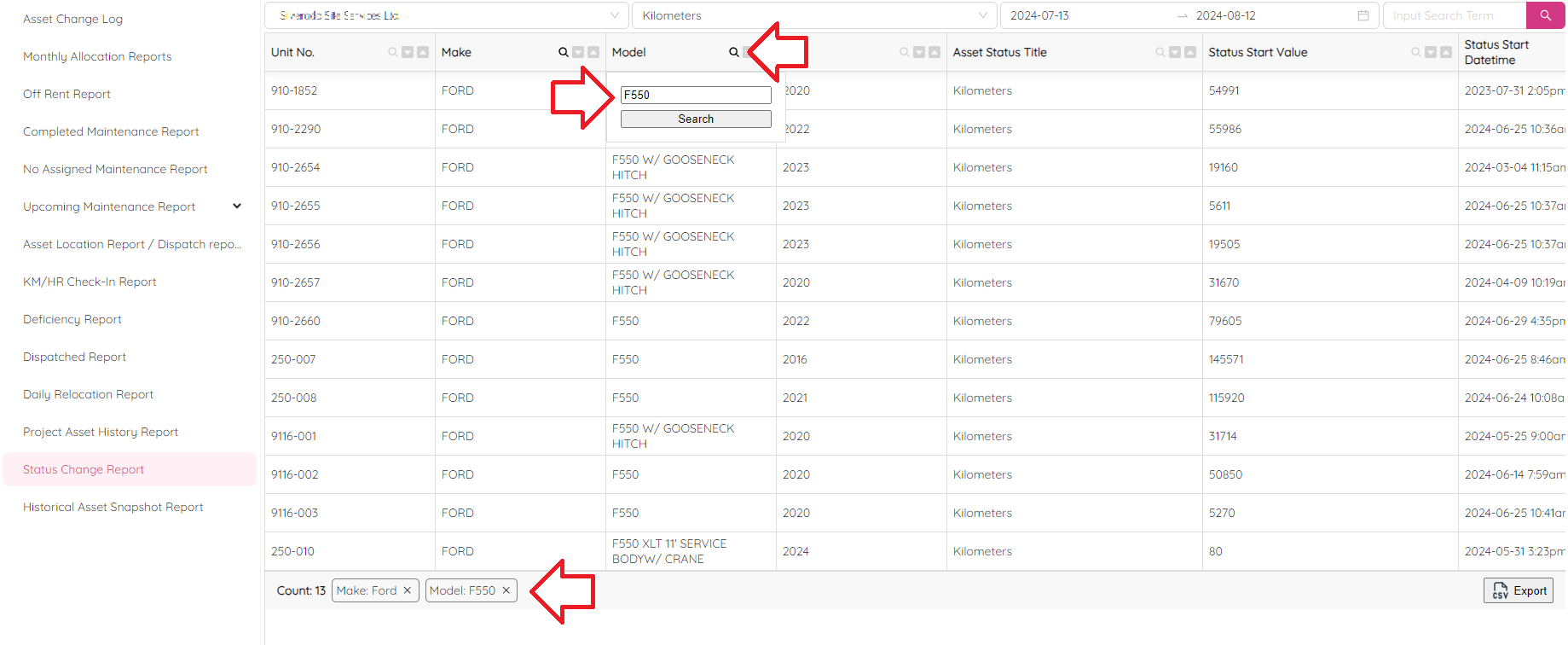
Additionally, you can see the total number of records displayed in the table, and you can export the table to a CSV file for further analysis or sharing with others.
Historical Asset Snapshot Report
The Historical Asset Snapshot Report is a tool that allows you to access historical asset records based on a selected date. The report provides a snapshot of the asset data as it appeared on the chosen date. To access the report, you need to select a workplace and a date. By default, the report displays information for the current date. Once you've selected the workplace and date, you will see a table with information about each asset, including its unit number, make, model, and many other details.
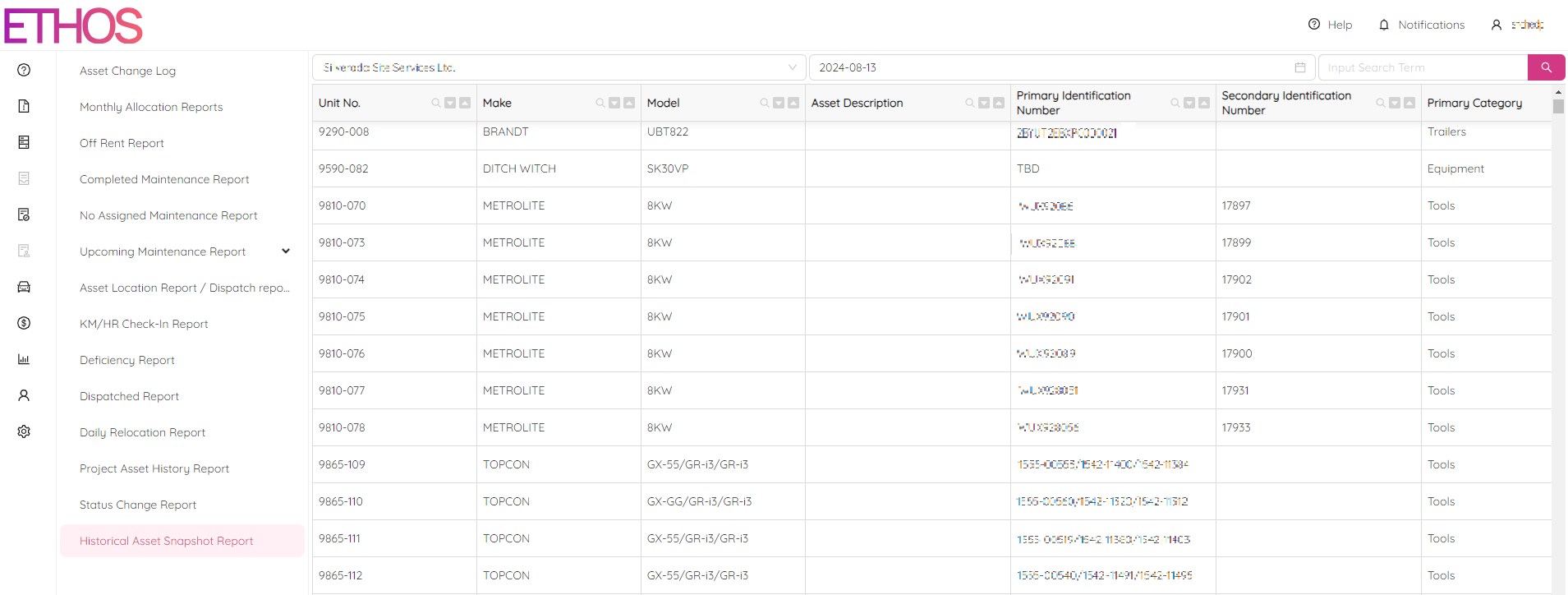
You can use the search panel to find specific assets or filter the table by any column. You can sort the table by any column and see the filters applied under the table. You can remove any filter by clicking on it.
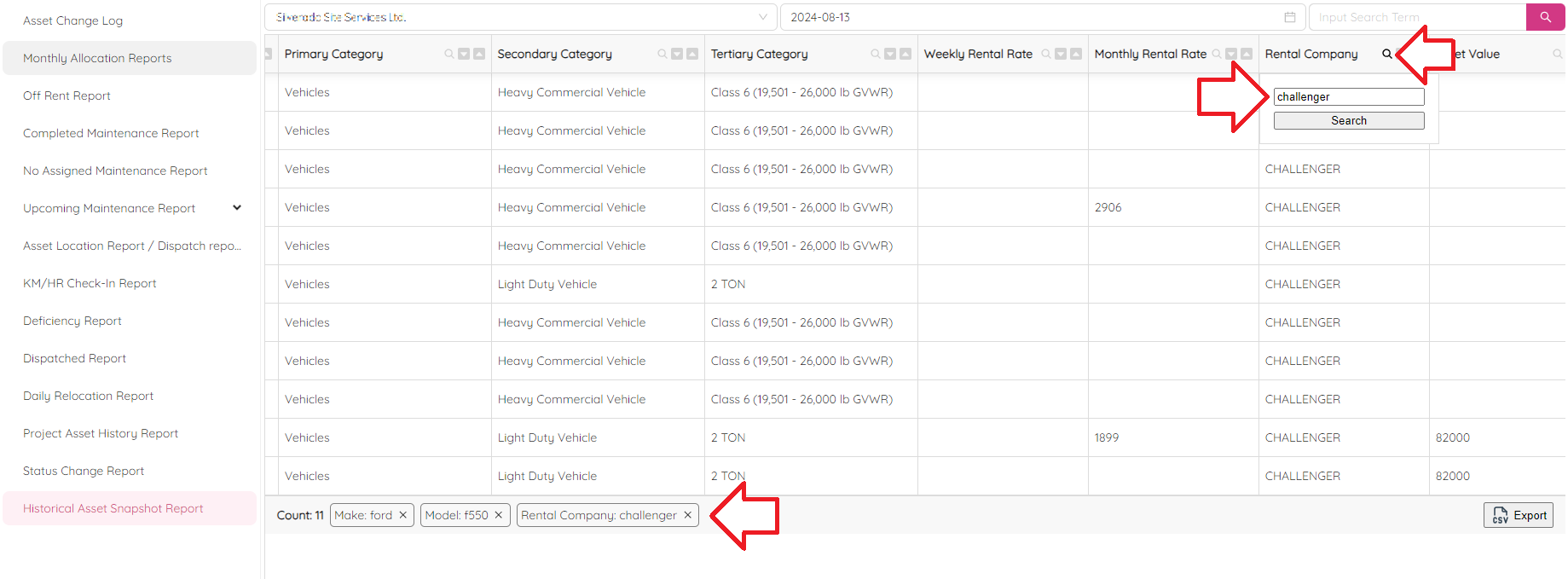
Finally, you can see the total number of records displayed in the table and export it to a CSV file for further analysis or sharing with others.