Asset Maintenance Management
To manage regular asset maintenance, you can customize the conditions and frequency in the Manage Asset module found under the Assets menu. You can schedule maintenance based on time intervals (such as once a year) or after an asset reaches specific control values (such as every 10000 km for vehicles).
Create Asset Maintenance
- Select your preferred workspace and go to the Asset Maintenance Management tab.
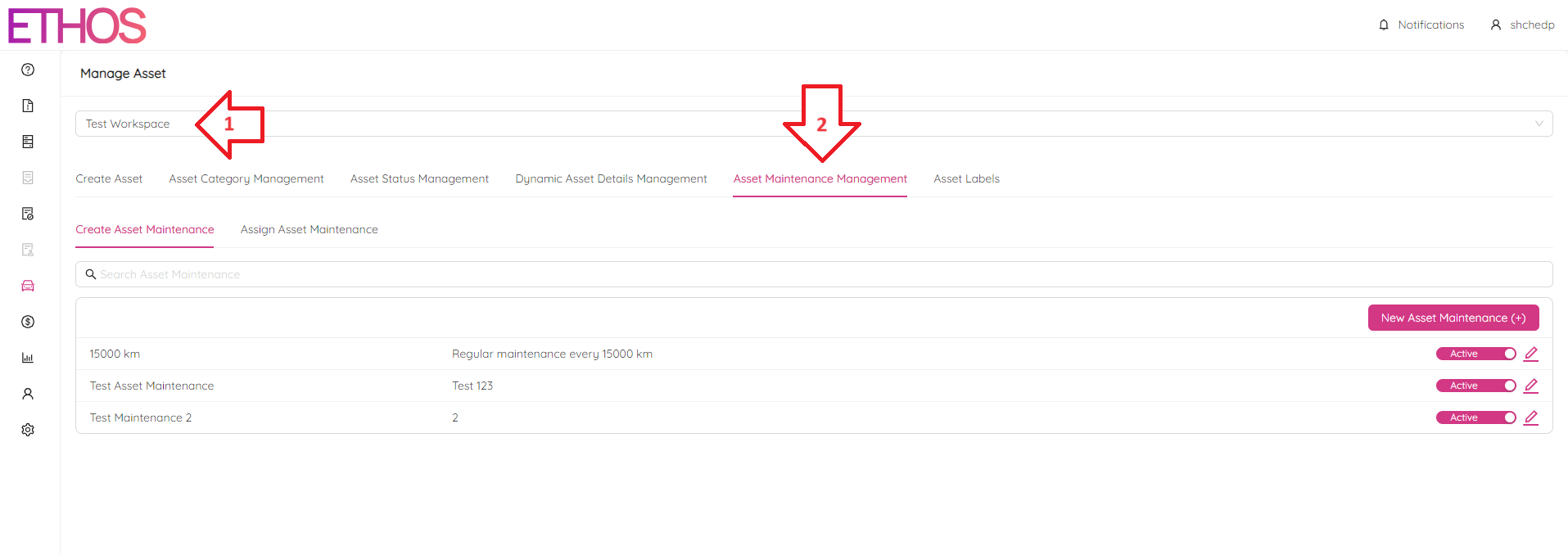
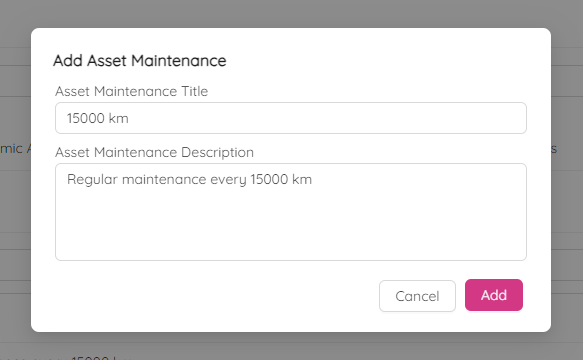
- Click the New Asset Maintenance (+) button to create a new maintenance type. Provide a title, brief description, and click Add.
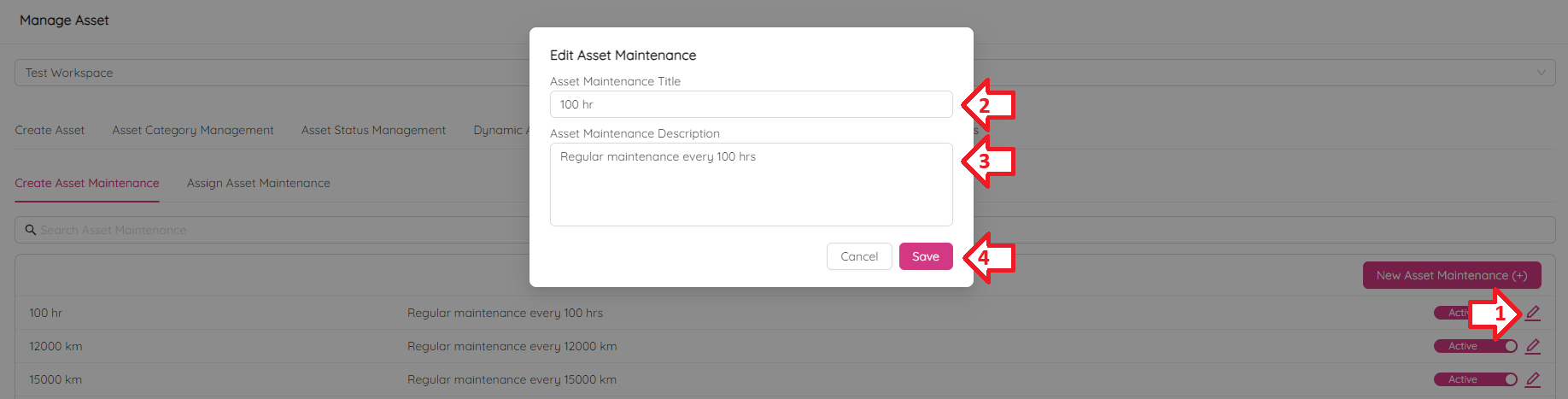
Edit Asset Maintenance
To edit title or description for previously created asset maintenance go to Create Asset Maintenance sub-tab under Asset Maintenance Management tab. Then, click on the  icon to make changes and hit Save button to confirm.
You can make a quick search using Search Asset Maintenance bar above the maintenances list.
Assign Asset Maintenance
On Assign Asset Maintenance tab you can assign previously created maintenance to all assets under entire Secondary category, Tertiary category or to a specific asset.
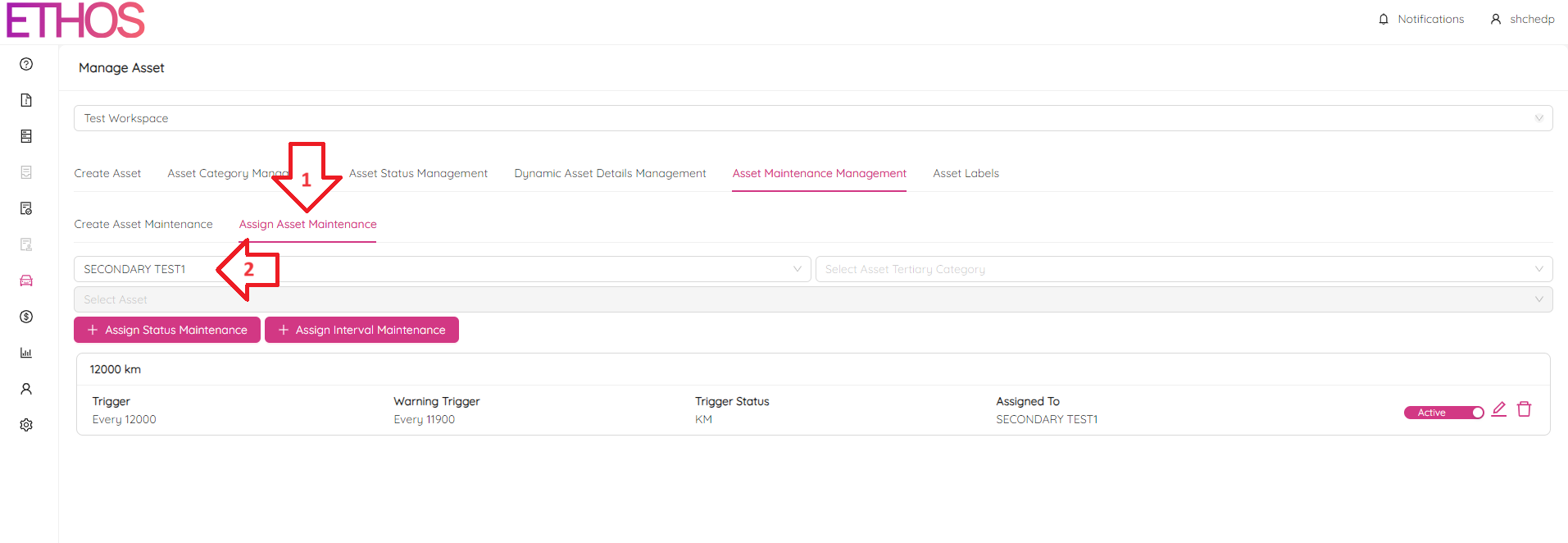
You can assign maintenance based on time intervals or status values.
Status Based Maintenance
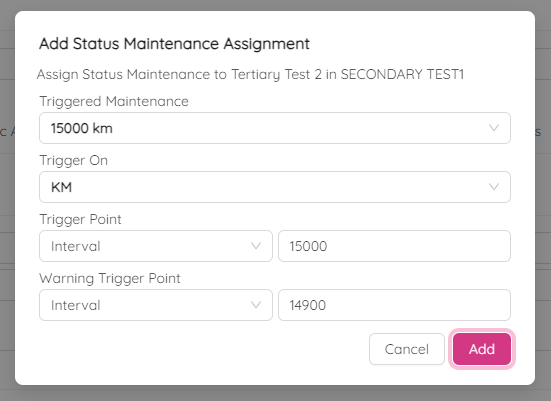
4.1 Click + Assign Status Maintenance and choose the maintenance created in step 2. After that, set the trigger condition (i.e. KM) and trigger/warning point (i.e. 14900 for maintenance every 15000 km). Hit Add to confirm.
Interval Based Maintenance
4.2. Click on the + Assign Interval Maintenance button and choose the maintenance created at step 2. After that, set the trigger and warning interval (like every year). Confirm by clicking Add.
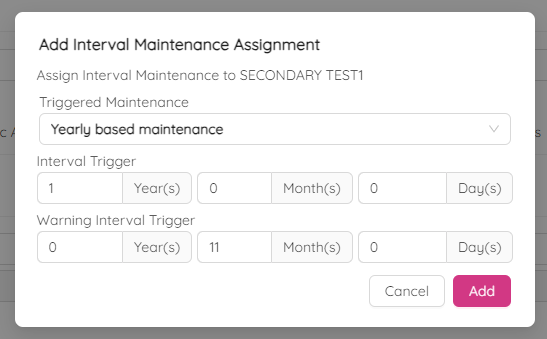
NOTE: Fill in all time fields to enable the Add button. For example, if you prefer yearly intervals, set 1 for Year(s) and 0 for Month(s) and Day(s).
The maintenance clock starts from the assignment date and resets after maintenance is marked as completed. For instance, if you chose a yearly maintenance schedule, the next one will be due in a year from the current date.
Edit Asset Maintenance Assignment
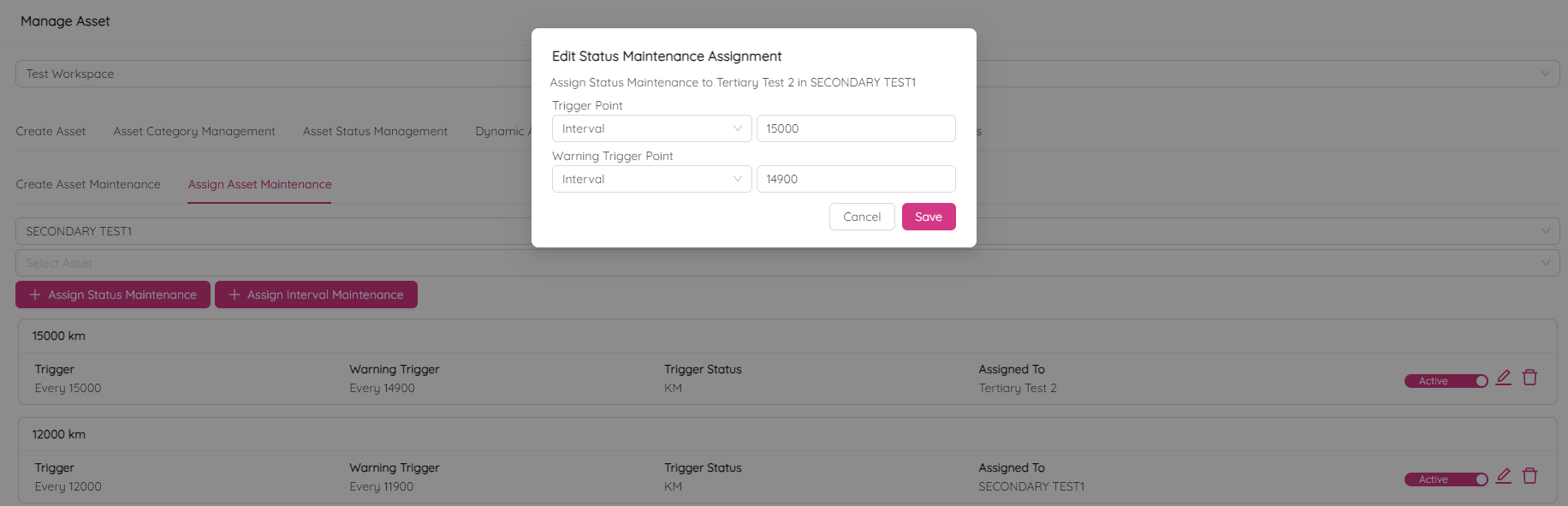
To edit trigger point or warning trigger point for previously assigned asset maintenance go to Assign Asset Maintenance sub-tab under Asset Maintenance Management tab. Then, click on the icon next to the desired assignment to make changes and hit Save button to confirm.
Delete Asset Maintenance Assignment
To delete previously assigned asset maintenance go to Assign Asset Maintenance sub-tab under Asset Maintenance Management tab. Then, click on the  icon next to the desired assignment to remove it from all assets it was assigned to.
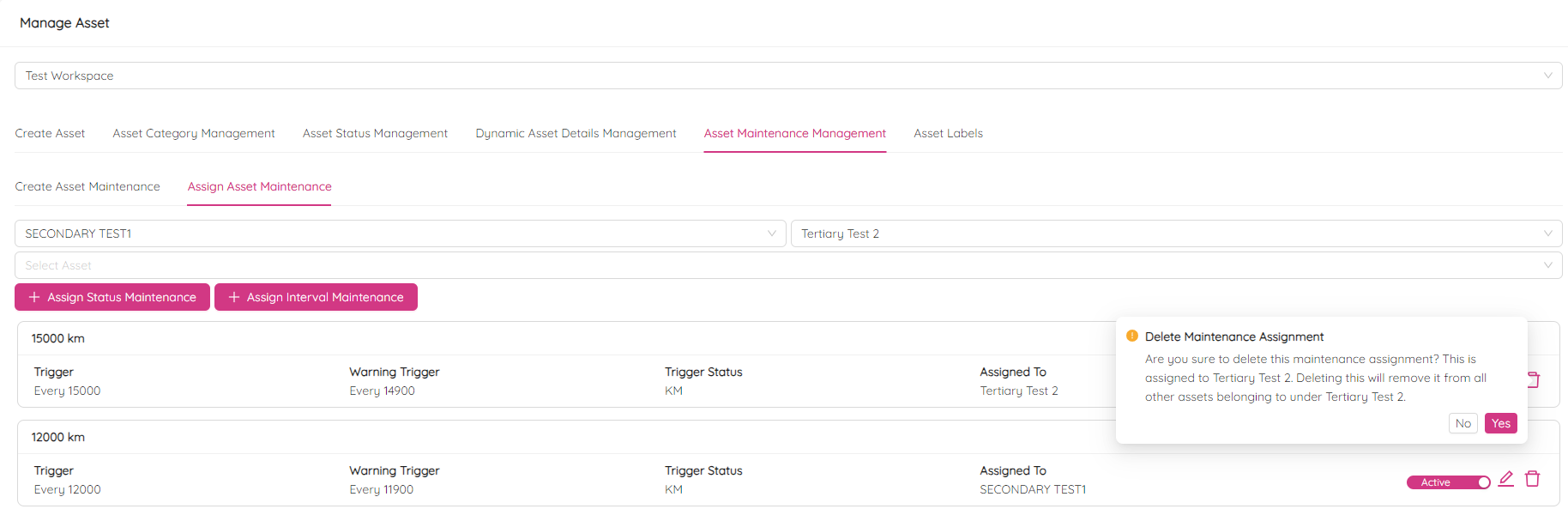
Hit Yes to confirm.